> ## Documentation Index
> Fetch the complete documentation index at: https://docs.examin8.com/llms.txt
> Use this file to discover all available pages before exploring further.
# Manual Mode
> If your question paper needs too much customization like ordering of questions, sections and grouping questions, you should use manual mode.
### **Step 1: Create a New Paper**
1. **Navigate to Exams**: Go to the **“Exams”** section.
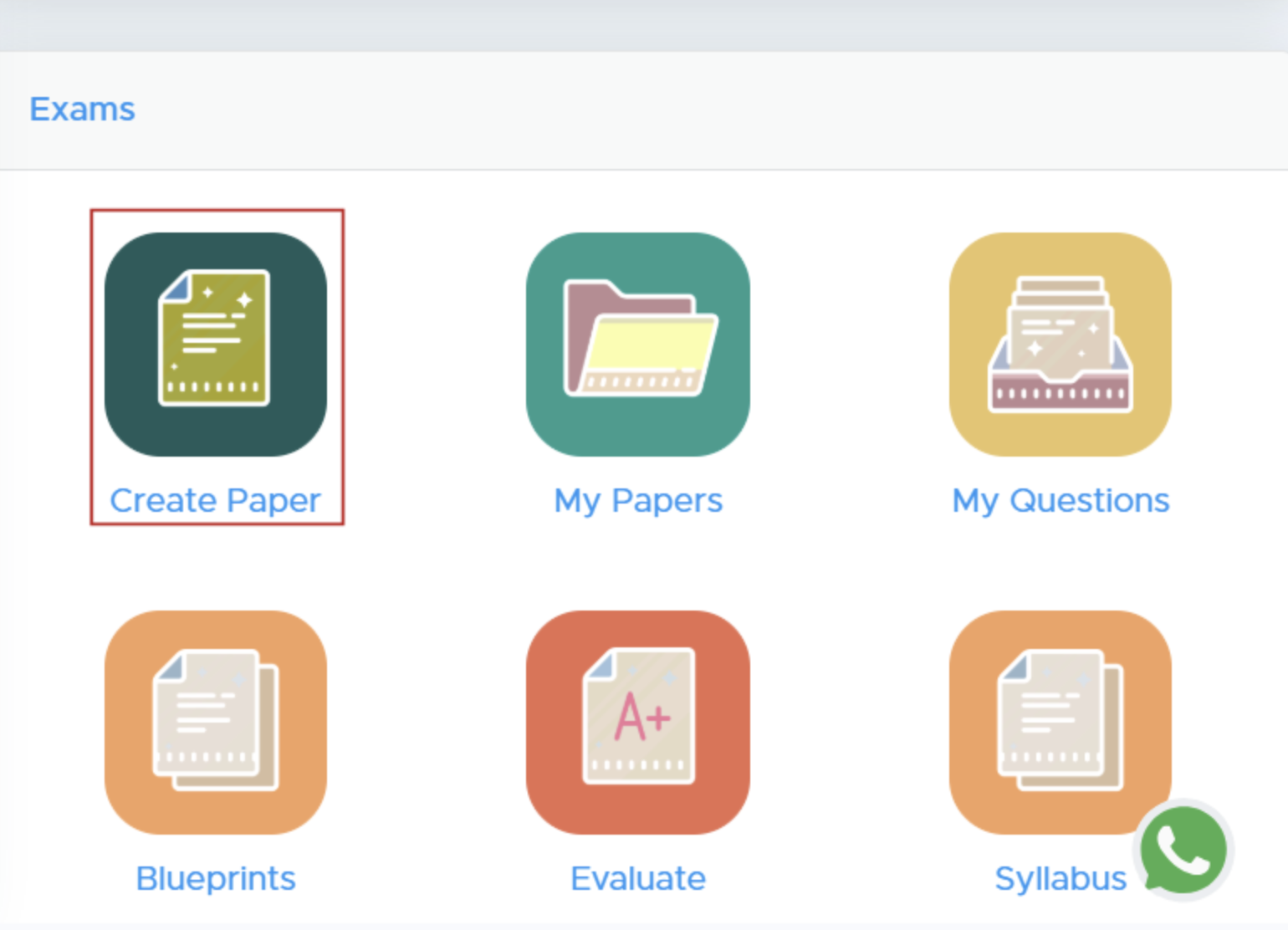 2. **Select ‘Create Paper’**: Click on the **'Create Paper'** button. New users must add their institute name.
### **Step 2: Select Class and Subject**
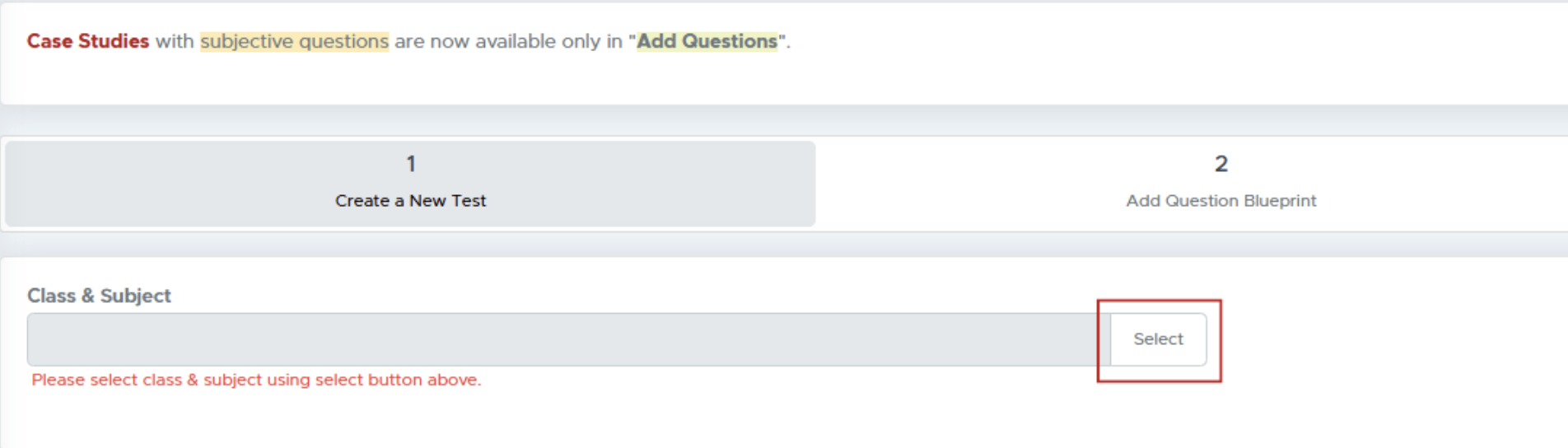
1. **Choose Class and Subject**: Click on the **“Select”** button to pick the class and subject for your test paper.
2. **Select ‘Create Paper’**: Click on the **'Create Paper'** button. New users must add their institute name.
### **Step 2: Select Class and Subject**
1. **Choose Class and Subject**: Click on the **“Select”** button to pick the class and subject for your test paper.
 ### **Step 3: Specify Course and Subject**
1. **Module Selection**: Choose from available modules (e.g., CBSE, ICSE).
2. **Select Course**: Choose the relevant course for the test.
3. **Competitive Exams**: If applicable, select the specific exam type and whether to create a single or multiple subject paper.
### **Step 4: Configure Test Paper Settings**
1. **Source Selection**: Choose your question source (e.g., All Questions or NCERT Textbook).
2. **Test Paper Type**: Decide the format (Question Paper, Worksheet, etc.).
3. **Blueprint Mode**: Select how to structure your test.
### **Step 5: Customize Paper Details**
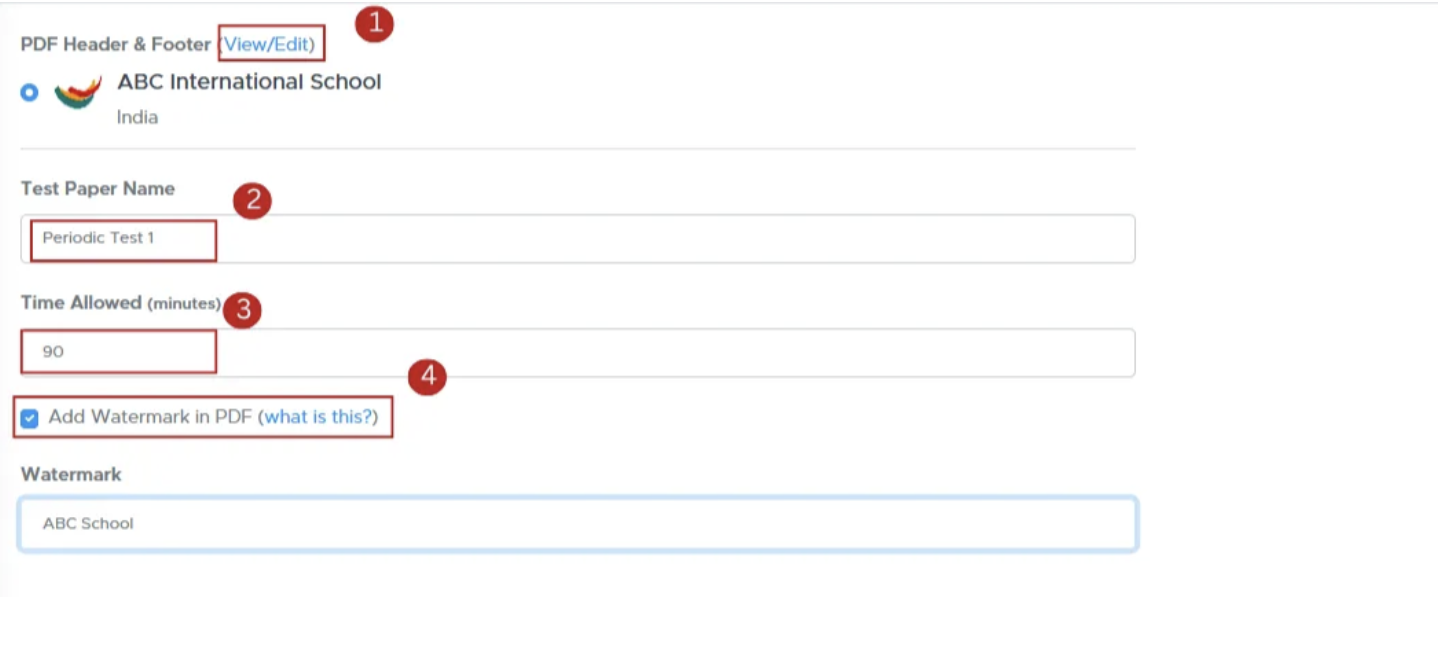
1. **Edit Header and Footer**: Modify your logo and header/footer text.
2. **Test Paper Name**: Enter the name for the test paper.
3. **Time Allowed**: Specify the duration for the test.
4. **Watermark and Marks**: Choose to add a watermark and show marks alongside each question.
### **Step 3: Specify Course and Subject**
1. **Module Selection**: Choose from available modules (e.g., CBSE, ICSE).
2. **Select Course**: Choose the relevant course for the test.
3. **Competitive Exams**: If applicable, select the specific exam type and whether to create a single or multiple subject paper.
### **Step 4: Configure Test Paper Settings**
1. **Source Selection**: Choose your question source (e.g., All Questions or NCERT Textbook).
2. **Test Paper Type**: Decide the format (Question Paper, Worksheet, etc.).
3. **Blueprint Mode**: Select how to structure your test.
### **Step 5: Customize Paper Details**
1. **Edit Header and Footer**: Modify your logo and header/footer text.
2. **Test Paper Name**: Enter the name for the test paper.
3. **Time Allowed**: Specify the duration for the test.
4. **Watermark and Marks**: Choose to add a watermark and show marks alongside each question.
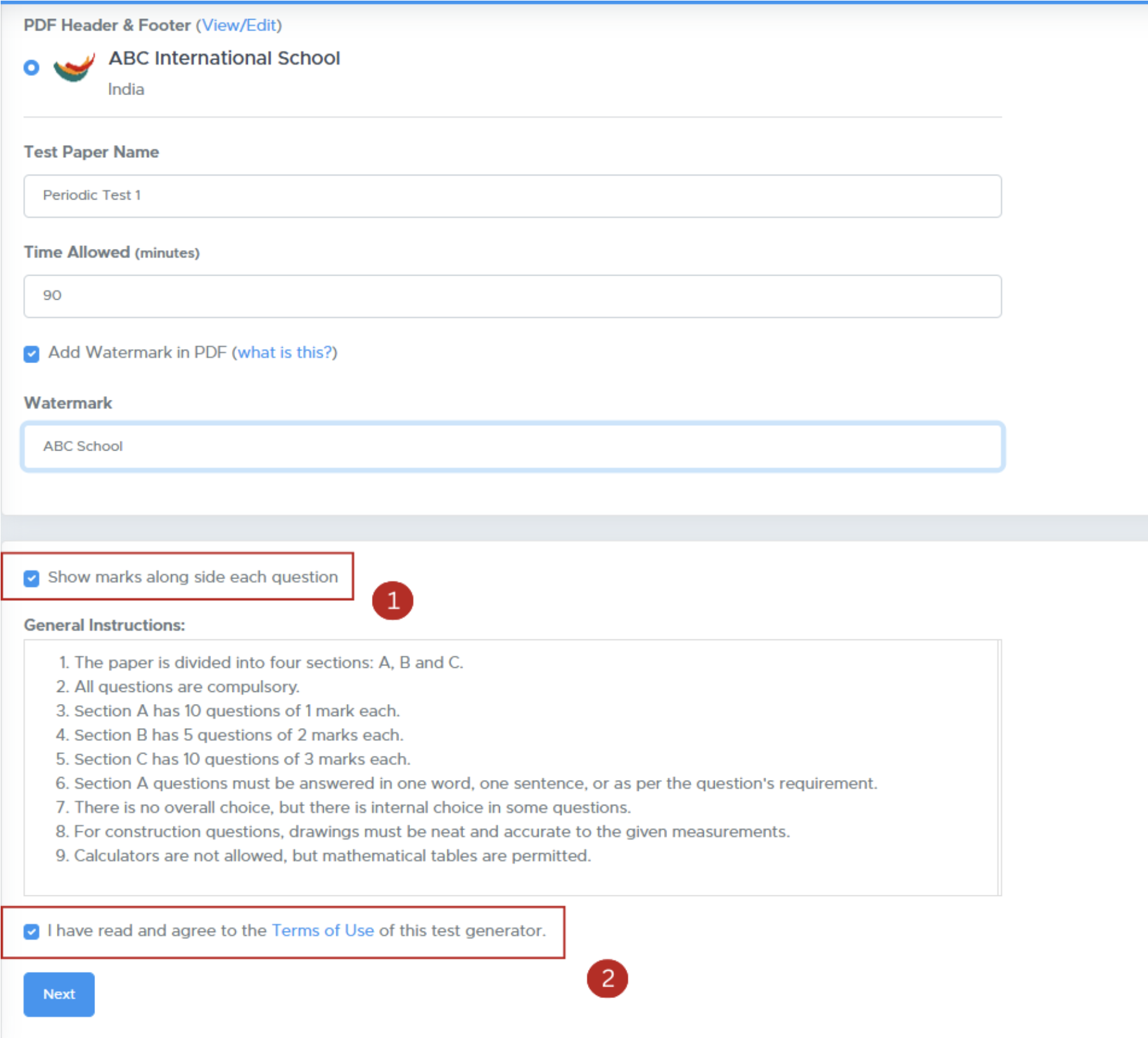
 5. **Specify additional settings:**
* Show marks alongside each question.
* Add general instructions.
6. Accept the **Terms of Use** checkbox and proceed by clicking **Next**.
5. **Specify additional settings:**
* Show marks alongside each question.
* Add general instructions.
6. Accept the **Terms of Use** checkbox and proceed by clicking **Next**.
 ### **Step 6: Add Questions**
**Add a Section**: Divide your paper into sections based on your requirements.
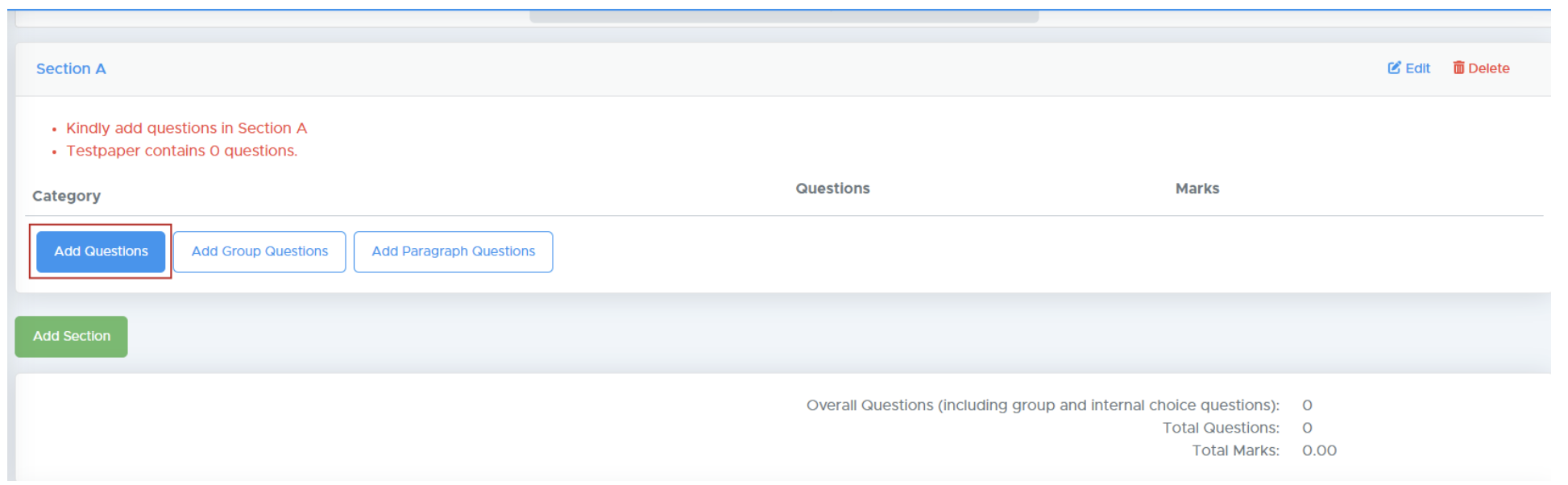
* **Add Question**: Add individual questions to the section.
### **Step 6: Add Questions**
**Add a Section**: Divide your paper into sections based on your requirements.
* **Add Question**: Add individual questions to the section.
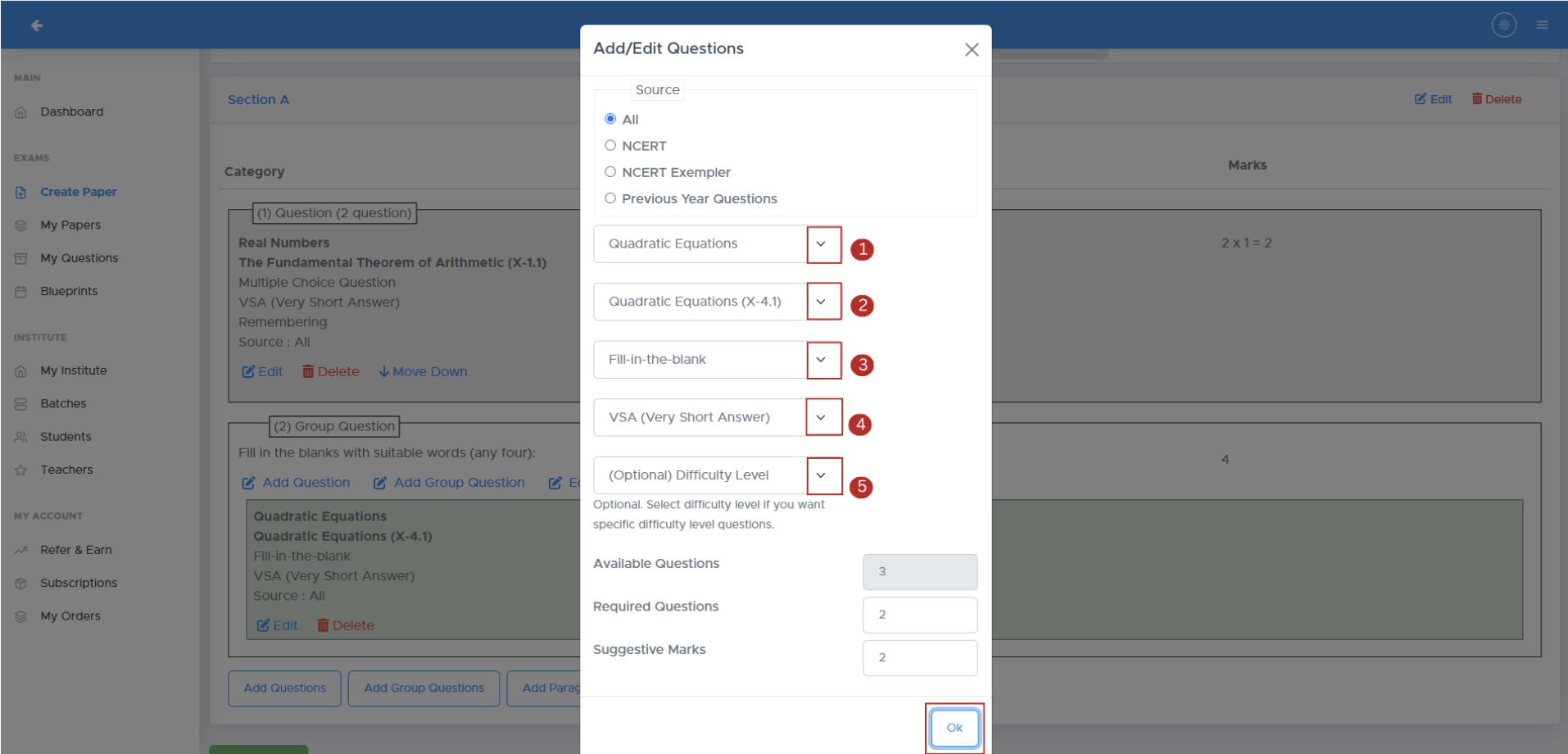
 1. Select **Chapter**
2. Select **Topic**
3. Select **Question Type**
4. Select **Weightage**
5. Select **Difficulty Level** and **Required Questions**
1. Select **Chapter**
2. Select **Topic**
3. Select **Question Type**
4. Select **Weightage**
5. Select **Difficulty Level** and **Required Questions**
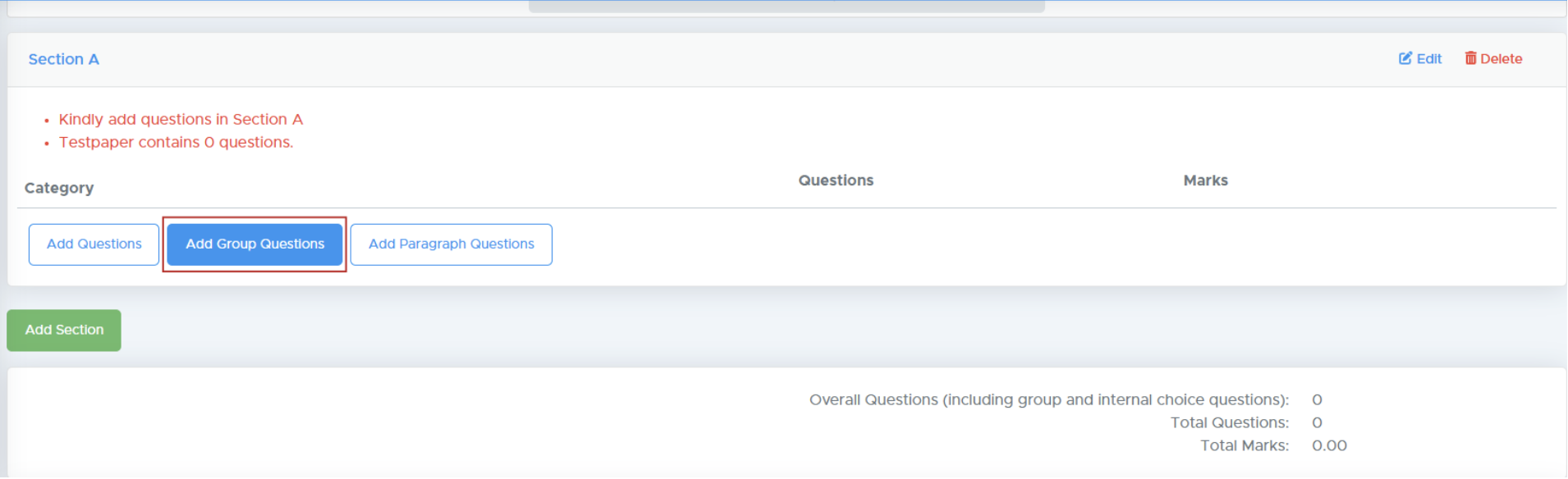
 * **Add Group Question**: Add a set of related questions grouped under a common Question text
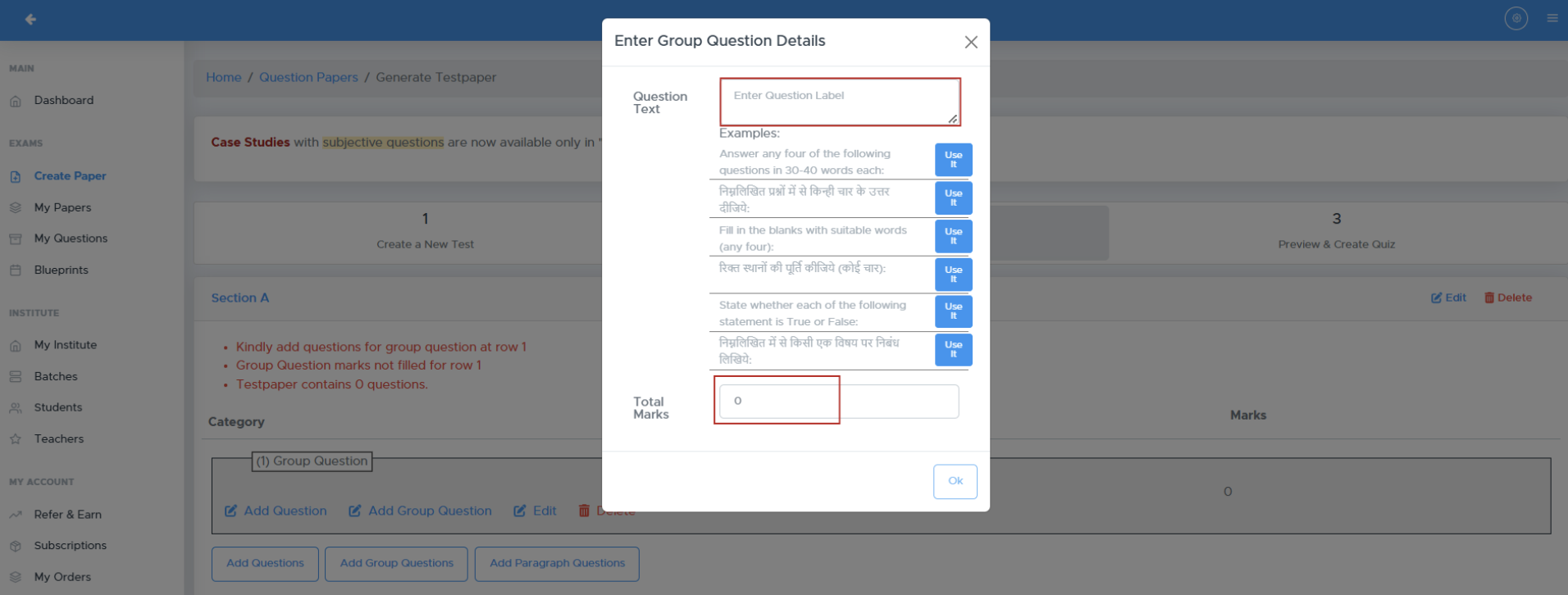
 1. Enter **Question Text**
2. Enter **Total Marks**
1. Enter **Question Text**
2. Enter **Total Marks**
 * **Paragraph Question**: Add a question based on a paragraph, where students are required to answer based on the provided text.
Select the appropriate category to customize your question paper according to your requirements."
### **Step 7: Final Review and Generation**
Click on **Refresh** to proceed.
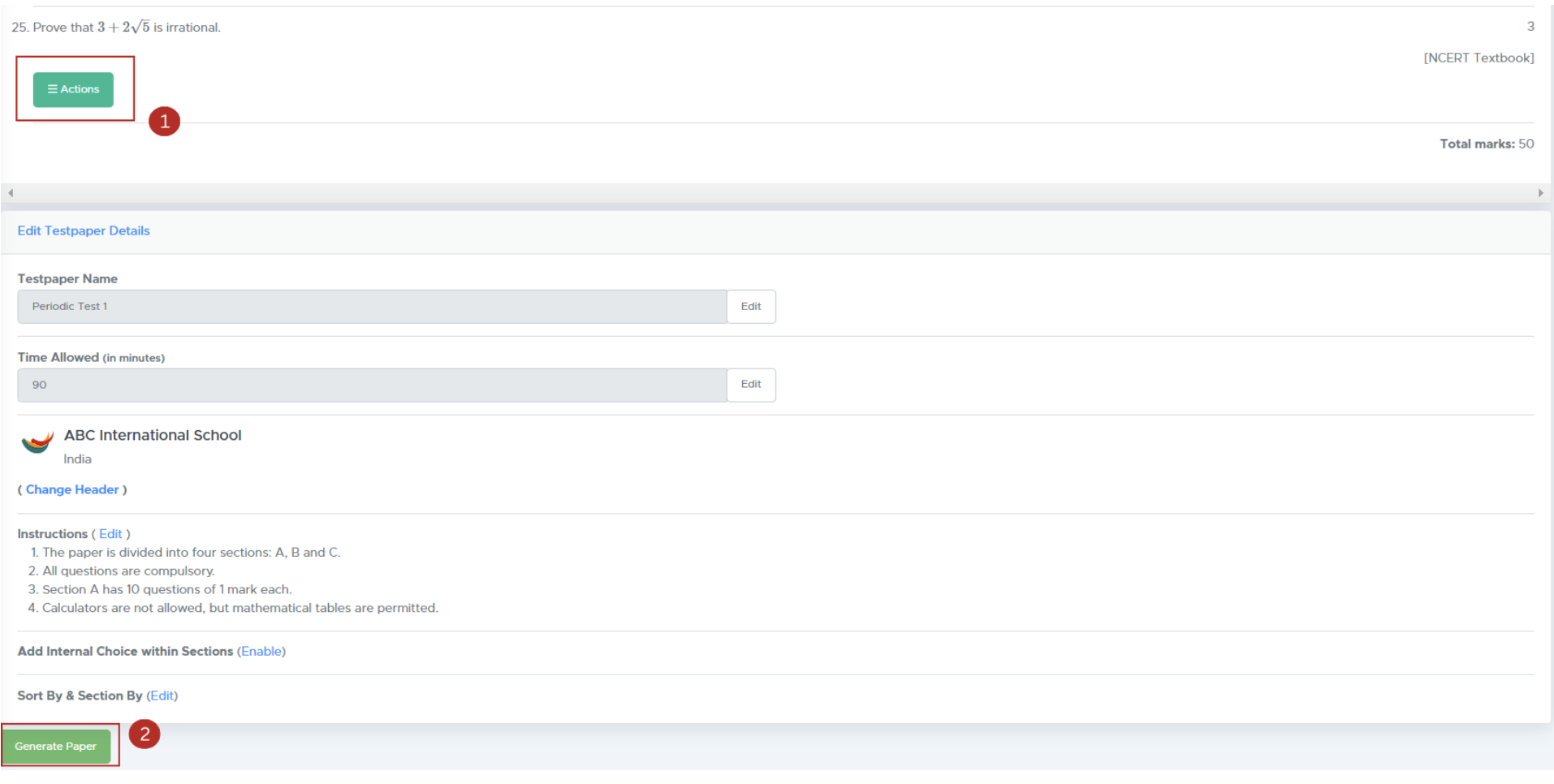
1. Use the **Actions** button to replace or reorder questions. If you want to include internal choices within a section, Tick the checkbox labeled **"Add Internal Choice Within Sections"**
2. **Generate Paper**: Click **'Generate Paper'** to finalize your test paper.
* **Paragraph Question**: Add a question based on a paragraph, where students are required to answer based on the provided text.
Select the appropriate category to customize your question paper according to your requirements."
### **Step 7: Final Review and Generation**
Click on **Refresh** to proceed.
1. Use the **Actions** button to replace or reorder questions. If you want to include internal choices within a section, Tick the checkbox labeled **"Add Internal Choice Within Sections"**
2. **Generate Paper**: Click **'Generate Paper'** to finalize your test paper.
 ### **Step 8: Download Your Test Paper**
1. **Access Your Paper**: After generation, you’ll be directed to the **'My Paper'** page.
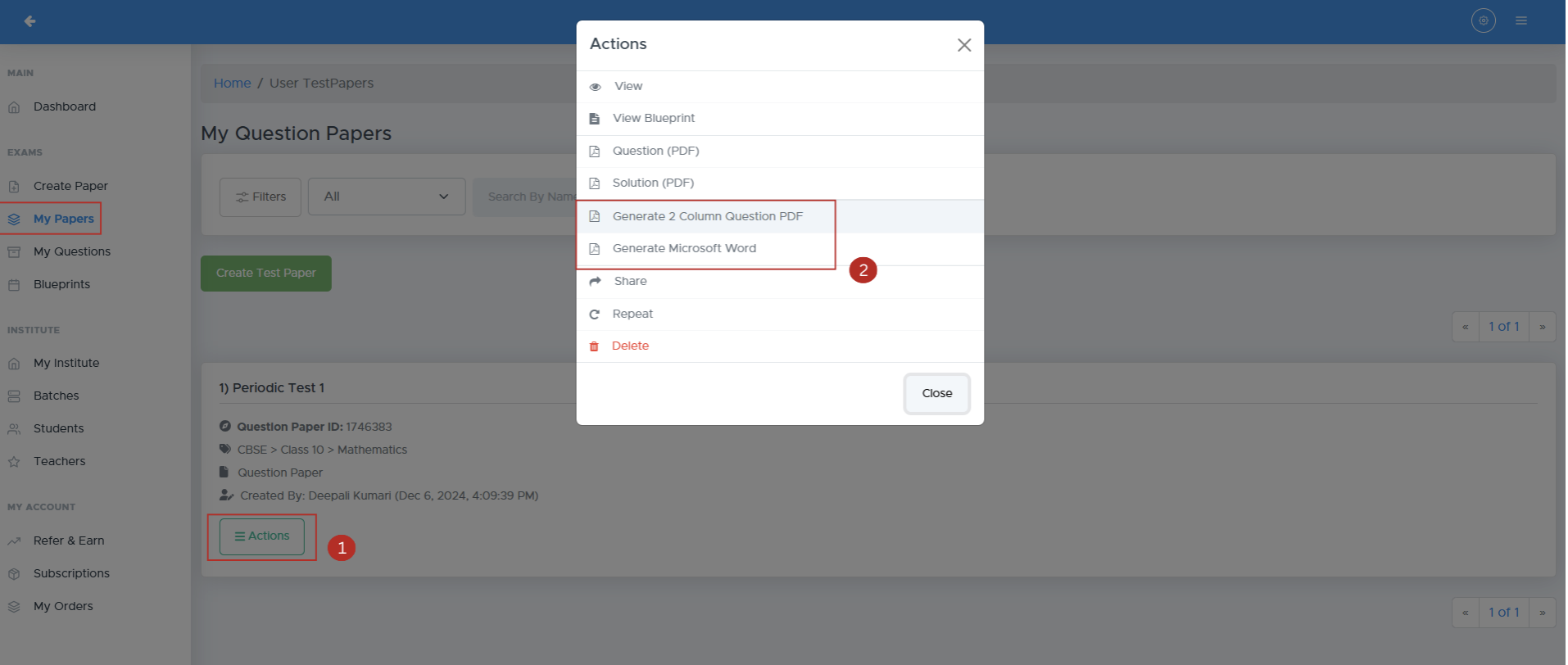
2. **Download Format**: Click the **Actions** button to download as .doc (Word) or .pdf.
### **Step 8: Download Your Test Paper**
1. **Access Your Paper**: After generation, you’ll be directed to the **'My Paper'** page.
2. **Download Format**: Click the **Actions** button to download as .doc (Word) or .pdf.
 ## **FAQs**
### **Q: Can I create a paper with questions from multiple subjects?**
A: Yes, you can select the "Multiple Subjects" option when creating a paper for competitive exams.
### **Q: How can I reorder questions in a section?**
A: Use the "Action" button next to each question to rearrange or replace questions.
### **Q: What if I make a mistake in the template details?**
A: You can edit the template details at any stage before generating the paper.
## **Contact Support**
For assistance, please reach out to our support team:
* **Email**: [contact@examin8.com](mailto:contact@examin8.com)
* **Phone**: +91-9213522769, +91-8448425258
## **FAQs**
### **Q: Can I create a paper with questions from multiple subjects?**
A: Yes, you can select the "Multiple Subjects" option when creating a paper for competitive exams.
### **Q: How can I reorder questions in a section?**
A: Use the "Action" button next to each question to rearrange or replace questions.
### **Q: What if I make a mistake in the template details?**
A: You can edit the template details at any stage before generating the paper.
## **Contact Support**
For assistance, please reach out to our support team:
* **Email**: [contact@examin8.com](mailto:contact@examin8.com)
* **Phone**: +91-9213522769, +91-8448425258