> ## Documentation Index
> Fetch the complete documentation index at: https://docs.examin8.com/llms.txt
> Use this file to discover all available pages before exploring further.
# Online Exam - Student
> This guide will walk students through the available methods for attempting online exams on Examin8. Tests can be accessed through web.examin8.com using Google Chrome or any modern browser, or taken directly within the Examin8 mobile application. For those who prefer enhanced security and controlled access during the assessment, the Safe Exam Browser option is also supported. The following sections will help you understand each mode and choose the one that best fits your exam requirements.
## Exam Types
There are three primary formats available for conducting exams online.
1. Online Test (Objective) Link
2. Online Test (Subjective) Link
3. Online Test (PDF) File
**Comparision Table**
| **Tests** | **Objective (link)** | **Subjective (link)** | **PDF (file)** |
| :------------------------ | :----------------------------------------------------------------- | :--------------------------------------------------------------------------------------------------------------------------------------------------- | :----------------------------------------------------------------------------------------------------------------------- |
| **Question Types** | Online test with only objective-type questions. | May include both objective and descriptive (subjective) questions. | A PDF file is shared as an online test. |
| **How to Attempt** | Attempt online using a mobile phone, laptop, or desktop. | Attempt online using a mobile phone, laptop, or desktop. | A download link is provided for the PDF question paper. Students write answers offline in their notebooks. |
| **How to Submit** | Students select answers online and submit when completed. | Detailed answers must be written in a notebook and uploaded as an image *for each question*. Objective questions can be answered directly on screen. | All answers are written on paper, then scanned or clicked and compiled as a *single PDF* to upload. |
| **How to Evaluate** | Automatically evaluated by the system. | Objective responses are auto-checked. Subjective answers must be evaluated manually by the teacher before publishing the final result. | The teacher downloads the submitted PDF, checks it using annotation tools, and re-uploads one evaluated PDF per student. |
| **How to Get the Result** | Results are generated automatically as per the teacher’s settings. | After teacher review, results are processed and released by the software. | Students can download their evaluated answer PDF to view the result. |
## Type of Test Links
There are **two types of test links** available: batch-assigned exams and open-link tests that are not tied to any batch.
### **(a) Test Assigned to Batch**
If a test is assigned to a batch, access is restricted to the students included in that batch. You’ll need a valid login ID and password or a registered mobile number provided by the institute to enter the exam.
**Test Link**: All batch-assigned exams can be accessed through a single universal link, regardless of class, subject, batch, or test name. Simply visit [**web.examin8.com**](http://web.examin8.com) to begin.
### **(b) Direct Test Link (without Batch)**
You can sign in using any email address or mobile number to begin. Once the test link is opened, you’ll be prompted to choose whether you’d like to attempt the exam through a web browser or the mobile app.
**Test Link**: When a test is shared through a direct link (without being assigned to a batch), a unique link is generated for each exam. These links are publicly accessible, meaning anyone who has the URL can open the test and log in using any email address or mobile number.
## How to Attempt the Test
There are multiple ways to attempt online tests. You can access them on normal web browsers, Safe Exam Browser and the Examin8 mobile app.
### (1) Normal Web Browser
If the institute hasn’t limited access to Safe Exam Browser, the test can be opened through any standard browser, including Google Chrome, Firefox, Edge, or Safari.
**(a) Direct Test Link**: Just click the link and it will open automatically in your default browser. From there, sign in using your email address or mobile number to start the test. You may also choose **Sign in with Google** for a quicker login and then click **Take Test**.
**(b) Test Assigned to Batch**: Here are the steps to follow:
* Open [https://web.examin8.com](https://web.examin8.com) on any web browser.
* Sign in using the exact credentials registered with your institute or the ones they have provided for accessing this batch. Logging in with any other email address or mobile number will prevent you from entering the exam.
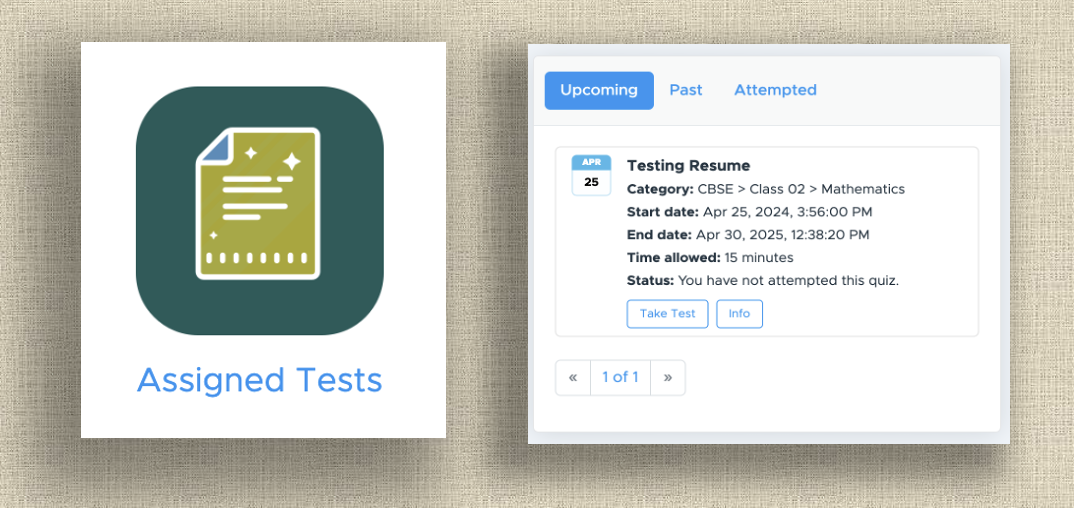
* Go to the **Assigned Test** link and then click **Take Test**.
 **Important Guidelines**
* For the best experience, use **Google Chrome** to attempt the test. Ensure that the browser is updated to its latest version before you begin.
* Maintain a **stable internet connection** throughout the exam to avoid interruptions.
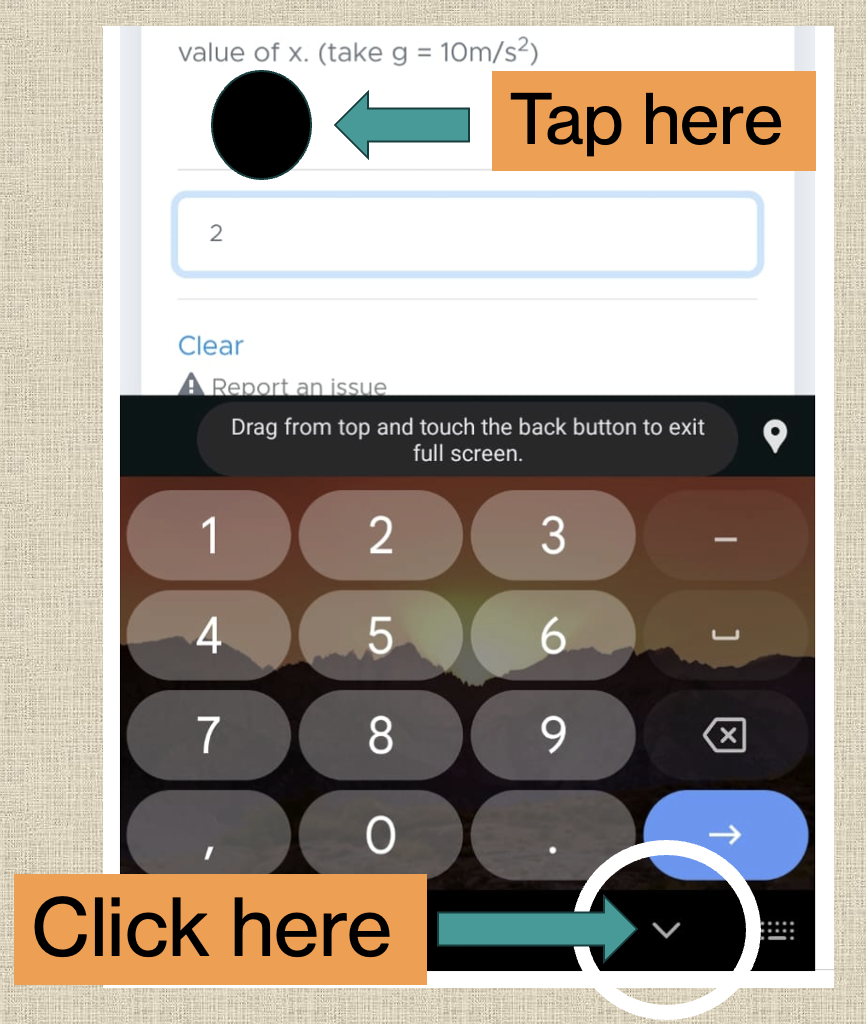
* While entering values for **numerical questions**, your keyboard may cover the *Save & Next* button. After typing your answer, either\
**(a)** tap anywhere on the screen, or\
**(b)** press the *down arrow* to return.\
Avoid any other action, as it may navigate you out of the test.
**Important Guidelines**
* For the best experience, use **Google Chrome** to attempt the test. Ensure that the browser is updated to its latest version before you begin.
* Maintain a **stable internet connection** throughout the exam to avoid interruptions.
* While entering values for **numerical questions**, your keyboard may cover the *Save & Next* button. After typing your answer, either\
**(a)** tap anywhere on the screen, or\
**(b)** press the *down arrow* to return.\
Avoid any other action, as it may navigate you out of the test.
 * If your test gets submitted unintentionally, **inform the invigilator immediately.** They may allow you to reattempt depending on the institute's policy.
* The system tracks how many times you move away from the test and displays this information to the institute along with your results.
* Before final submission, you’ll see a summary of **attempted and unattempted questions.** If anything looks incorrect, review and complete pending questions before submitting.
* You may use the **Review** option to check progress, revisit questions, or jump to a specific section or question number.
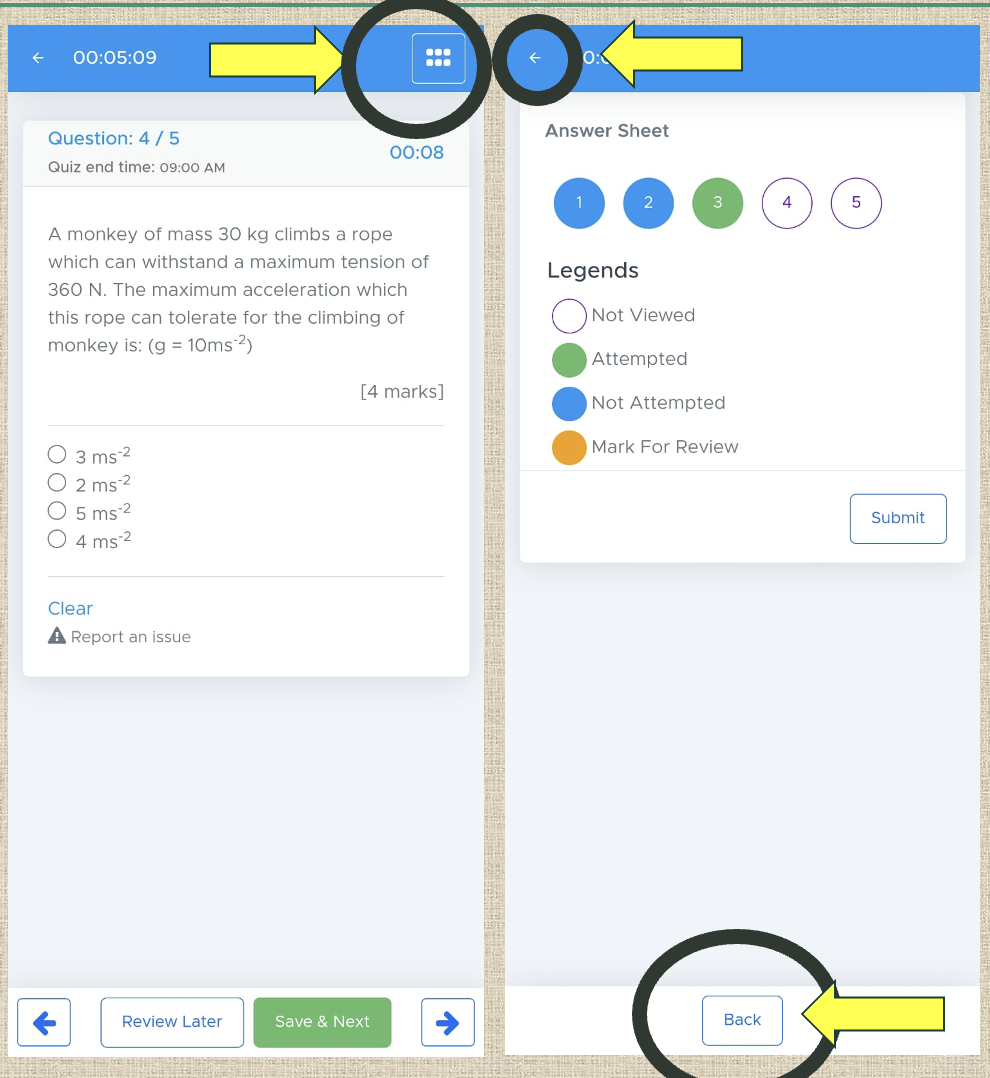
* To review questions, tap the **three-dot menu** in the top right corner. To return, use the **back arrow** in the blue header or the **back button** below. Any other action may cause you to exit the test unintentionally.
* If your test gets submitted unintentionally, **inform the invigilator immediately.** They may allow you to reattempt depending on the institute's policy.
* The system tracks how many times you move away from the test and displays this information to the institute along with your results.
* Before final submission, you’ll see a summary of **attempted and unattempted questions.** If anything looks incorrect, review and complete pending questions before submitting.
* You may use the **Review** option to check progress, revisit questions, or jump to a specific section or question number.
* To review questions, tap the **three-dot menu** in the top right corner. To return, use the **back arrow** in the blue header or the **back button** below. Any other action may cause you to exit the test unintentionally.
 ### (2) Safe Exam Browser
Safe Exam Browser (SEB) is a specially developed secure testing environment used to conduct online examinations with maximum integrity. It locks down the device during the test so students cannot switch apps, open new tabs, search for answers, take screenshots, or access external software or files. Once the exam begins, the system restricts navigation and limits the device to the exam window only.
SEB uses a controlled browser interface, custom security settings, and various configuration options that institutions can apply, such as:
* Disabling tab switching, app switching, and background navigation
* Blocking shortcuts like copy, paste, minimize, or screen capture
* Restricting access to other websites, applications, files, or external devices
* Running tests in full-screen mode with no exit option unless allowed by the administrator
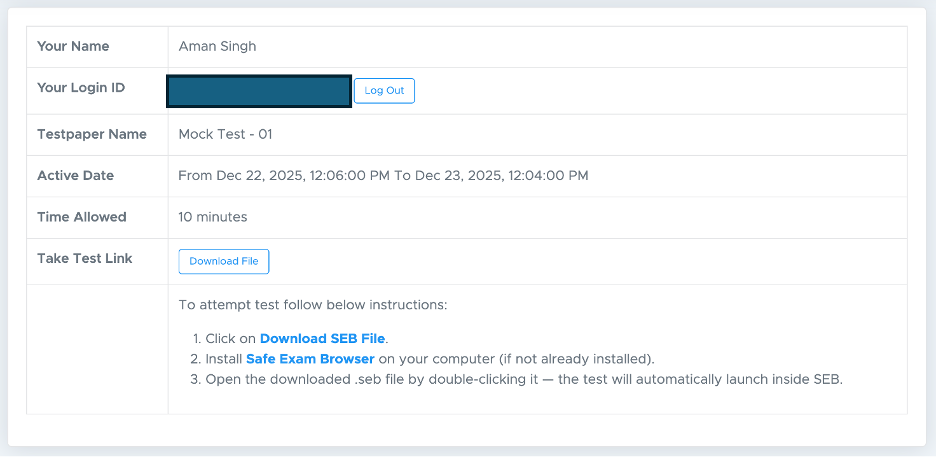
First of all, you need to download and install **Safe Exam Browser** on your computer (if not already installed). Then open the downloaded .seb file by double-clicking it — the test will automatically launch inside SEB.
👉 Safe Exam Browser: [Download Link](https://safeexambrowser.org/download_en.html)
**How to attempt the test on SEB?**
**(a) Direct Test Link**
Just click the link and it will open automatically in your default browser. From there, sign in using your email address or mobile number to start the test. You may also choose **Sign in with Google** for a quicker login and then click **Download File**. Open the .seb file by double-clicking it — the test will automatically launch inside SEB. All other instructions are the same as for a normal browser.
### (2) Safe Exam Browser
Safe Exam Browser (SEB) is a specially developed secure testing environment used to conduct online examinations with maximum integrity. It locks down the device during the test so students cannot switch apps, open new tabs, search for answers, take screenshots, or access external software or files. Once the exam begins, the system restricts navigation and limits the device to the exam window only.
SEB uses a controlled browser interface, custom security settings, and various configuration options that institutions can apply, such as:
* Disabling tab switching, app switching, and background navigation
* Blocking shortcuts like copy, paste, minimize, or screen capture
* Restricting access to other websites, applications, files, or external devices
* Running tests in full-screen mode with no exit option unless allowed by the administrator
First of all, you need to download and install **Safe Exam Browser** on your computer (if not already installed). Then open the downloaded .seb file by double-clicking it — the test will automatically launch inside SEB.
👉 Safe Exam Browser: [Download Link](https://safeexambrowser.org/download_en.html)
**How to attempt the test on SEB?**
**(a) Direct Test Link**
Just click the link and it will open automatically in your default browser. From there, sign in using your email address or mobile number to start the test. You may also choose **Sign in with Google** for a quicker login and then click **Download File**. Open the .seb file by double-clicking it — the test will automatically launch inside SEB. All other instructions are the same as for a normal browser.
 **(b) Test Assigned to Batch**
Here are the steps to follow:
* Open [https://web.examin8.com](https://web.examin8.com) on any web browser.
* Sign in using the exact credentials registered with your institute or the ones they have provided for accessing this batch. Logging in with any other email address or mobile number will prevent you from entering the exam.
* Go to the **Assigned Test** link and then click **Download SEB file**.
**(b) Test Assigned to Batch**
Here are the steps to follow:
* Open [https://web.examin8.com](https://web.examin8.com) on any web browser.
* Sign in using the exact credentials registered with your institute or the ones they have provided for accessing this batch. Logging in with any other email address or mobile number will prevent you from entering the exam.
* Go to the **Assigned Test** link and then click **Download SEB file**.
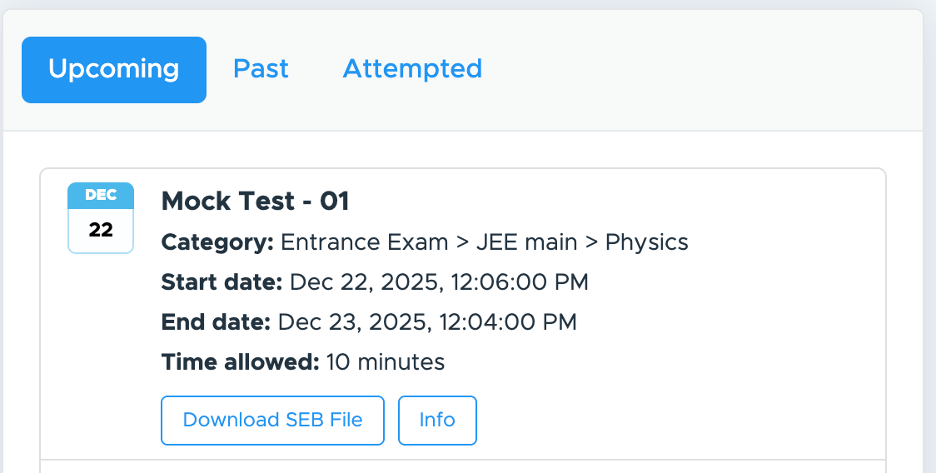 * Now, download the file and open the .seb file by double-clicking it — the test will automatically launch inside SEB. All other instructions are the same as for a normal browser.
### (3) Examin8 App
Examin8 App is an Android application available on the Google Play Store, designed to offer a controlled and secure environment for online examinations. During the test, students are required to keep **Aeroplane Mode enabled**, ensuring no access to other apps, messages, or online resources that could be used to search for answers. Enabling Wi-Fi, switching to mobile data or disabling Aeroplane Mode triggers strict restrictions.
If a student turns on internet access or attempts to open external applications during the exam, the system immediately **auto-submits the test**, and access to unanswered questions is revoked. This mechanism ensures fair conduct, prevents cheating, and maintains exam integrity even without a fully locked browser environment.
The app is lightweight, user-friendly, and optimized for smooth performance across Android devices, making it a reliable option for institutes conducting secure mobile-based examinations.
**(a) Direct Test Link**: The test shared without a batch doesn't work on the Examin8 App. You will get the option to attempt it on a web browser or the Safe Exam Browser only.
**(b) Test Assigned to Batch**: Here are the steps to follow:
* Ensure that the [Examin8 App](https://play.google.com/store/apps/details?id=com.examin8.exam) is updated to its latest version before starting your test.
* You must have at least **100 MB of free space** on your device to download the test.
* **Keep your internet ON** and open the Examin8 App.
* Sign in using the exact credentials registered with your institute or the ones they have provided for accessing this batch. Logging in with any other email address or mobile number will prevent you from entering the exam.
* Go to the **Assigned Test** link and then click **Take Test**.
* After you click the Take Test button, the test will be downloaded onto your device. After that, you will get a pop-up to enable offline mode.
* Now, download the file and open the .seb file by double-clicking it — the test will automatically launch inside SEB. All other instructions are the same as for a normal browser.
### (3) Examin8 App
Examin8 App is an Android application available on the Google Play Store, designed to offer a controlled and secure environment for online examinations. During the test, students are required to keep **Aeroplane Mode enabled**, ensuring no access to other apps, messages, or online resources that could be used to search for answers. Enabling Wi-Fi, switching to mobile data or disabling Aeroplane Mode triggers strict restrictions.
If a student turns on internet access or attempts to open external applications during the exam, the system immediately **auto-submits the test**, and access to unanswered questions is revoked. This mechanism ensures fair conduct, prevents cheating, and maintains exam integrity even without a fully locked browser environment.
The app is lightweight, user-friendly, and optimized for smooth performance across Android devices, making it a reliable option for institutes conducting secure mobile-based examinations.
**(a) Direct Test Link**: The test shared without a batch doesn't work on the Examin8 App. You will get the option to attempt it on a web browser or the Safe Exam Browser only.
**(b) Test Assigned to Batch**: Here are the steps to follow:
* Ensure that the [Examin8 App](https://play.google.com/store/apps/details?id=com.examin8.exam) is updated to its latest version before starting your test.
* You must have at least **100 MB of free space** on your device to download the test.
* **Keep your internet ON** and open the Examin8 App.
* Sign in using the exact credentials registered with your institute or the ones they have provided for accessing this batch. Logging in with any other email address or mobile number will prevent you from entering the exam.
* Go to the **Assigned Test** link and then click **Take Test**.
* After you click the Take Test button, the test will be downloaded onto your device. After that, you will get a pop-up to enable offline mode.
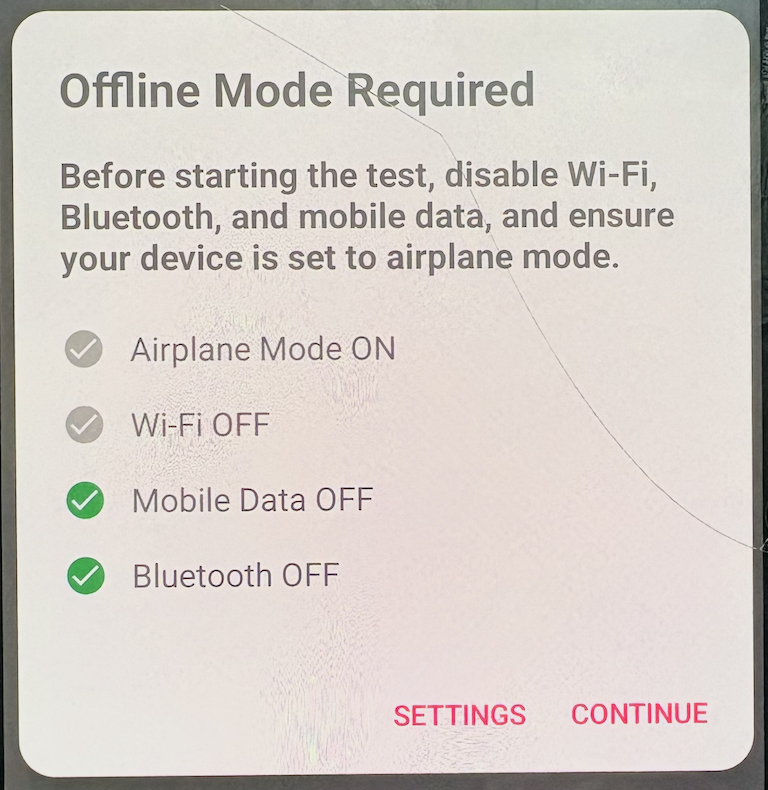 * Here, you have to put your phone on Aeroplane mode until the test is going on. If you turn on internet access during the exam, the system will block further attempts and only allow you to submit the test, leaving no option to continue answering questions.
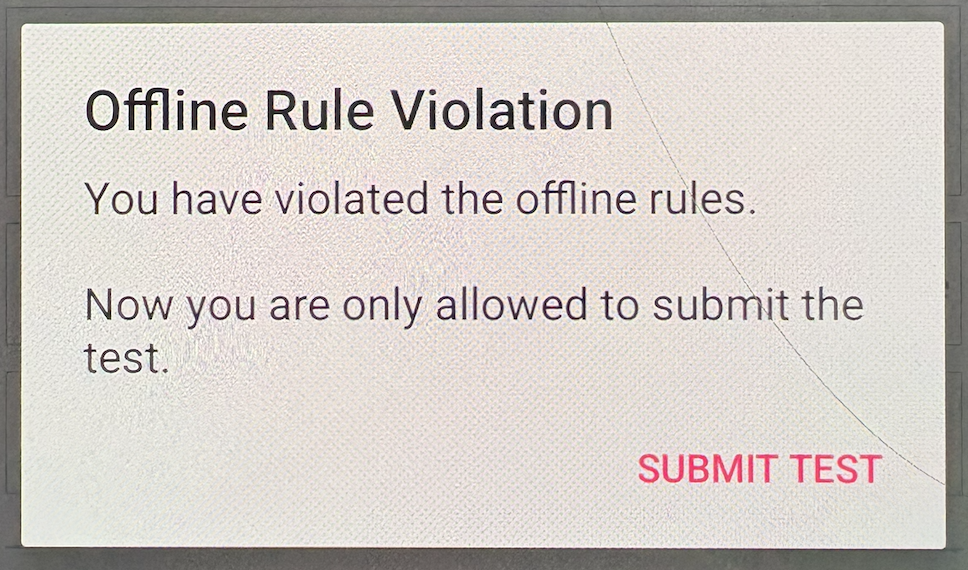 * If it happens accidentally, you can SUBMIT the test and then ask your institute to DELETE your attempt. So that you can attempt it again.
* In this situation, **Allow Re-Attempt will not function**. You must first submit the test, after which your institute can delete the attempt and enable you to retake it. However, this means all previously answered questions will be lost, and you will have to start the entire test from the beginning.
* After successfully submitting the test, you must upload it to receive your results. Submission alone is not enough; uploading is a mandatory step.
* To upload the test, you need to turn off Aeroplane Mode and enable your internet connection. Once connected, click on **Upload Test**.
* If it happens accidentally, you can SUBMIT the test and then ask your institute to DELETE your attempt. So that you can attempt it again.
* In this situation, **Allow Re-Attempt will not function**. You must first submit the test, after which your institute can delete the attempt and enable you to retake it. However, this means all previously answered questions will be lost, and you will have to start the entire test from the beginning.
* After successfully submitting the test, you must upload it to receive your results. Submission alone is not enough; uploading is a mandatory step.
* To upload the test, you need to turn off Aeroplane Mode and enable your internet connection. Once connected, click on **Upload Test**.
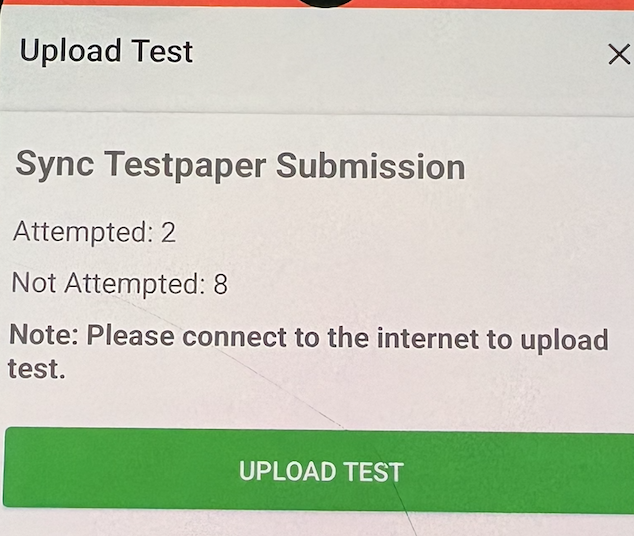 * Your data will be synced with the server, and your result will be provided according to the institute’s configured settings.
## How to Get Results
Once a student submits the test, they are automatically taken to the results page. Depending on the institute’s chosen settings, the results will be displayed there. Students can revisit the same link at any time to view their results again.
* Your data will be synced with the server, and your result will be provided according to the institute’s configured settings.
## How to Get Results
Once a student submits the test, they are automatically taken to the results page. Depending on the institute’s chosen settings, the results will be displayed there. Students can revisit the same link at any time to view their results again.
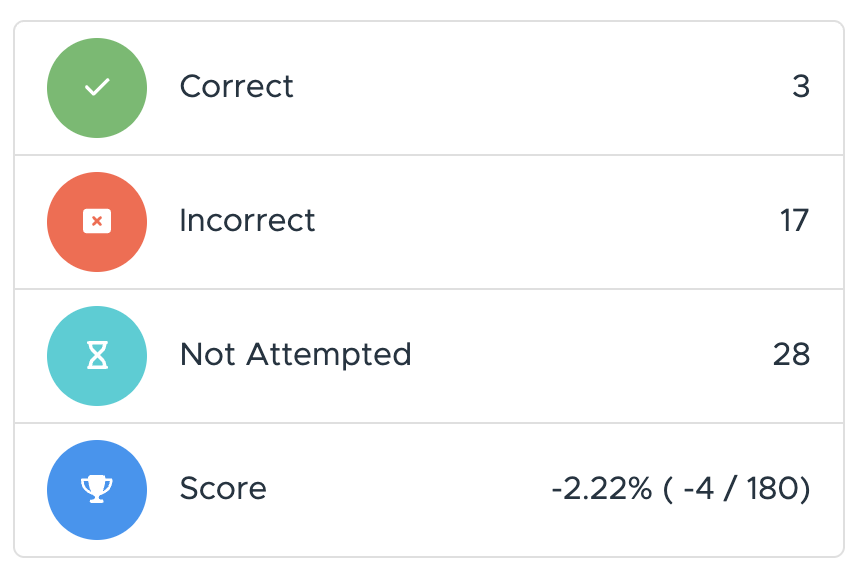
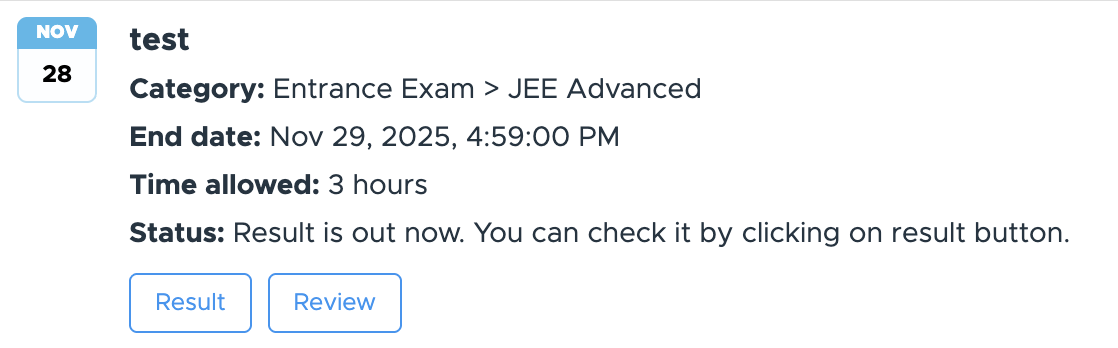 You’ll be able to see your overall result along with a breakdown of each section.
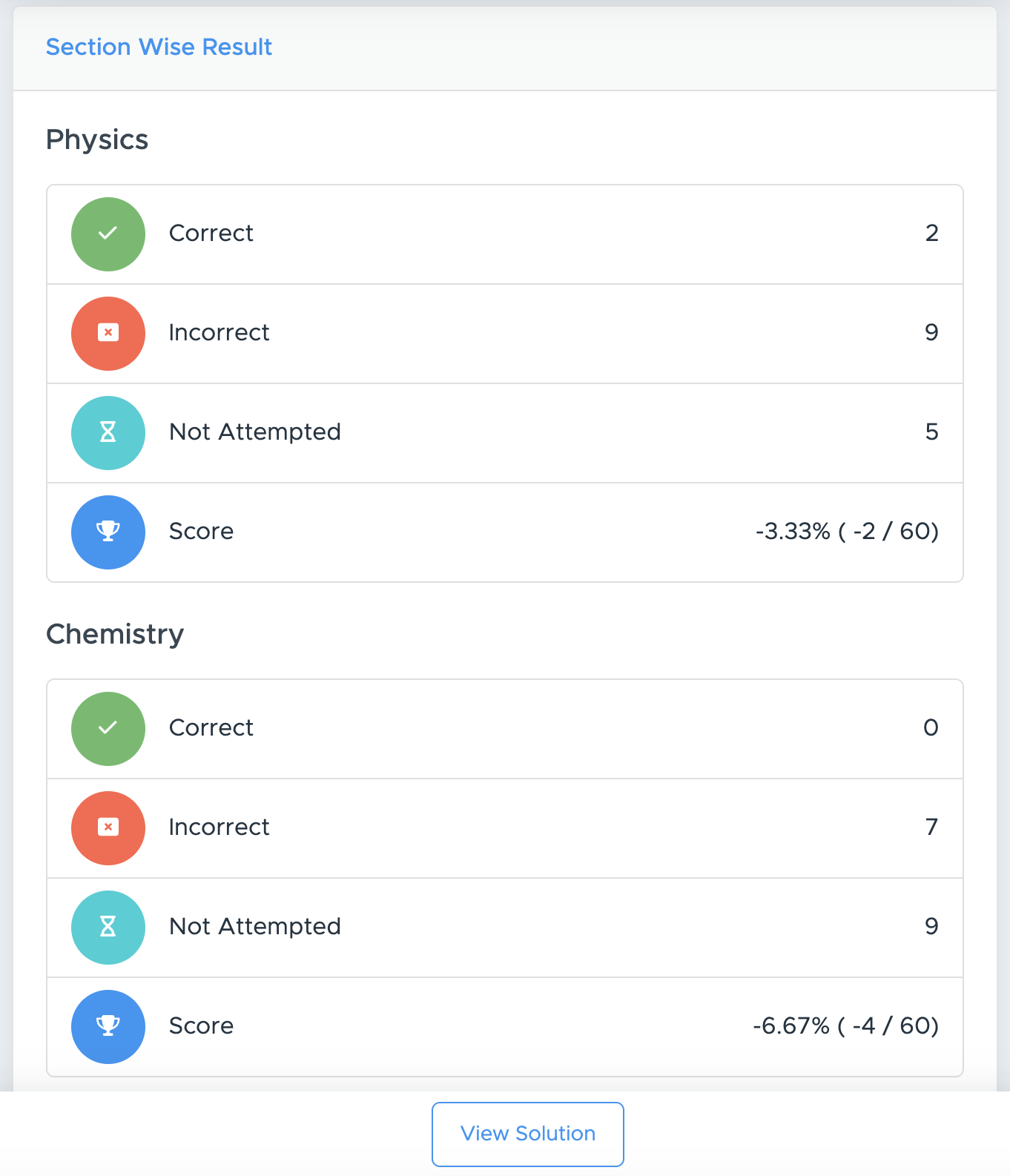 **Review questions**: You'll also be able to review your responses along with step-by-step solutions for every question—simply select **View Solution** or **Review** to open them.
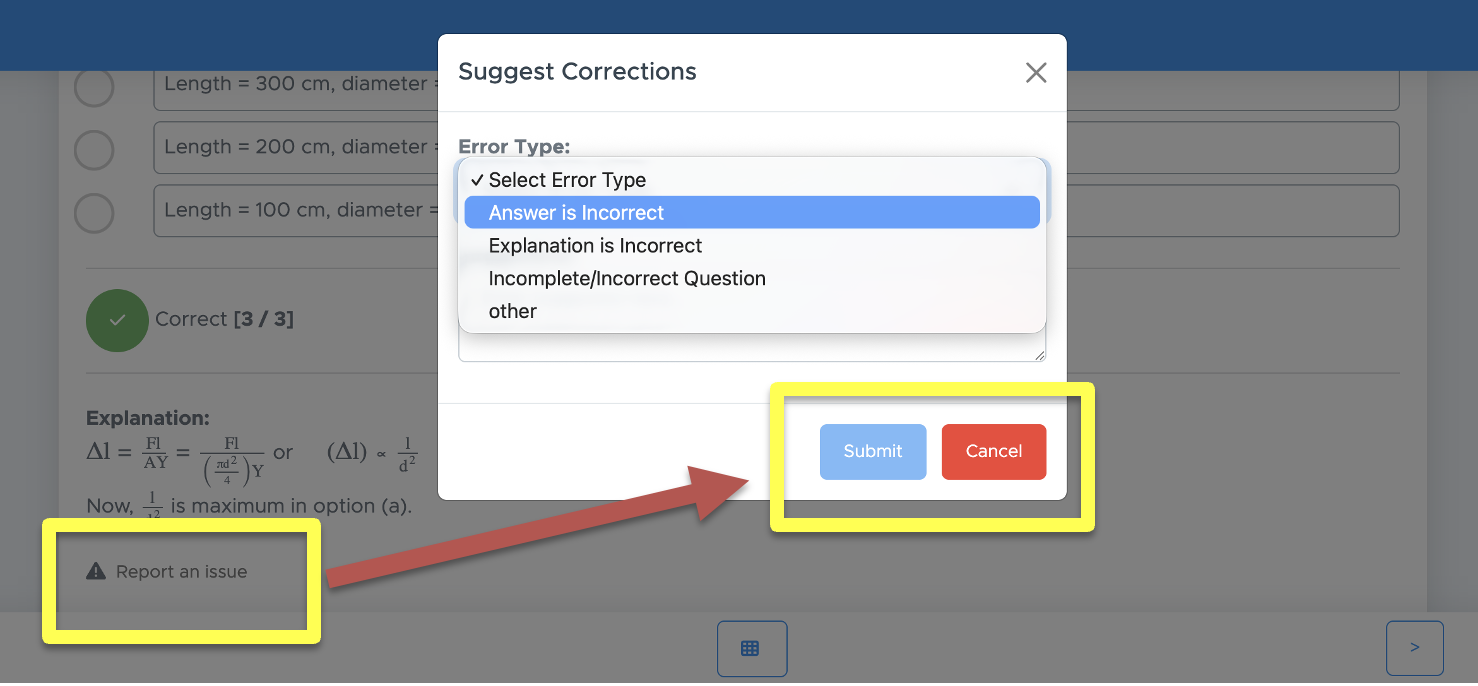
**Report questions**: If you notice anything unclear, incorrect, or incomplete in a question or answer, please let our content team know.
**Review questions**: You'll also be able to review your responses along with step-by-step solutions for every question—simply select **View Solution** or **Review** to open them.
**Report questions**: If you notice anything unclear, incorrect, or incomplete in a question or answer, please let our content team know.
 If you have been added to any batch, you can log in directly to [https://web.examin8.com](https://web.examin8.com) to access your result and performance analysis at any time.