> ## Documentation Index
> Fetch the complete documentation index at: https://docs.examin8.com/llms.txt
> Use this file to discover all available pages before exploring further.
# Quickstart
> Create account and upload your name and logo.
**Examin8 Test Generator** is available as both an **Android app (**[**Examin8 App**](https://play.google.com/store/apps/details?id=com.examin8.exam)) and a web platform at [https://examin8.com](https://examin8.com). Both versions offer the same user interface and features for a seamless experience across devices.
## Get started in two steps
Setup your institute/school/coaching center details and start creating testpaper in minutes.
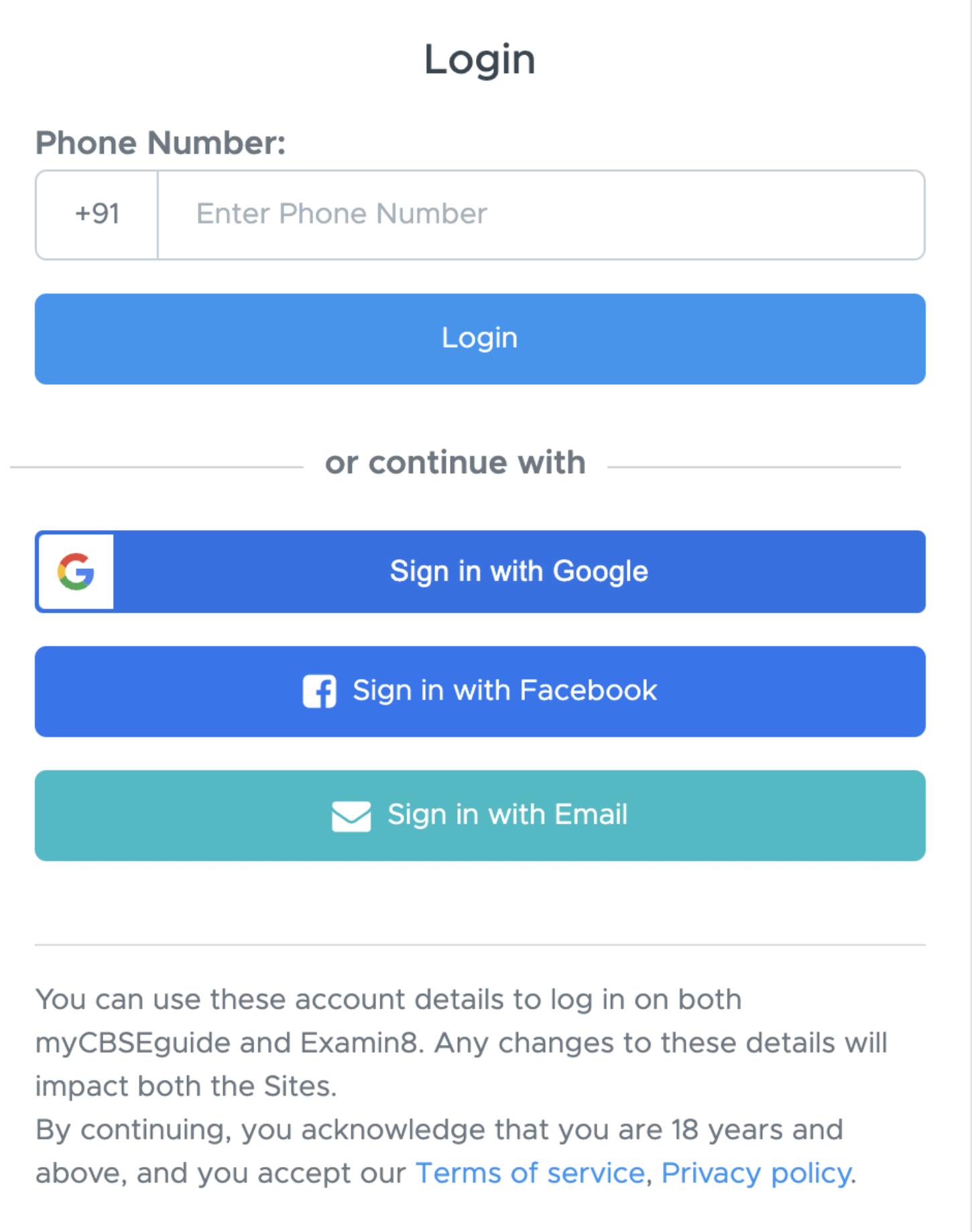
### Step 1: Login to Examin8
Download the [Examin8 App](https://play.google.com/store/apps/details?id=com.examin8.exam) or access the website [examin8.com](http://examin8.com) and click [**Start Now**](https://app.examin8.com/).
If you are using android phone, we recommend downloading the [Examin8 App](https://play.google.com/store/apps/details?id=com.examin8.exam). iPhone users can access the website [examin8.com](http://examin8.com) in Safari or Chome browser.
We support below methods for login.
* Phone number (recommended)
* Google
* Facebook
* Email
If you want to create a new account with your email ID, click **Sign in with Email** and then click **Sign up**.
We recommend login with phone number as it is easier and faster to login with OTP. No need to remember login email/password.
 ### Step 2: Create Paper
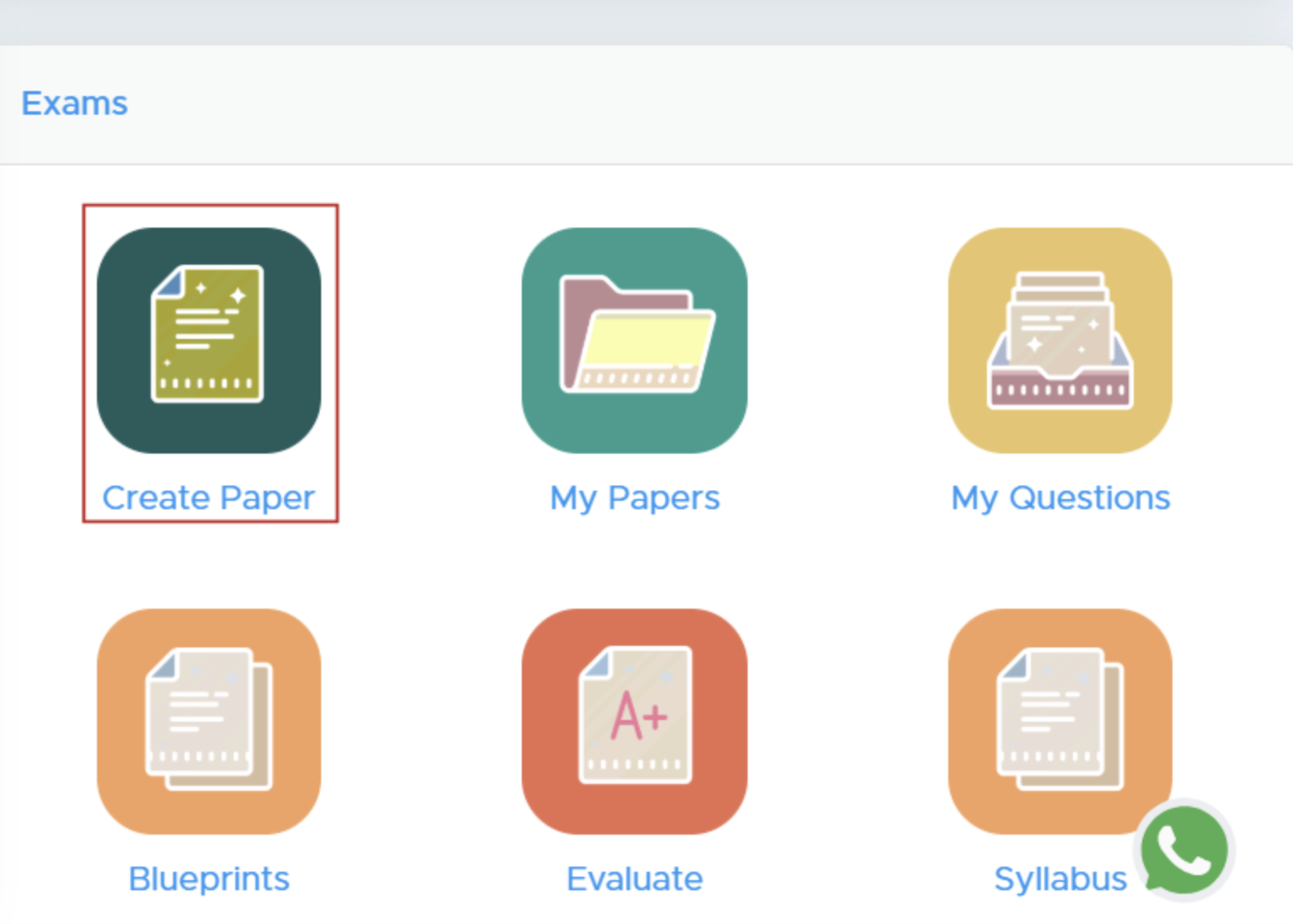
Go to **Exams** section and click **Create Paper.**
### Step 2: Create Paper
Go to **Exams** section and click **Create Paper.**
 If you are creating the paper for the first time, you will be redirected to a page to complete onboarding.
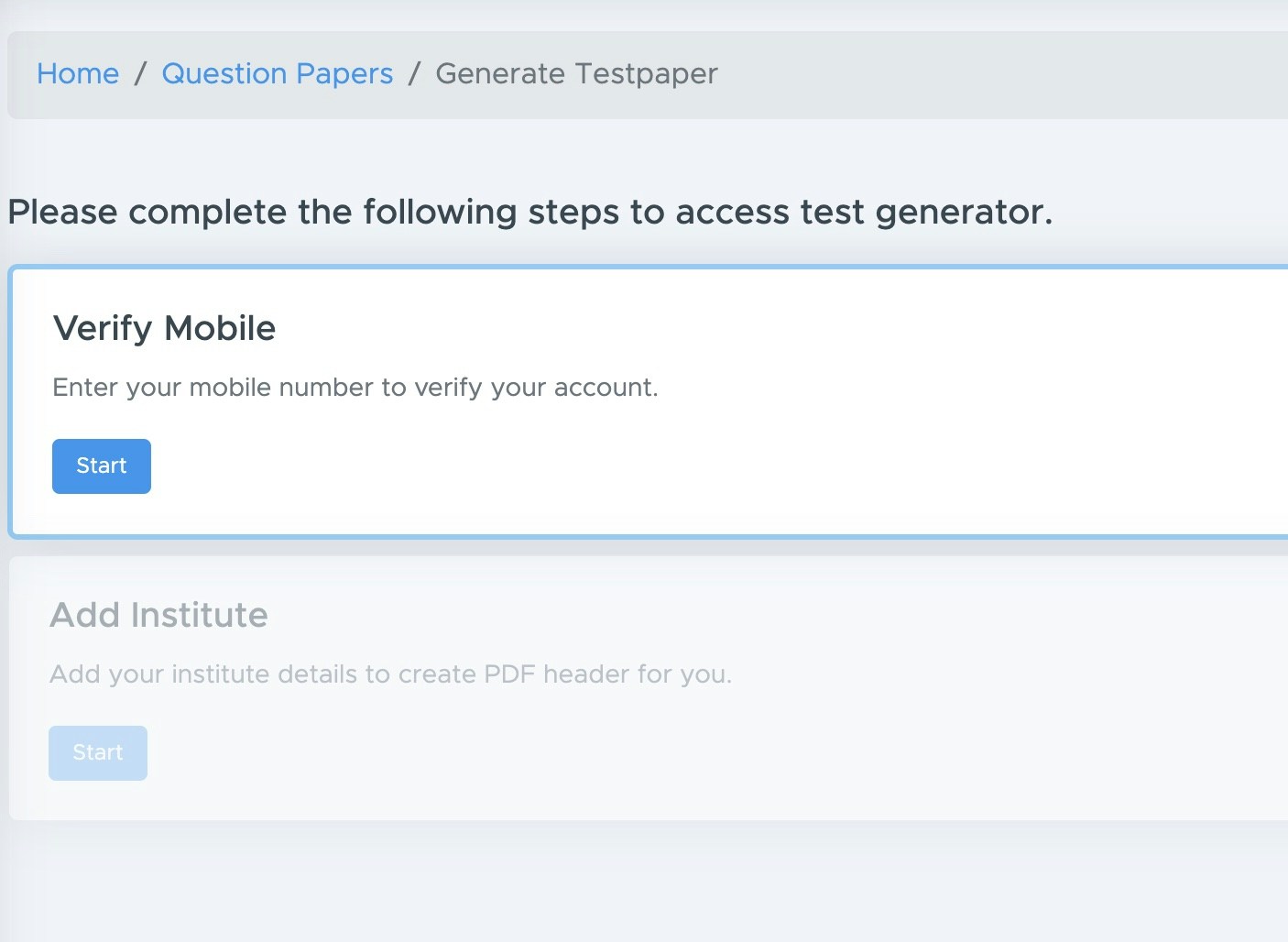 Verify phone number if you haven't already done.
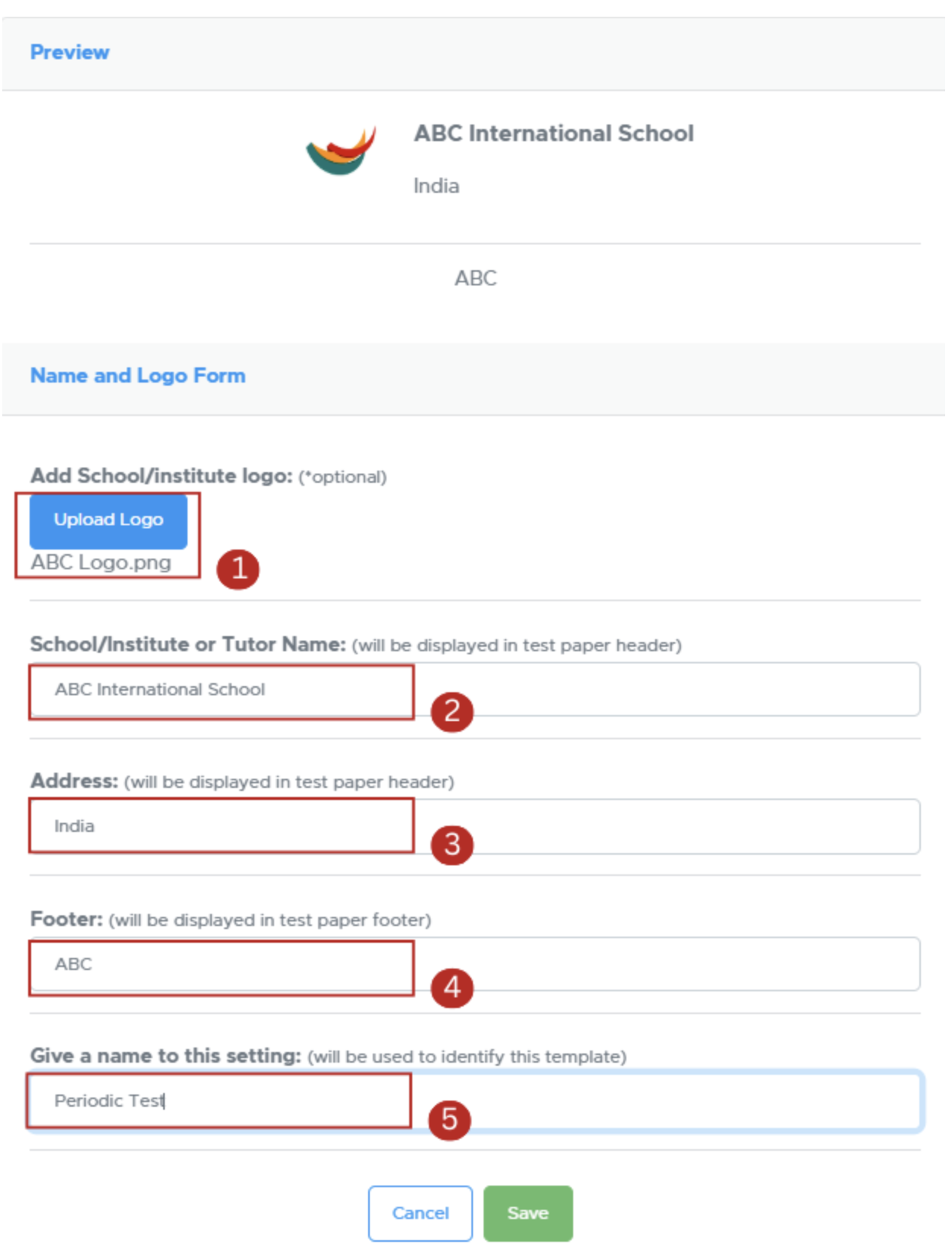
After this, you will be prompted to update institute details.
1. **Upload Logo**: Ensure your logo is in .jpg or .png format.
2. **Institute Name**: Enter your institution's name.
3. **Address**: Provide the full address of your institution.
4. **Footer Text**: Add any desired footer text.
5. **Template Name**: Assign a name for easy identification of the template.
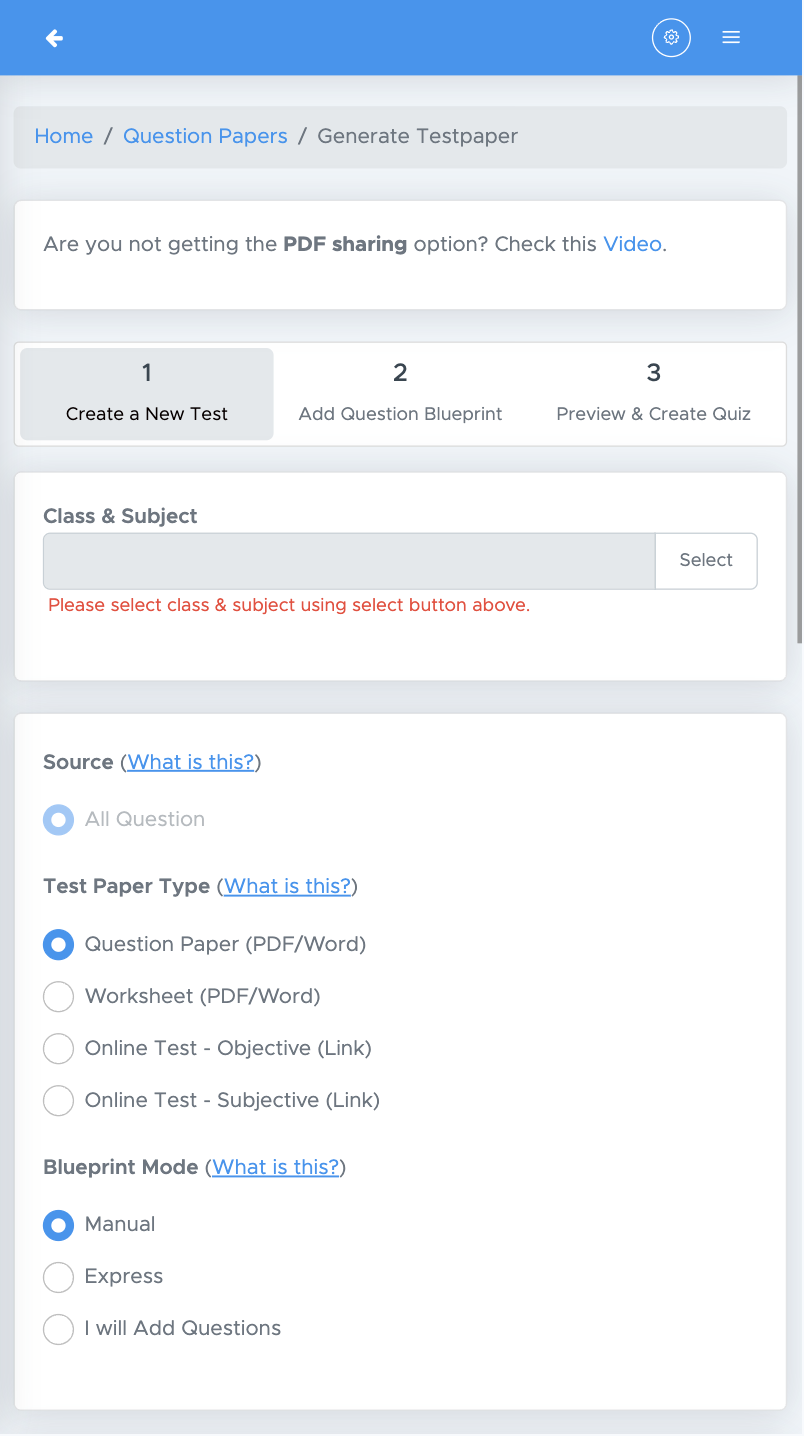
You will now be redirected to create testpaper screen.
Verify phone number if you haven't already done.
After this, you will be prompted to update institute details.
1. **Upload Logo**: Ensure your logo is in .jpg or .png format.
2. **Institute Name**: Enter your institution's name.
3. **Address**: Provide the full address of your institution.
4. **Footer Text**: Add any desired footer text.
5. **Template Name**: Assign a name for easy identification of the template.
You will now be redirected to create testpaper screen.
 You can now create your first paper.