> ## Documentation Index
> Fetch the complete documentation index at: https://docs.examin8.com/llms.txt
> Use this file to discover all available pages before exploring further.
# PDF Header & Footer
> Add and Edit PDF header and footer
You can include your **name and logo** in the Question Paper PDF files. To do this, open the **Institute Block** on the Test Generator dashboard and click on the **“PDF Headers”** icon.
You can add up to **three headers** here. If you are a school teacher who also runs your own coaching institute or teaches in two or three different coaching classes, you may add three separate headers and use them as needed while creating question papers.
## Header Types
There are **three types of headers**, and each serves a different purpose. Let’s understand them one by one.
### (1) Only Text
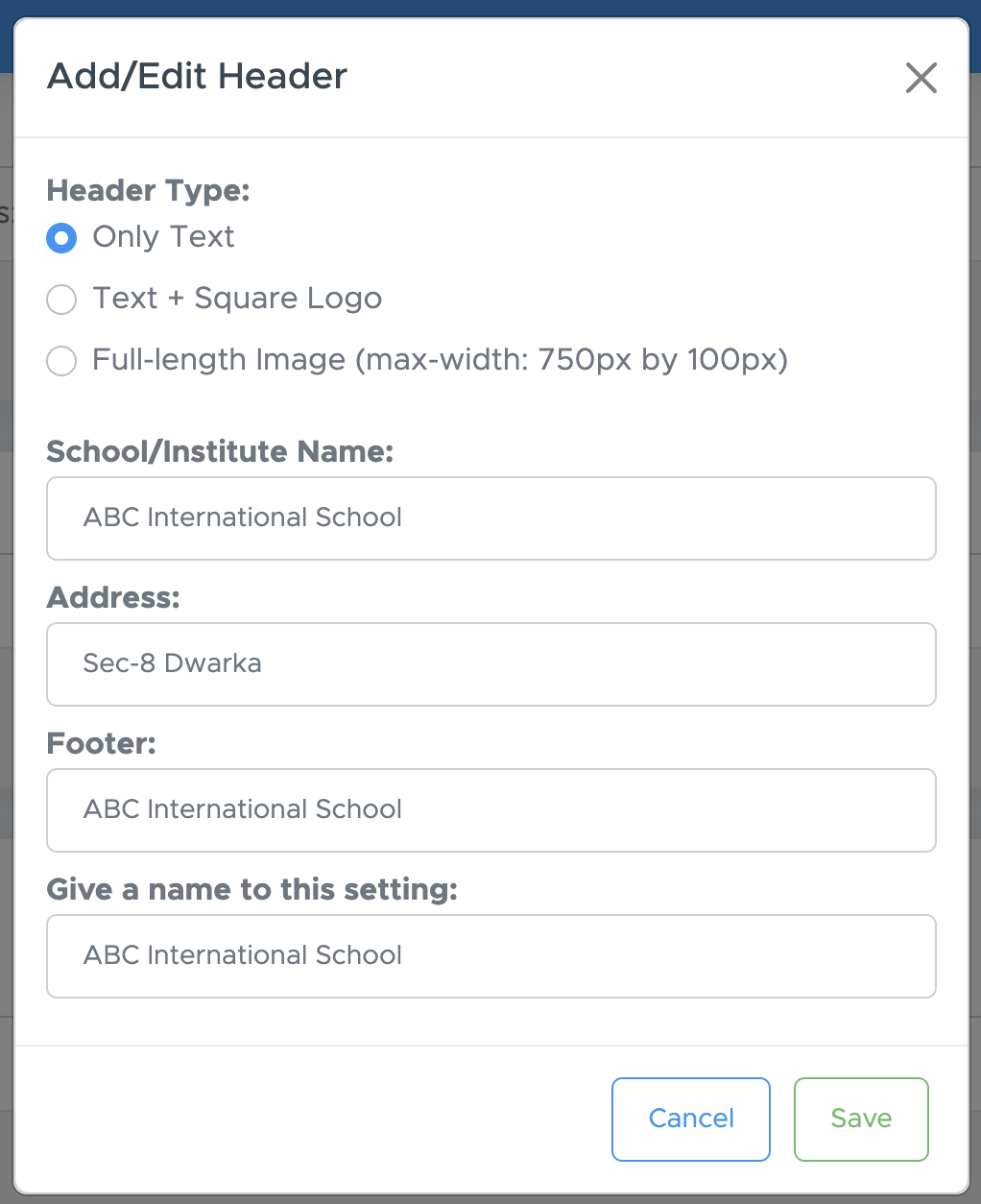
It is the case where you want to add only text in your PDF header page. For example, the school name and the school address.
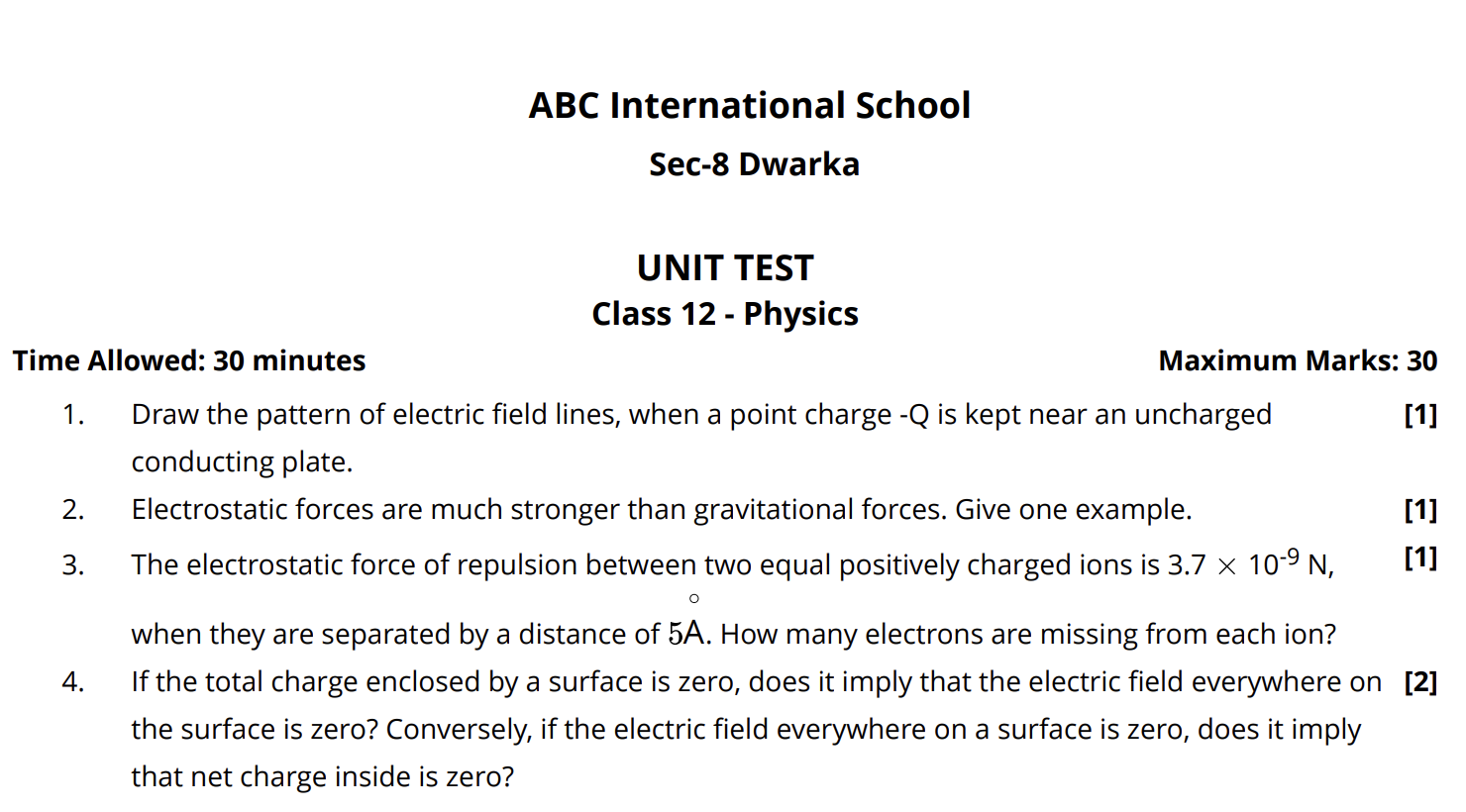
This will display in a PDF file as below:
The last line is the footer of the PDF page.
### (2) Text + Square Logo
The second use case is where we are adding a square logo and text. Here is the example:
Here, you will get the option to add a square logo. Make sure that the logo is in jpg ro png format with a white background. Don't keep the background transparent.
You can upload and crop the image there. Below is the output:
### (3) Full-length Image (max-width: 750px by 100px)
To upload your own PDF header, you can use the third option there. Make sure that your header size is 750px by 100px in size. The background is recommended to be white. Just select the image from your device, crop and upload.
Here is the output of this header:
Follow this video to add or edit your PDF header.
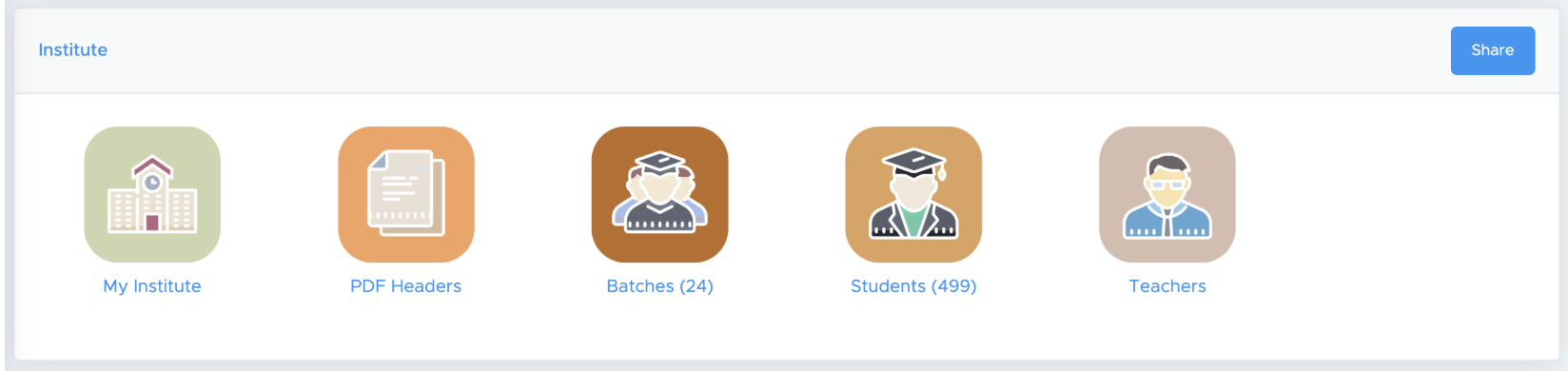 You can add up to **three headers** here. If you are a school teacher who also runs your own coaching institute or teaches in two or three different coaching classes, you may add three separate headers and use them as needed while creating question papers.
## Header Types
There are **three types of headers**, and each serves a different purpose. Let’s understand them one by one.
### (1) Only Text
It is the case where you want to add only text in your PDF header page. For example, the school name and the school address.
You can add up to **three headers** here. If you are a school teacher who also runs your own coaching institute or teaches in two or three different coaching classes, you may add three separate headers and use them as needed while creating question papers.
## Header Types
There are **three types of headers**, and each serves a different purpose. Let’s understand them one by one.
### (1) Only Text
It is the case where you want to add only text in your PDF header page. For example, the school name and the school address.
 This will display in a PDF file as below:
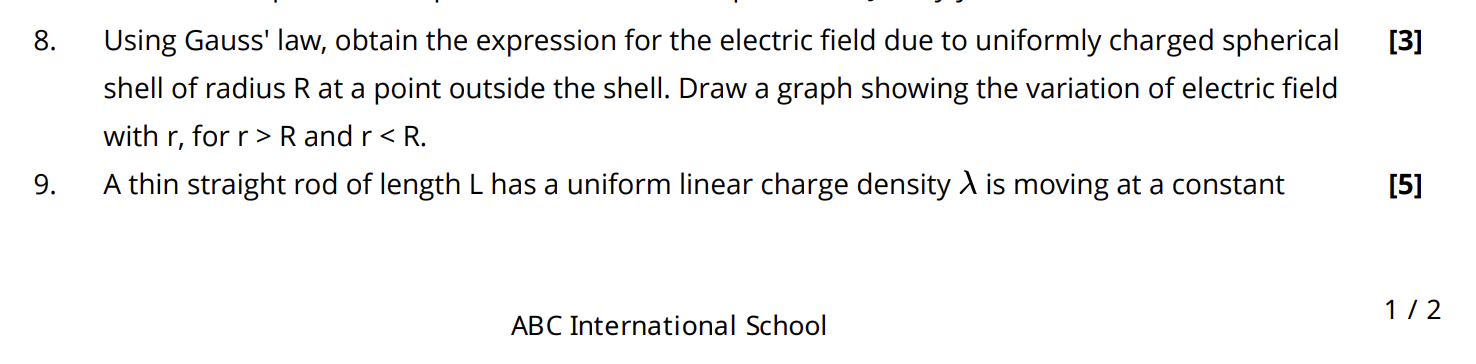 The last line is the footer of the PDF page.
### (2) Text + Square Logo
The second use case is where we are adding a square logo and text. Here is the example:
The last line is the footer of the PDF page.
### (2) Text + Square Logo
The second use case is where we are adding a square logo and text. Here is the example:
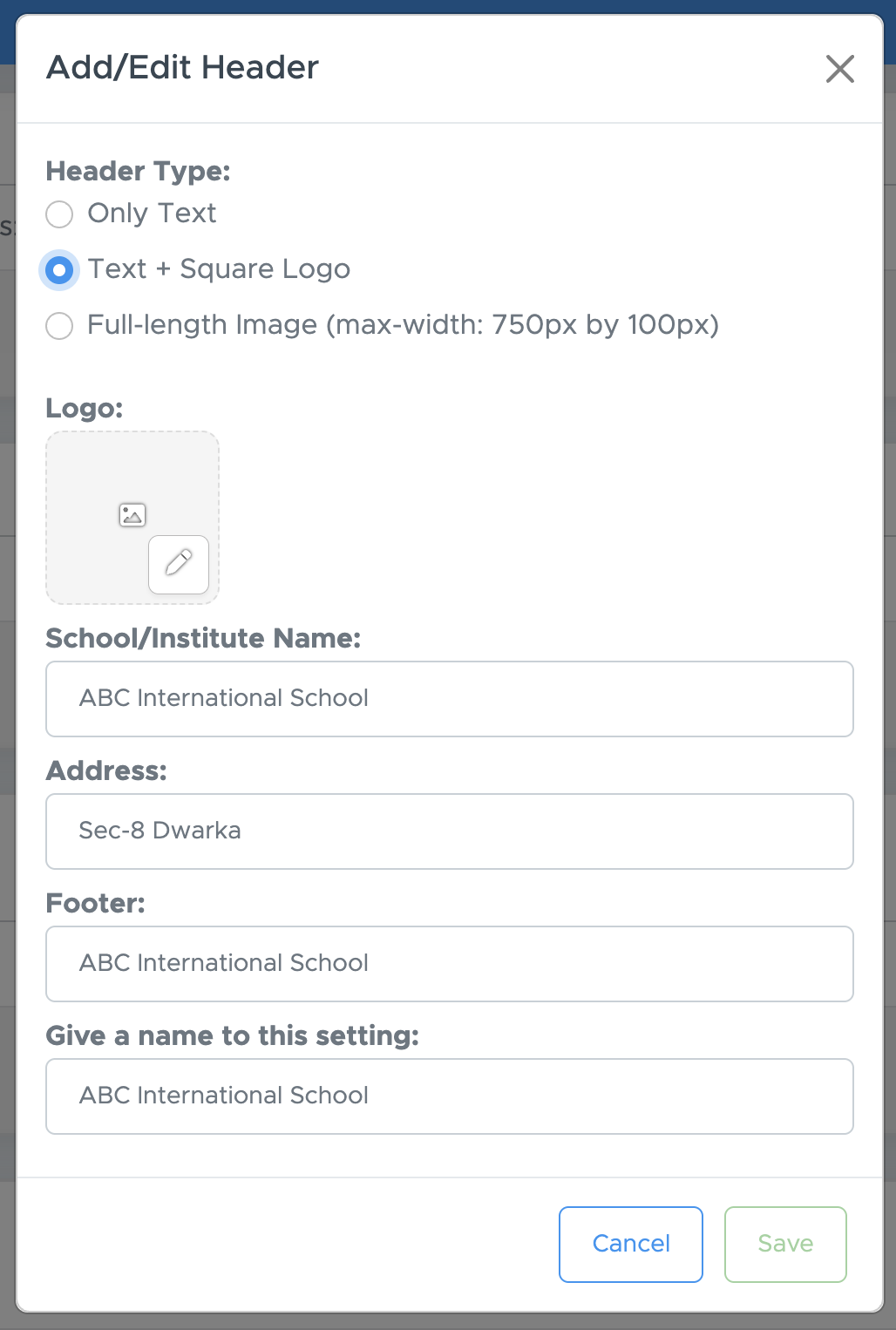 Here, you will get the option to add a square logo. Make sure that the logo is in jpg ro png format with a white background. Don't keep the background transparent.
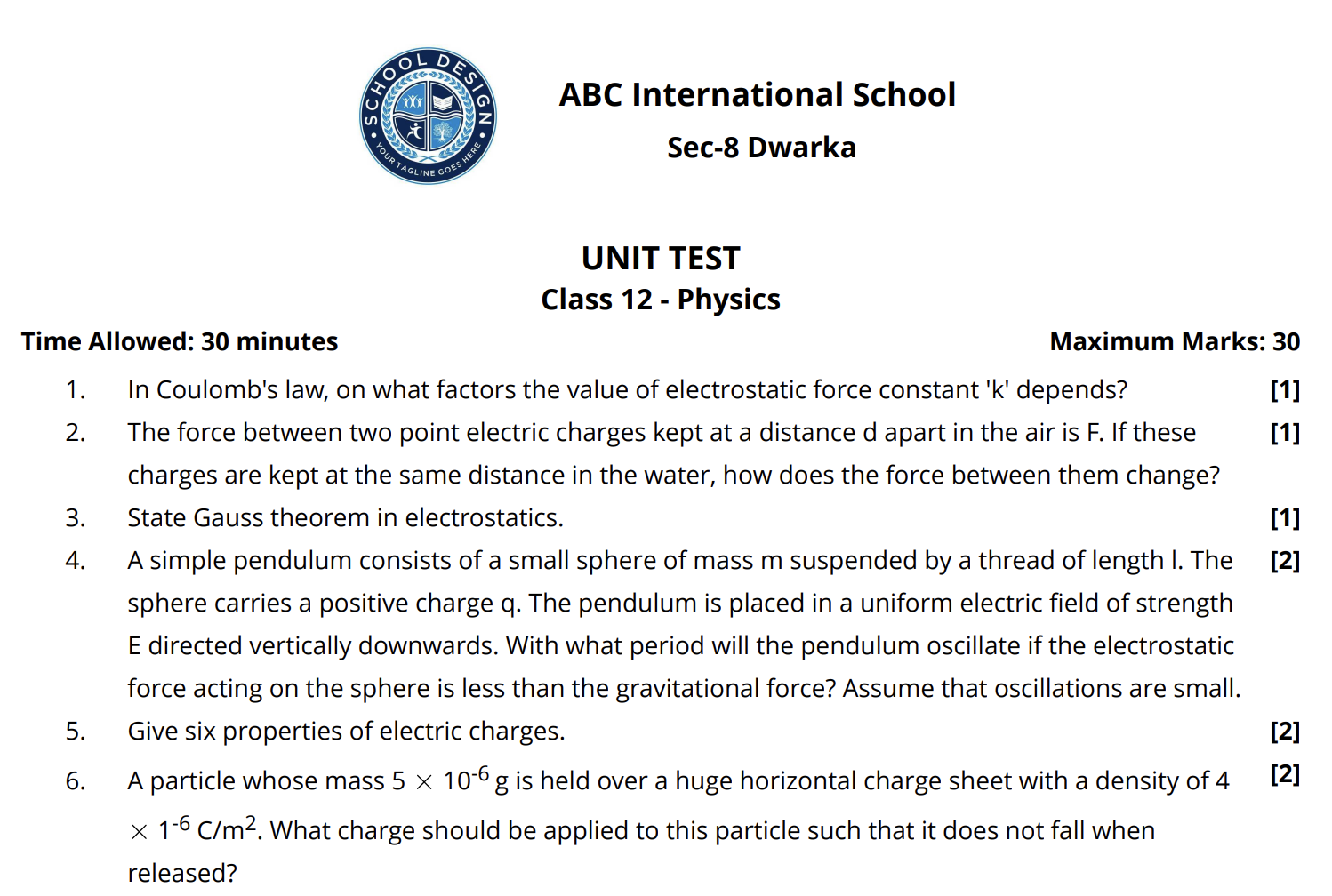
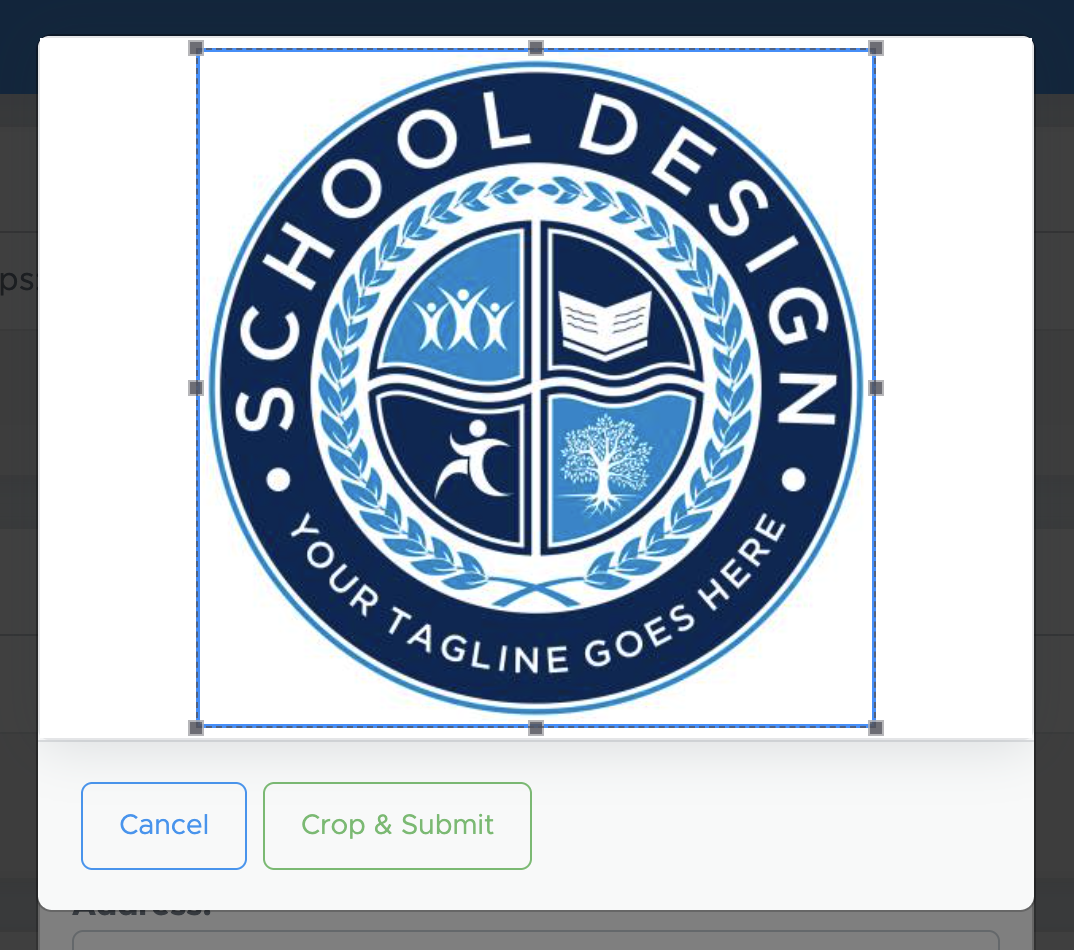 You can upload and crop the image there. Below is the output:
 ### (3) Full-length Image (max-width: 750px by 100px)
To upload your own PDF header, you can use the third option there. Make sure that your header size is 750px by 100px in size. The background is recommended to be white. Just select the image from your device, crop and upload.
### (3) Full-length Image (max-width: 750px by 100px)
To upload your own PDF header, you can use the third option there. Make sure that your header size is 750px by 100px in size. The background is recommended to be white. Just select the image from your device, crop and upload.
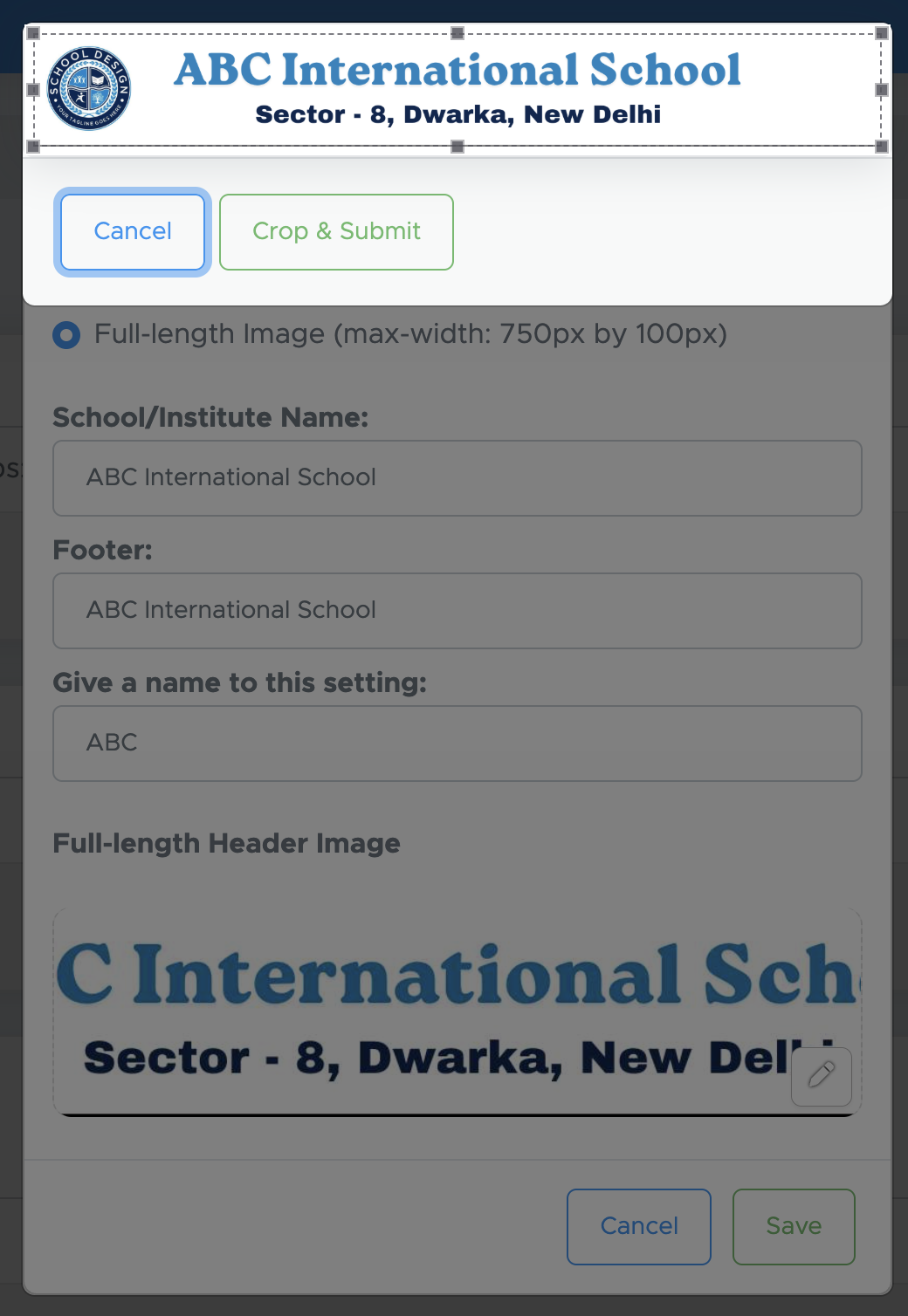 Here is the output of this header:
 Follow this video to add or edit your PDF header.