> ## Documentation Index
> Fetch the complete documentation index at: https://docs.examin8.com/llms.txt
> Use this file to discover all available pages before exploring further.
# Download as Word File
> You can download the question paper as a Word file in DOCX format and make changes are per your requirement.
We offer both Normal PDF and Two-Column PDF versions of our question papers. However, teachers sometimes need to adjust the layout, font, or formatting before submitting the final version to the examination department.
To make these edits easier, we also provide the option to download the question paper in Word document format. The file is compatible with **Microsoft Word 2016 and newer versions**. If you’re using an older version of Word, please consider updating to the latest release for the best experience.
### Download as Word File
1. To download question papers in Word file format, go to the [Test Generator dashboard](https://app.examin8.com) and click [MY PAPERS](https://app.examin8.com/user-testpapers).
2. Browse your question paper and click the ACTIONS button below the paper name.
3. Then click **Generate Microsoft Word**.
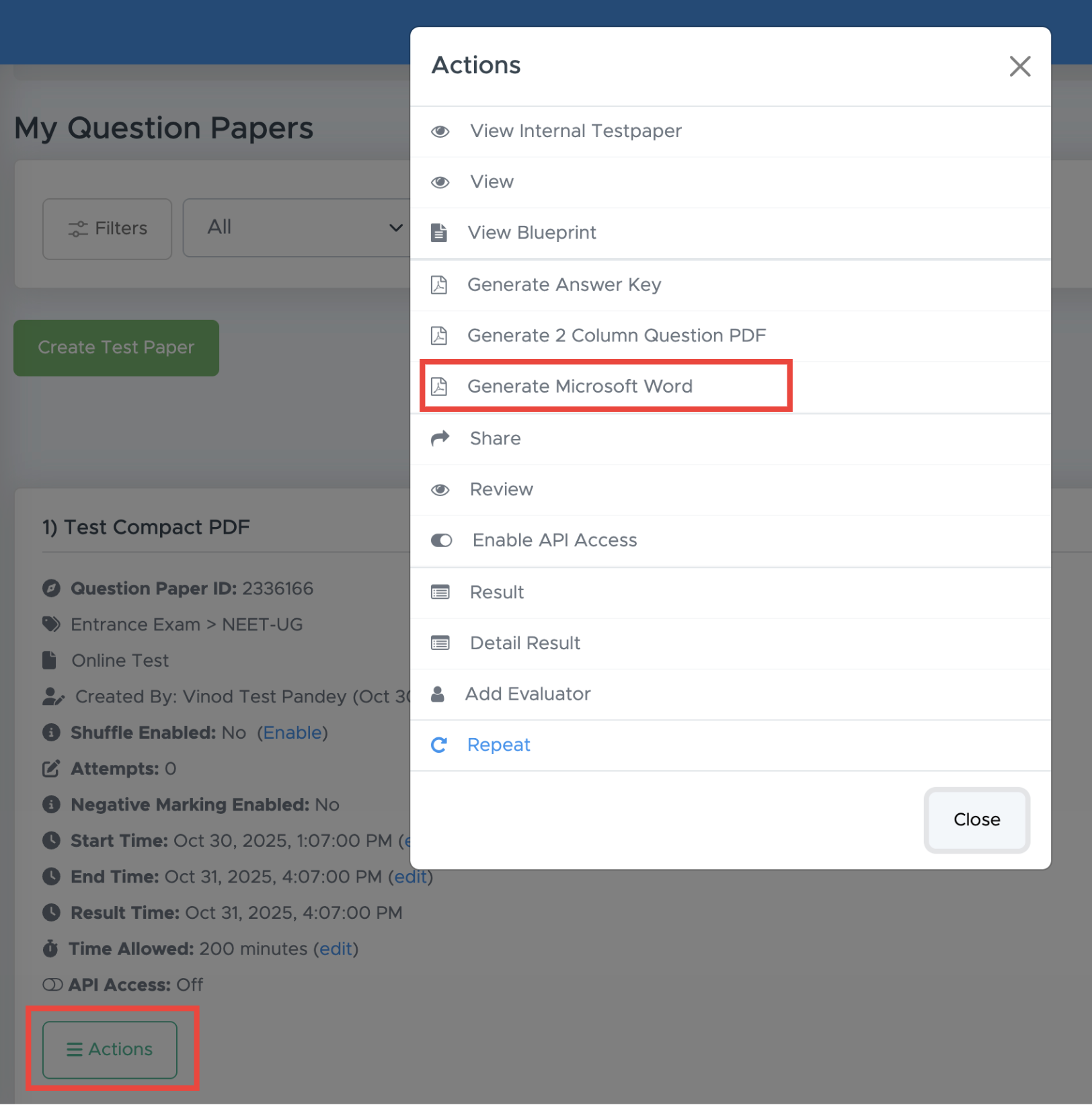 4. After that, you will find a REFRESH button there. Wait for a while and click the REFRESH button.
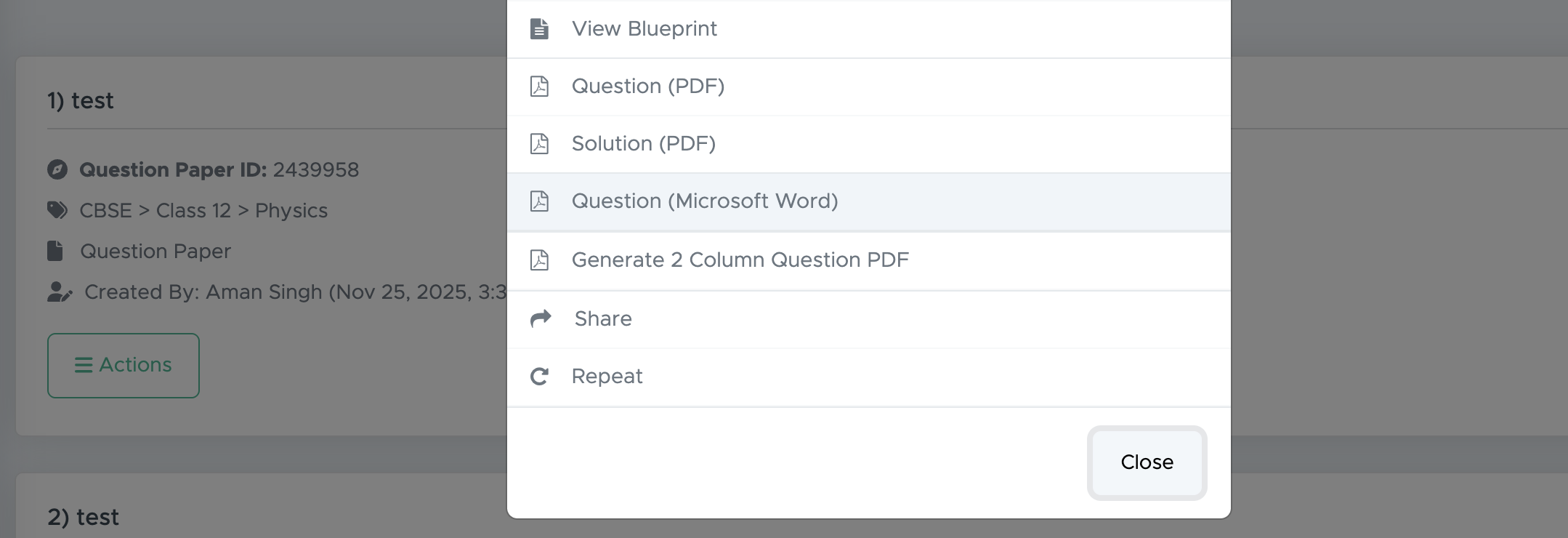
5. Once this button disappears, click the ACTIONS button again and then click \*\*Question (Microsoft Word) \*\*to download it to your device.
4. After that, you will find a REFRESH button there. Wait for a while and click the REFRESH button.
5. Once this button disappears, click the ACTIONS button again and then click \*\*Question (Microsoft Word) \*\*to download it to your device.
 ### Remove Tables
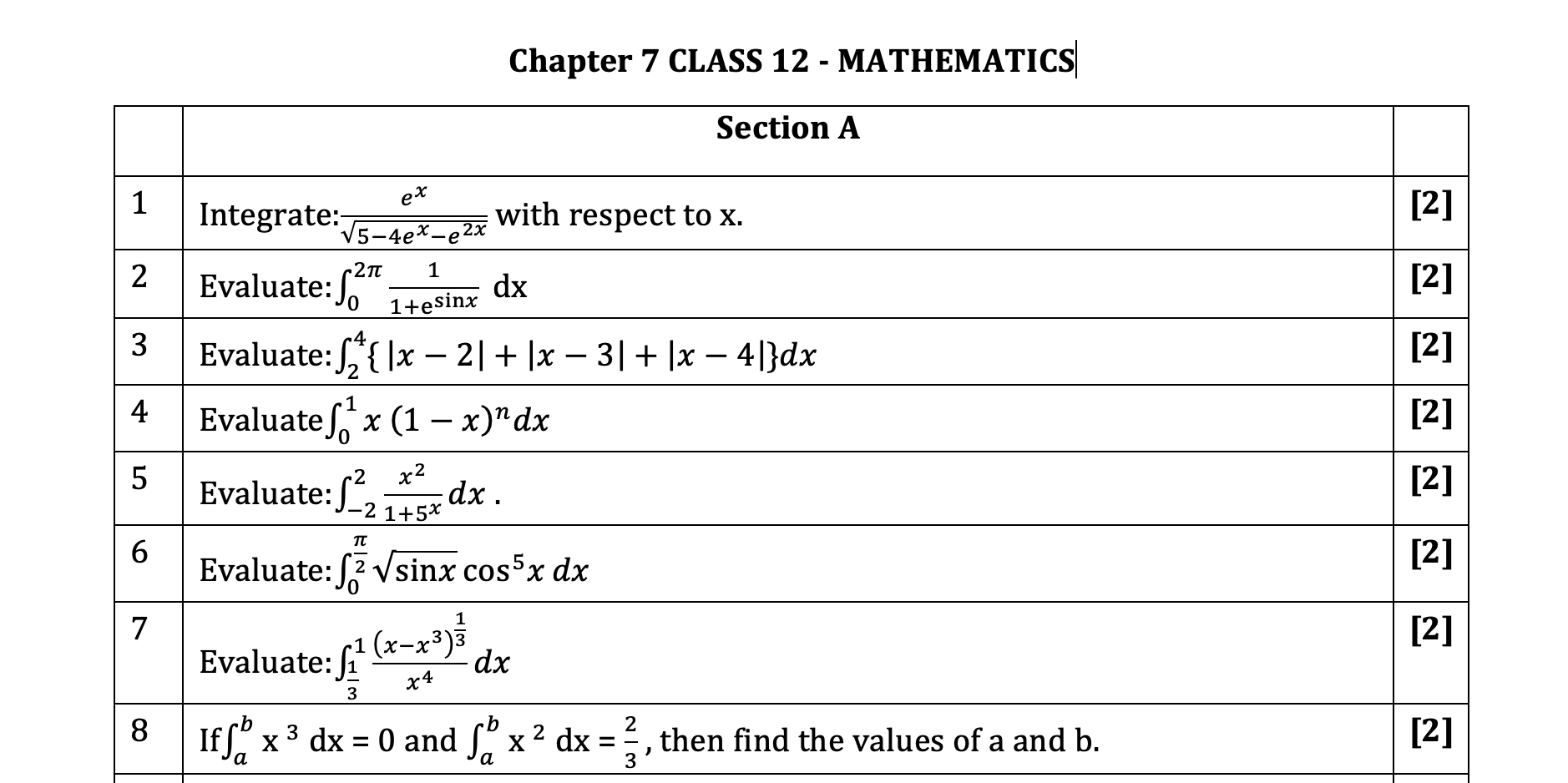
The Word file you have downloaded is in a three-column table format to maintain a uniform gap between the question number, the question text and the marks columns.
### Remove Tables
The Word file you have downloaded is in a three-column table format to maintain a uniform gap between the question number, the question text and the marks columns.
 If you don't want these tables, you have two options:
(a) Hide the table\
(b) Remove the table permanently
Let's discuss them one by one.
### Video Tutorial
[https://www.youtube.com/watch?v=k68nMjLagXY](https://www.youtube.com/watch?v=k68nMjLagXY)
### **Hide the Table**
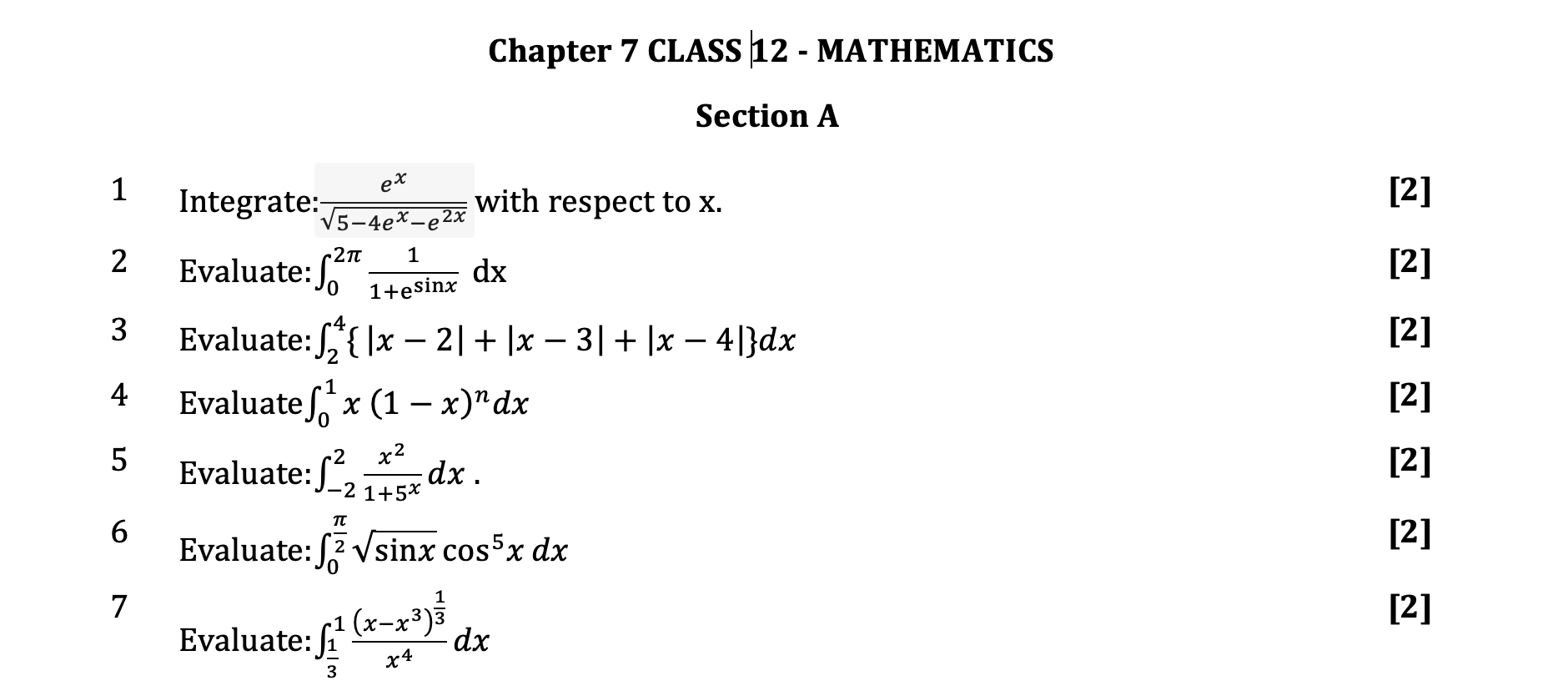
**Hide the table lines** so that the formatting of the text will remain there, but the table will not be visible. Like this:
If you don't want these tables, you have two options:
(a) Hide the table\
(b) Remove the table permanently
Let's discuss them one by one.
### Video Tutorial
[https://www.youtube.com/watch?v=k68nMjLagXY](https://www.youtube.com/watch?v=k68nMjLagXY)
### **Hide the Table**
**Hide the table lines** so that the formatting of the text will remain there, but the table will not be visible. Like this:
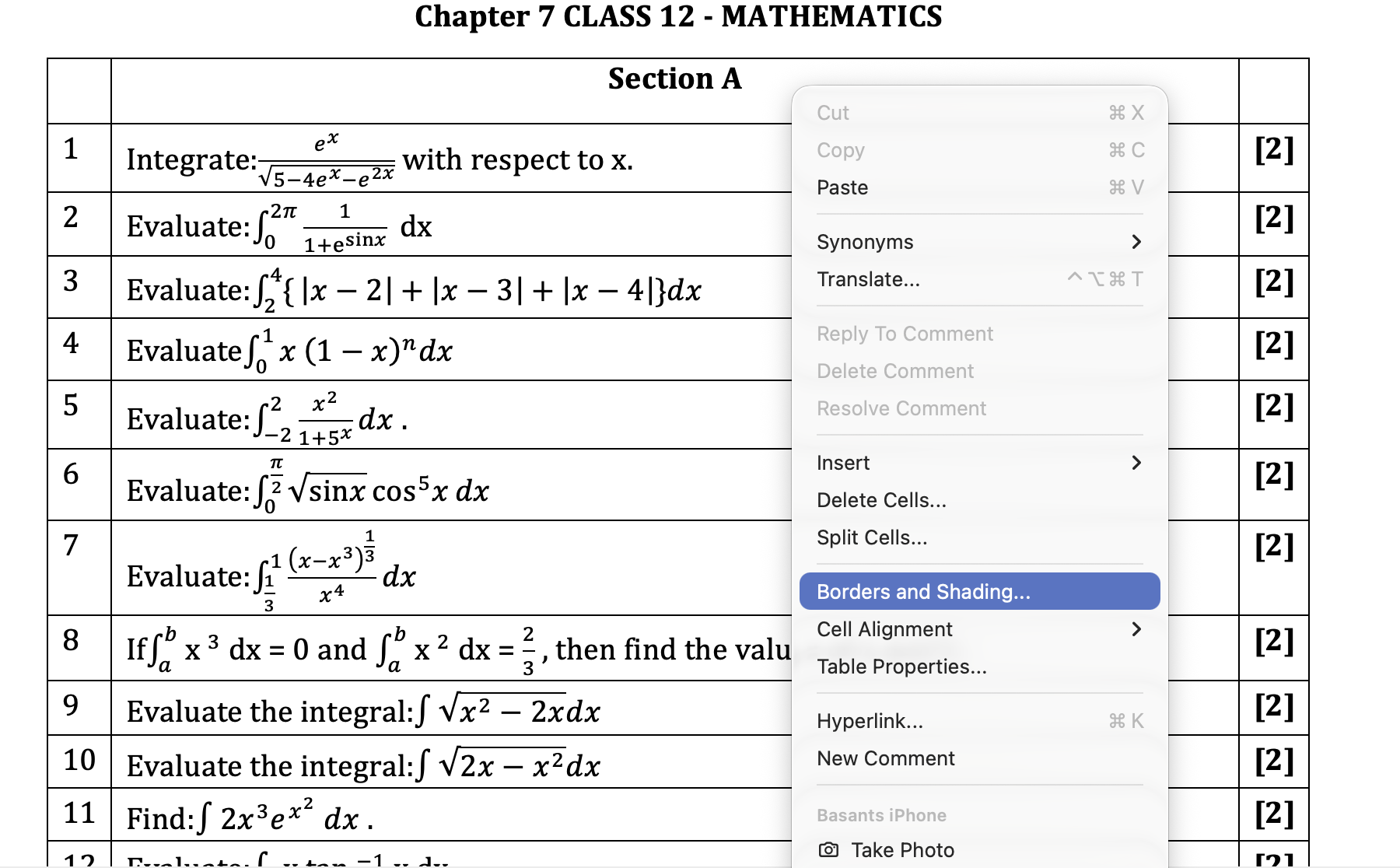
 To do so, right-click anywhere within the table and select the **Borders and shading** option.
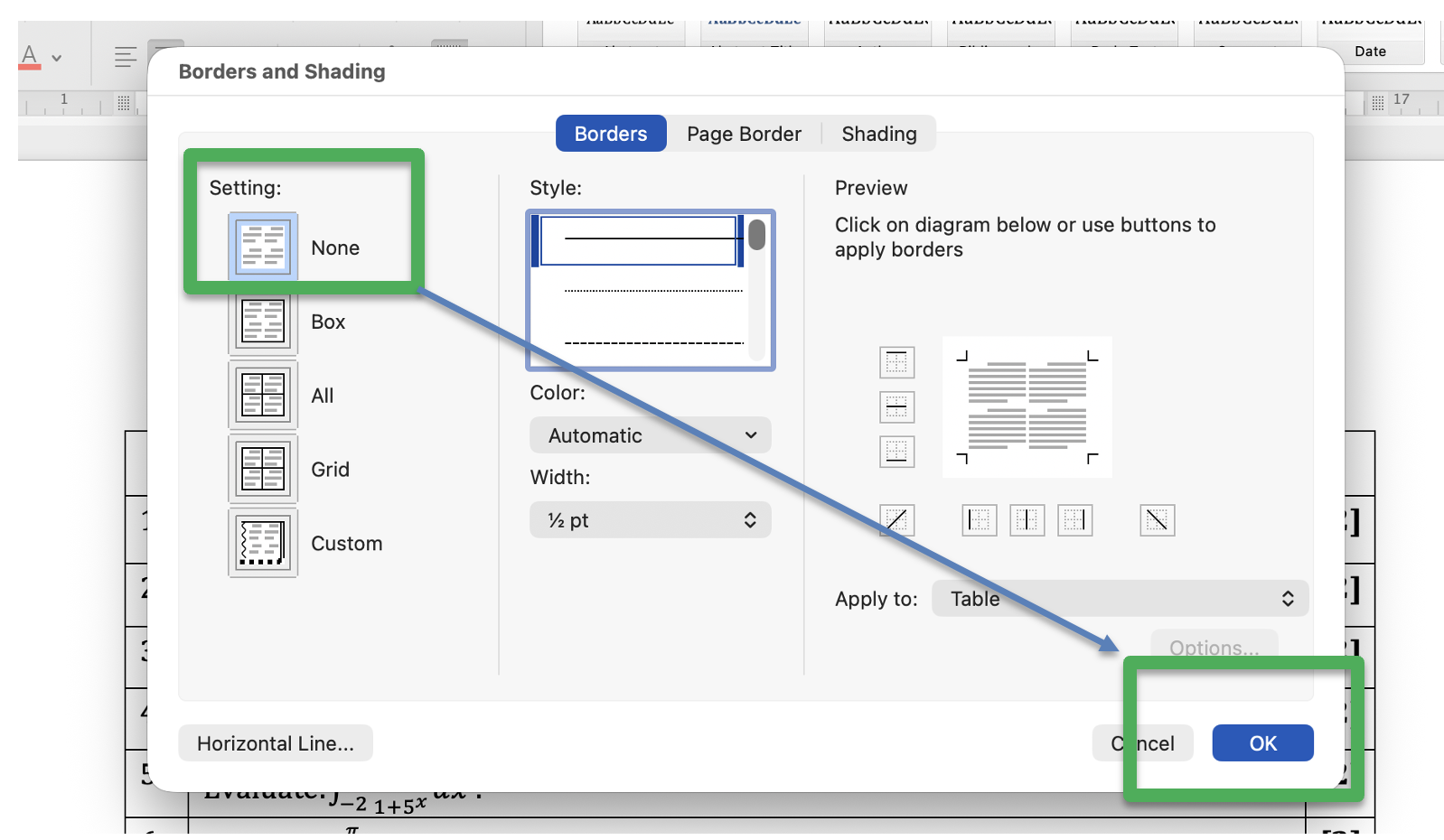
 Then, in the borders setting, choose **None** and click OK.
 ### **Remove the Table**
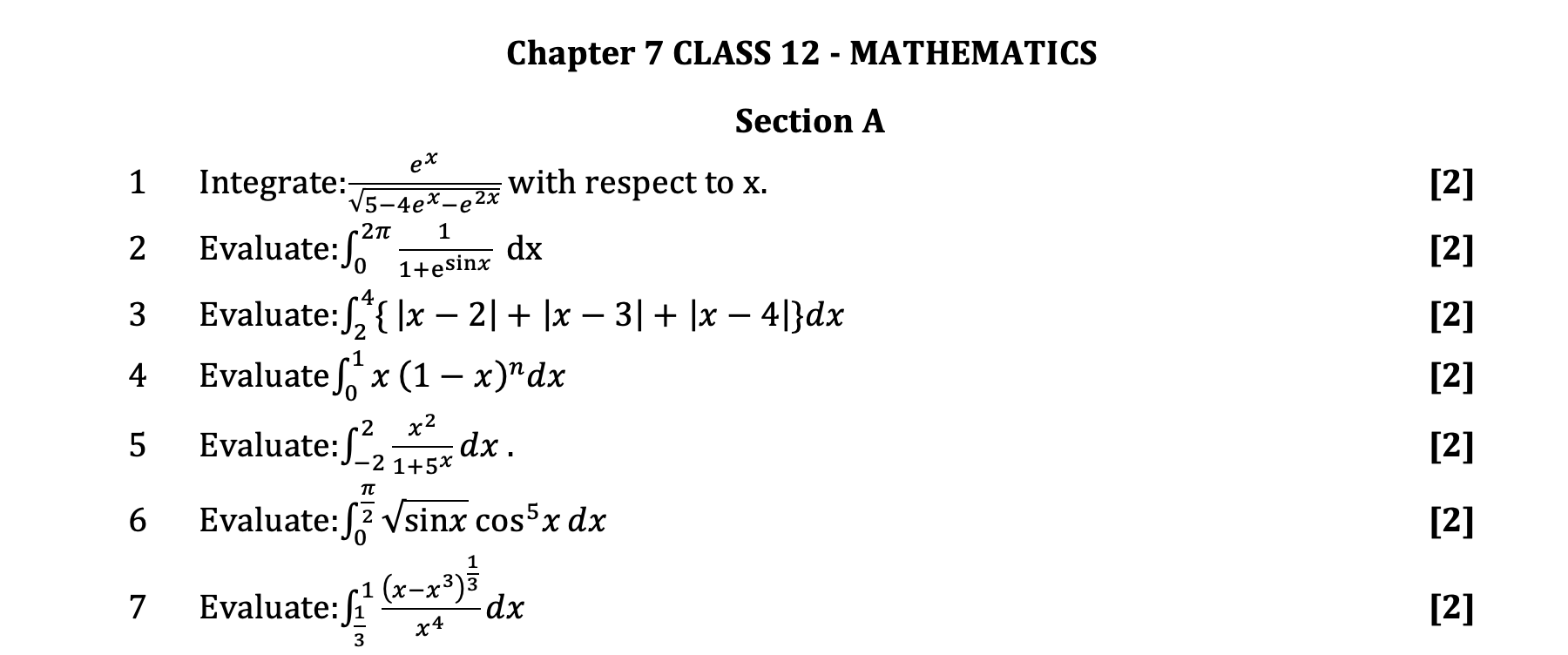
**Permanently remove the table structure** and keep only text so that you can do the formatting part yourself. Like this:
### **Remove the Table**
**Permanently remove the table structure** and keep only text so that you can do the formatting part yourself. Like this:
 To do so, click anywhere within the table and then click "**Table Layout**" on the top toolbar. Then click the **Convert to Text** link on the right.
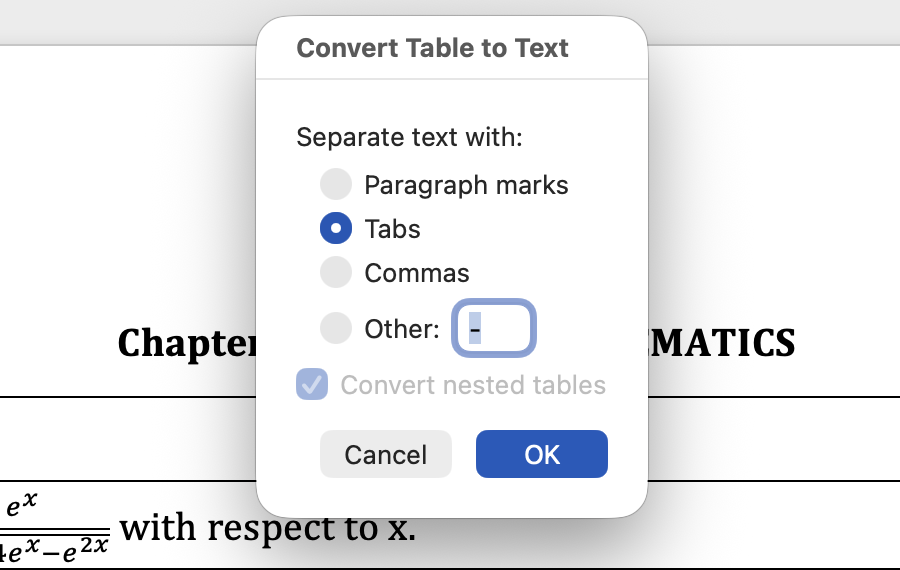
 Now choose **Separate text with - Tabs** and click **OK**.
 This formatting may disturb some text alignment, but that is manageable.