

Step 1: Create a New Paper
-
Navigate to Exams: Go to the “Exams” section
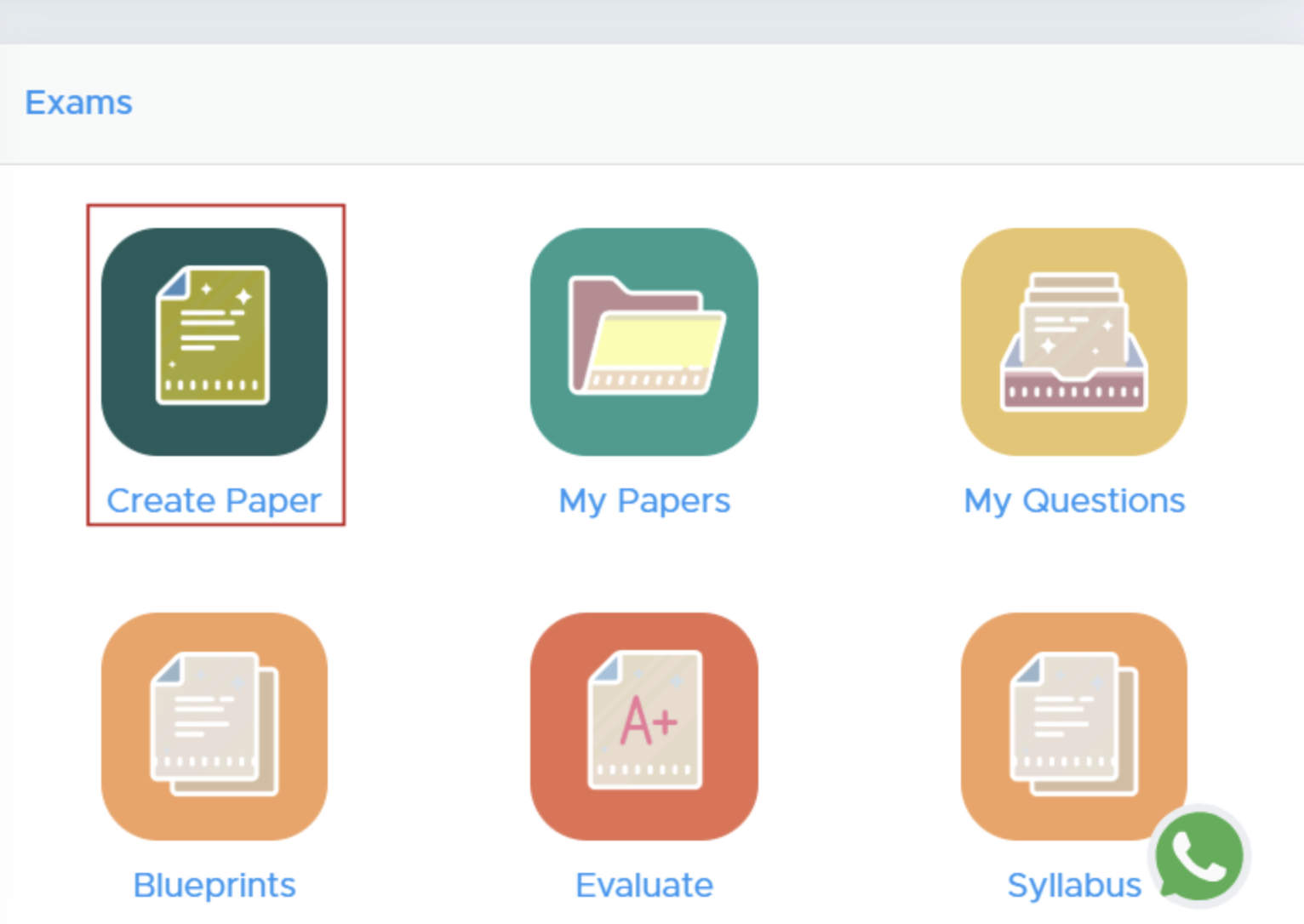
- Select ‘Create Paper’: Click on the ‘Create Paper’ button.
Step 2: Select Class and Subject
-
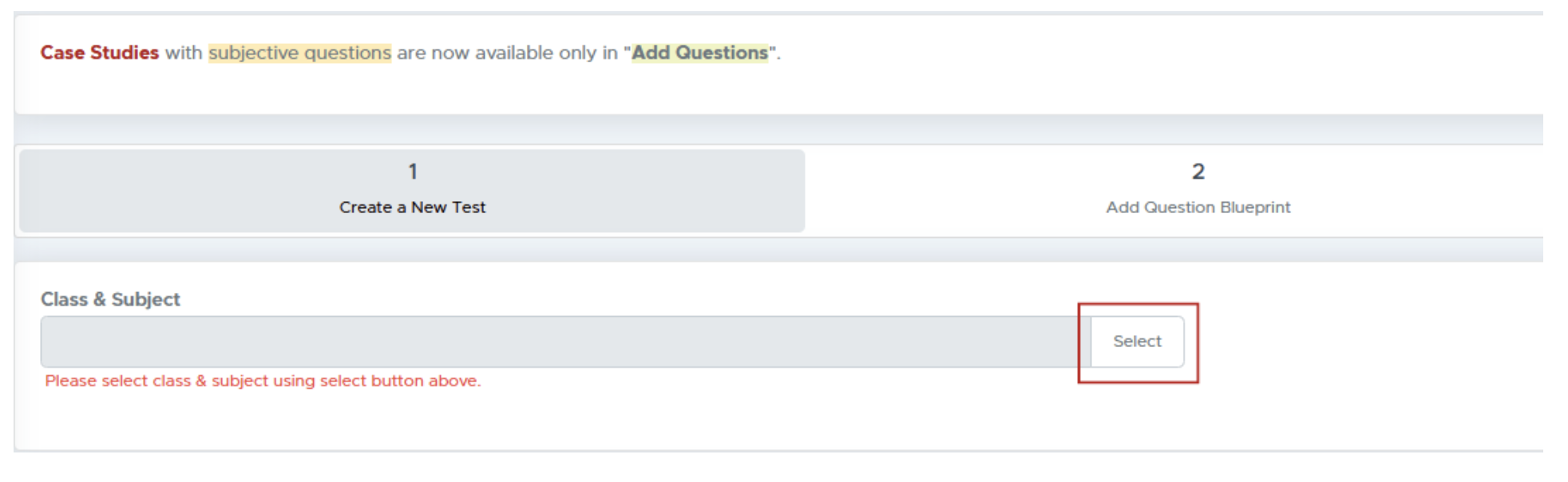
Choose Class and Subject: Click on the “Select” button to pick the class and subject for your test paper.
Step 3: Specify Course and Subject
- Module Selection: Choose from available modules (e.g., CBSE, ICSE, Entrance Exam etc).
- Select Course: Choose the relevant course for the test.
- Competitive Exams: If applicable, select the specific exam type and whether to create a single or multiple-subject paper. To get the PYQ papers of JEE and NEET, you must select the Multiple Subjects option there.
Step 4: Configure Test Paper Settings
- Source Selection: Choose your question source as All Questions.
- Test Paper Type: Decide the format as Question Paper or Online Test.
- Blueprint Mode: Select blueprint mode as “Previous Year Paper”.
Step 5: Customize Paper Details
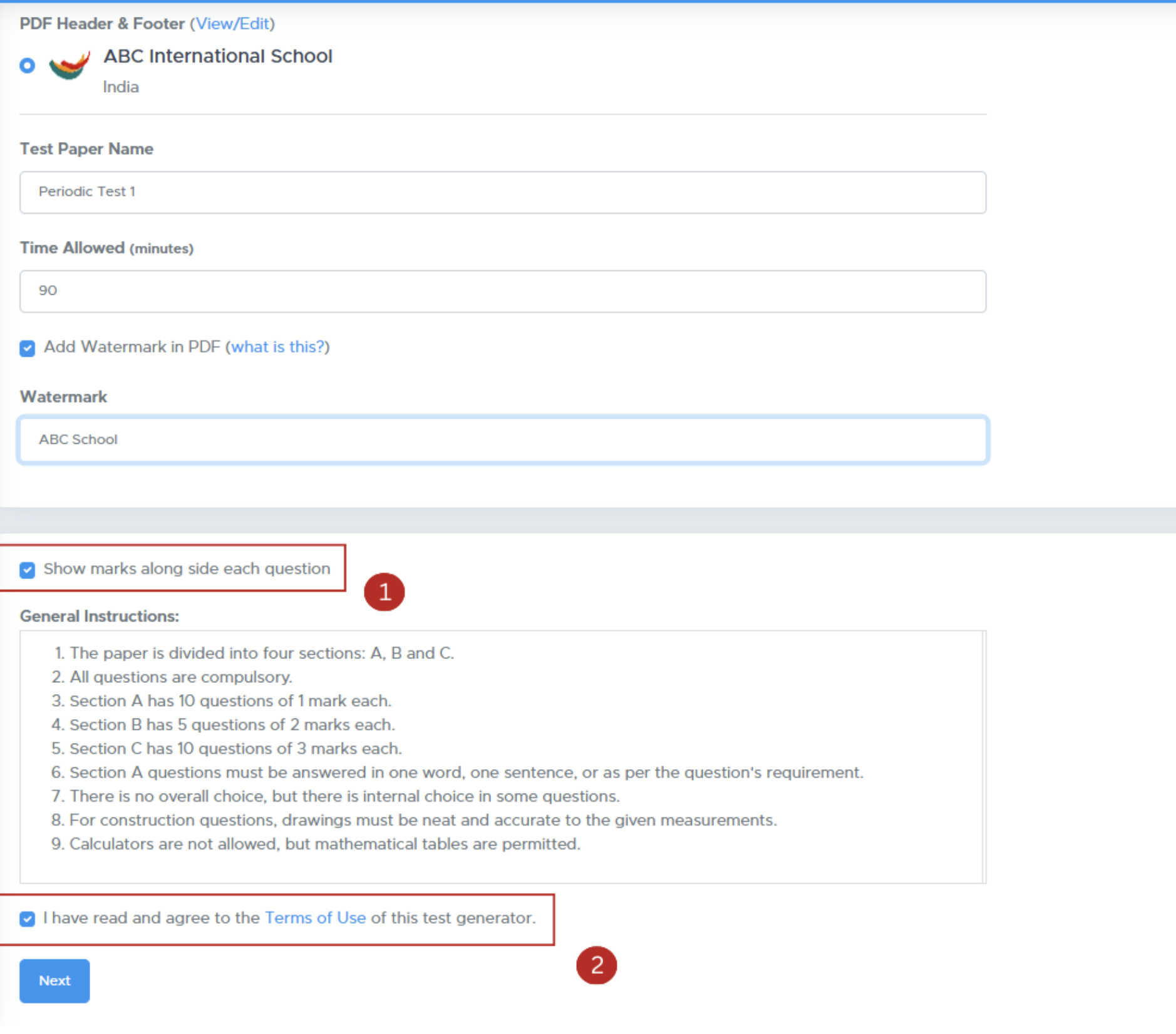
- Edit Header and Footer: Modify your logo and header/footer text.
- Test Paper Name: Enter the name for the test paper.
- Time Allowed: Specify the duration for the test.
- Watermark and Marks: Choose to add a watermark and show marks alongside each question.
- **Specify additional settings: **Show marks alongside each question.
- Accept the Terms of Use checkbox and proceed by clicking Next.
Step 6: Final Review and Generation
Click on Refresh to proceed.- Use the Actions button to replace or reorder questions. If you want to include internal choices within a section, Tick the checkbox labeled “Add Internal Choice Within Sections”
- Generate Paper: Click ‘Generate Paper’ to finalize your test paper.
Step 7: Download Your Test Paper
- Access Your Paper: After generation, you’ll be directed to the ‘My Paper’ page.
- Download Format: Click the Actions button to download as .doc (Word) or .pdf.