

Account Roles
There are two account roles:- Owner: The owner is the admin of the account, having full access to all the modules.
- Teacher: The owner can add teachers and assign them permission to create a specific number of papers with limited access to the test generator modules.
How to add Teachers
Here are the steps to follow:-
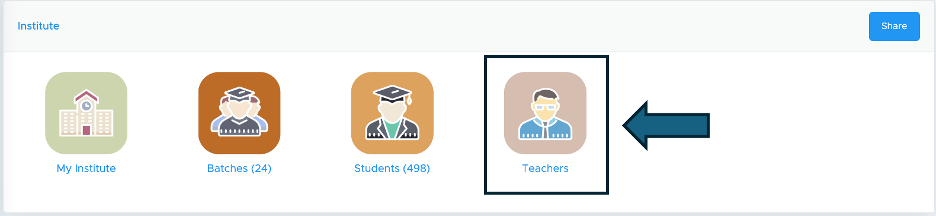
Go to the My Institute block on the Test Generator dashboard and click Teachers.
-
Now, click on the Add teachers button.
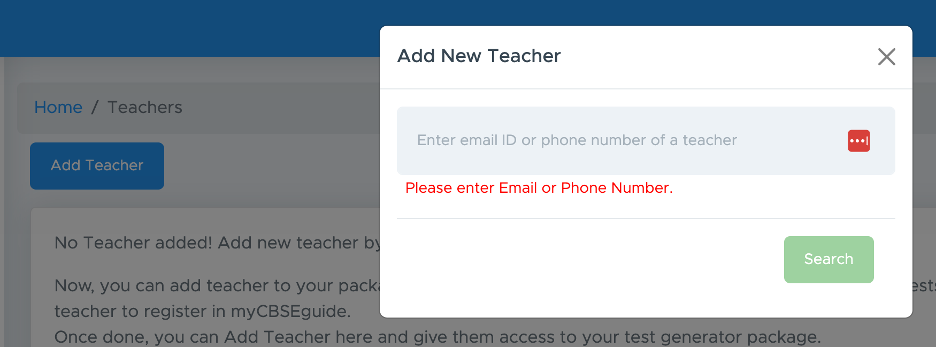
- Here, you can add a teacher by email ID or mobile number. Adding a mobile number is mandatory at the time of teacher login, so we recommend adding teachers by mobile number directly. However, if you add teachers by email ID, they can add their mobile number later on.
- While adding via mobile number, if you are not getting any data of the teacher, kindly ask the teacher to login on https://app.examin8.com with that mobile number first so that you can get his/her details there and assign permission.
- You can also add teachers with dummy IDs like teacher1@yourinstitutename.com and create individual passwords for them to log in. It is good to have uniform login IDs for all the teachers.
-
If the email ID is already registered in our database, you will get the option to add the number of papers to the teacher; otherwise, you need to register the teacher and then assign papers.
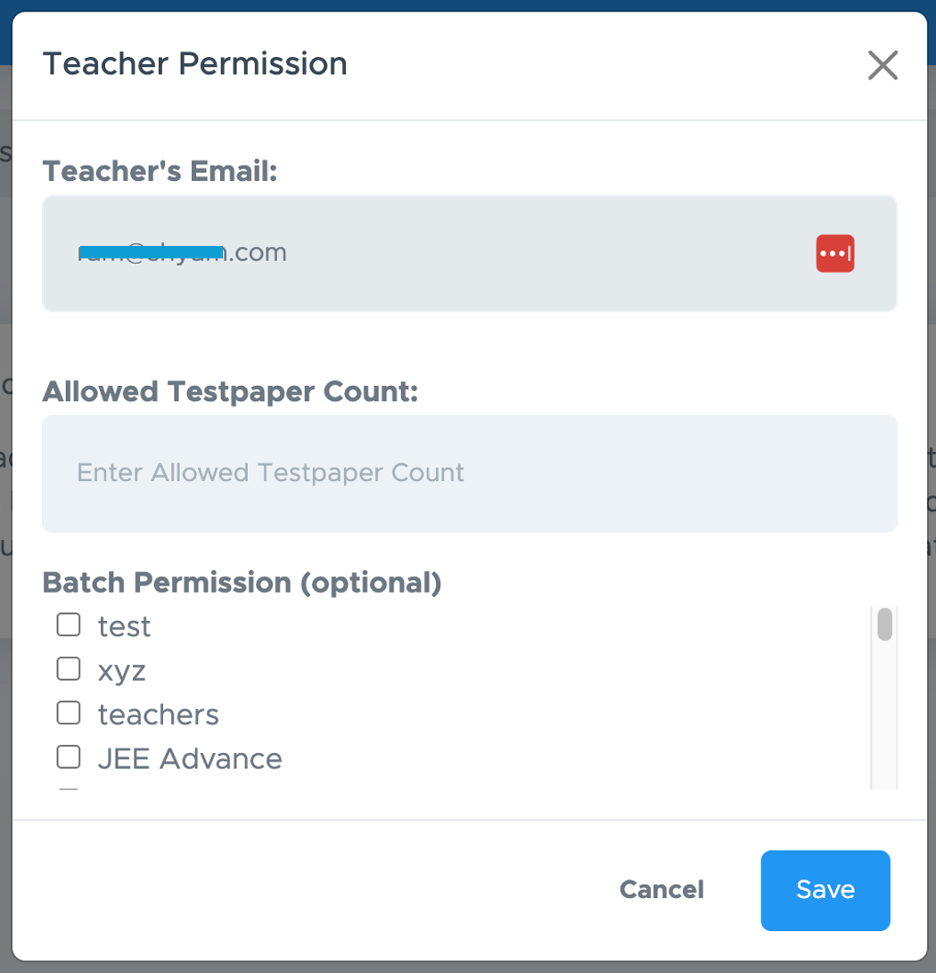
- Enter the number of papers you want to assign to the teacher.
- If you want to give permission to access any batch data to that teacher, you can give batch permission; otherwise, leave it blank
- Click Save to proceed.
Edit Teacher Permissions
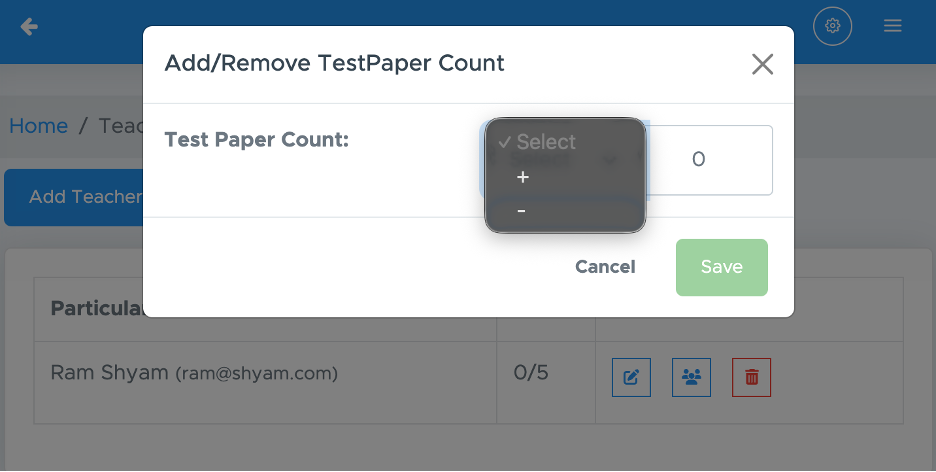
- To delete the parmission click on the Delete icon there.
- To add or remove batch permission, click the batch icon.
- To add more paper count or remove paper count, click the edit icon, then select (+) to add more papers and (-) to remove papers, then enter the paper count and click save.