Download as Word File
- To download question papers in Word file format, go to the Test Generator dashboard and click MY PAPERS.
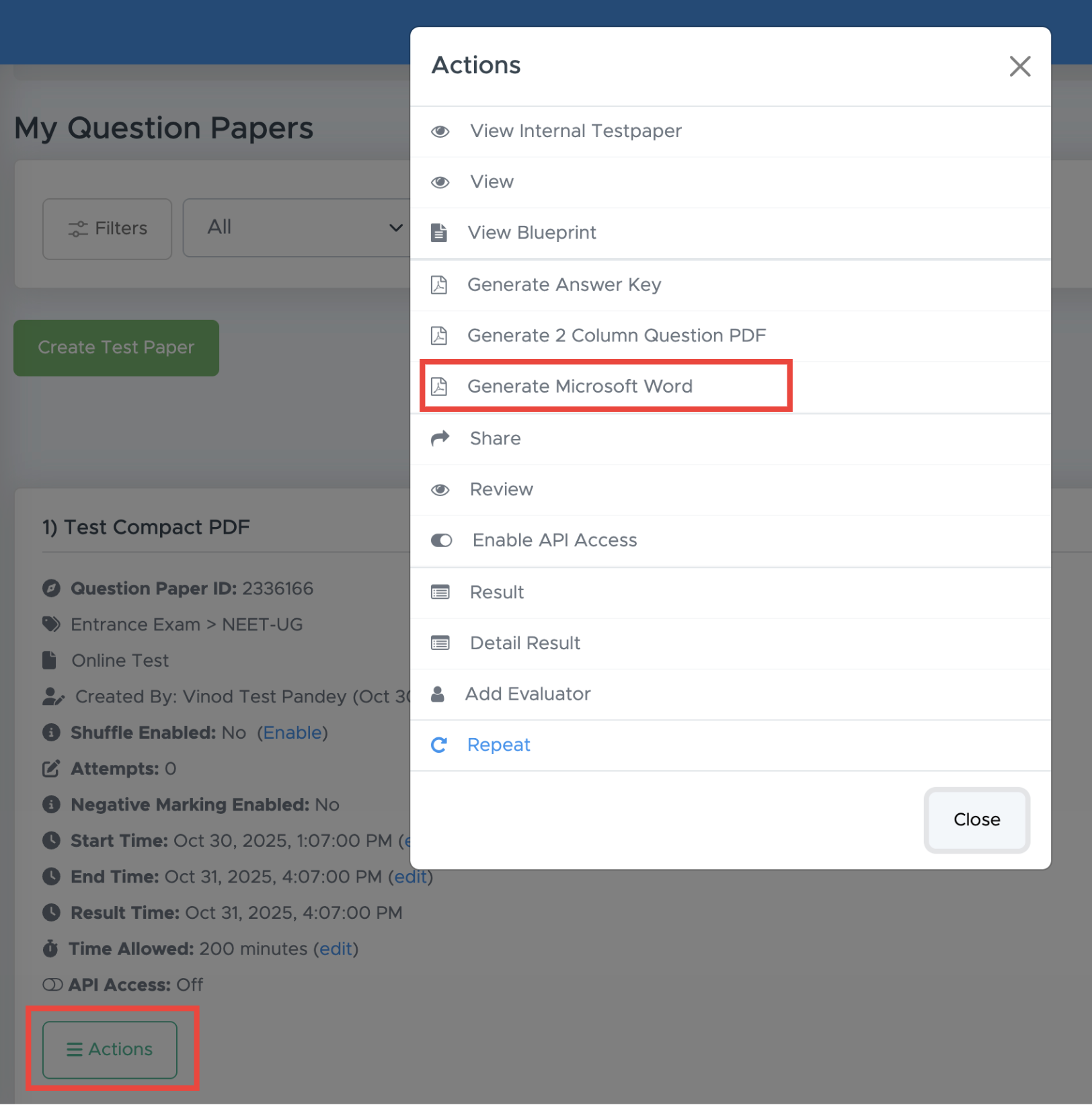
- Browse your question paper and click the ACTIONS button below the paper name.
- Then click Generate Microsoft Word.
- After that, you will find a REFRESH button there. Wait for a while and click the REFRESH button.
-
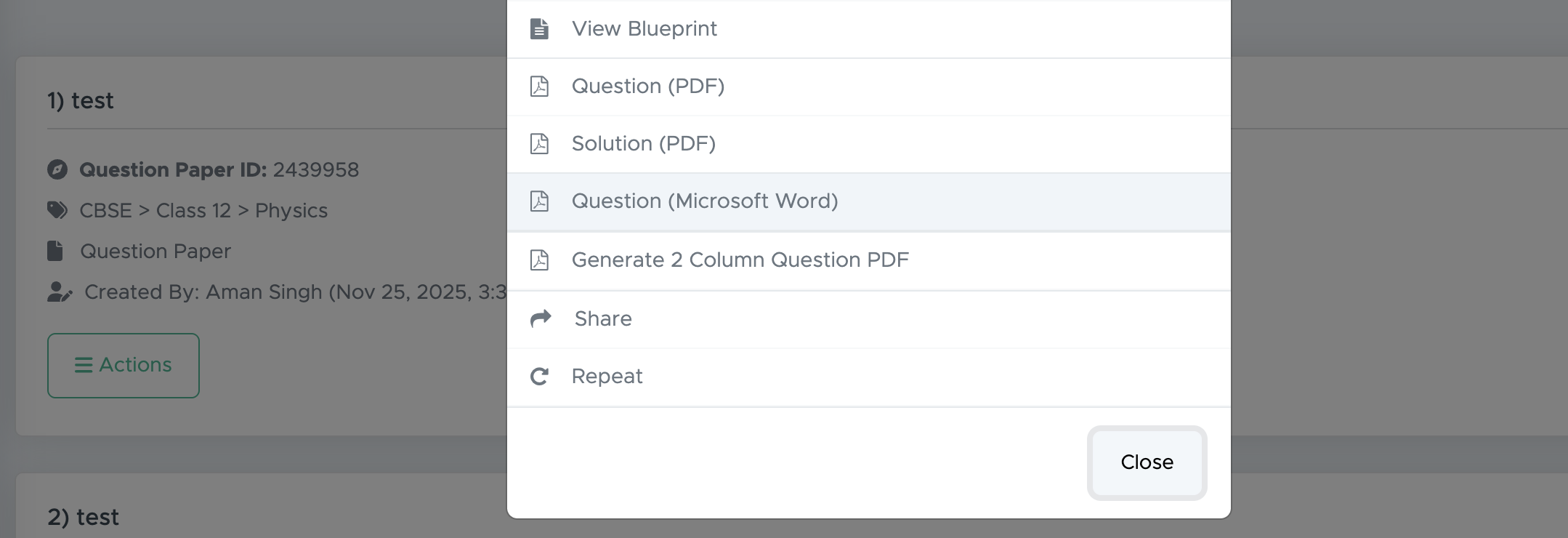
Once this button disappears, click the ACTIONS button again and then click **Question (Microsoft Word) **to download it to your device.
Remove Tables
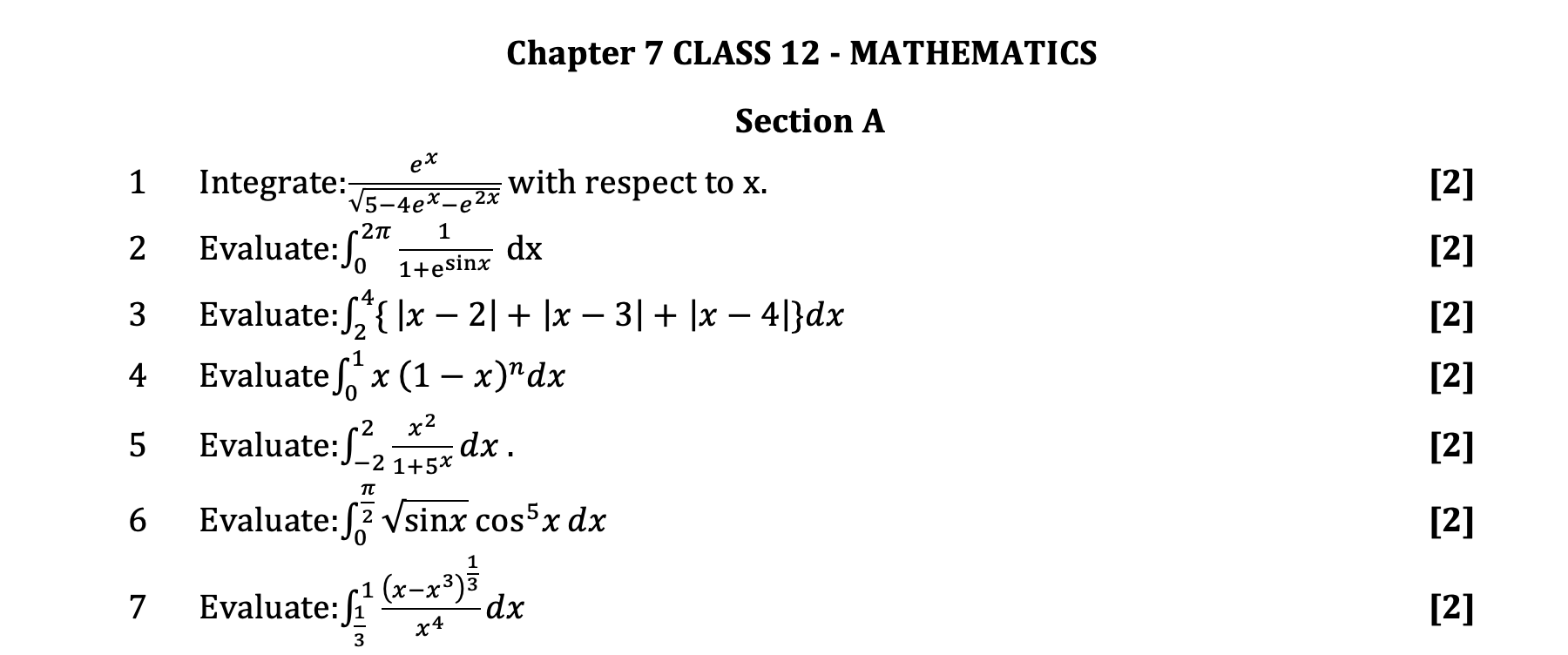
The Word file you have downloaded is in a three-column table format to maintain a uniform gap between the question number, the question text and the marks columns.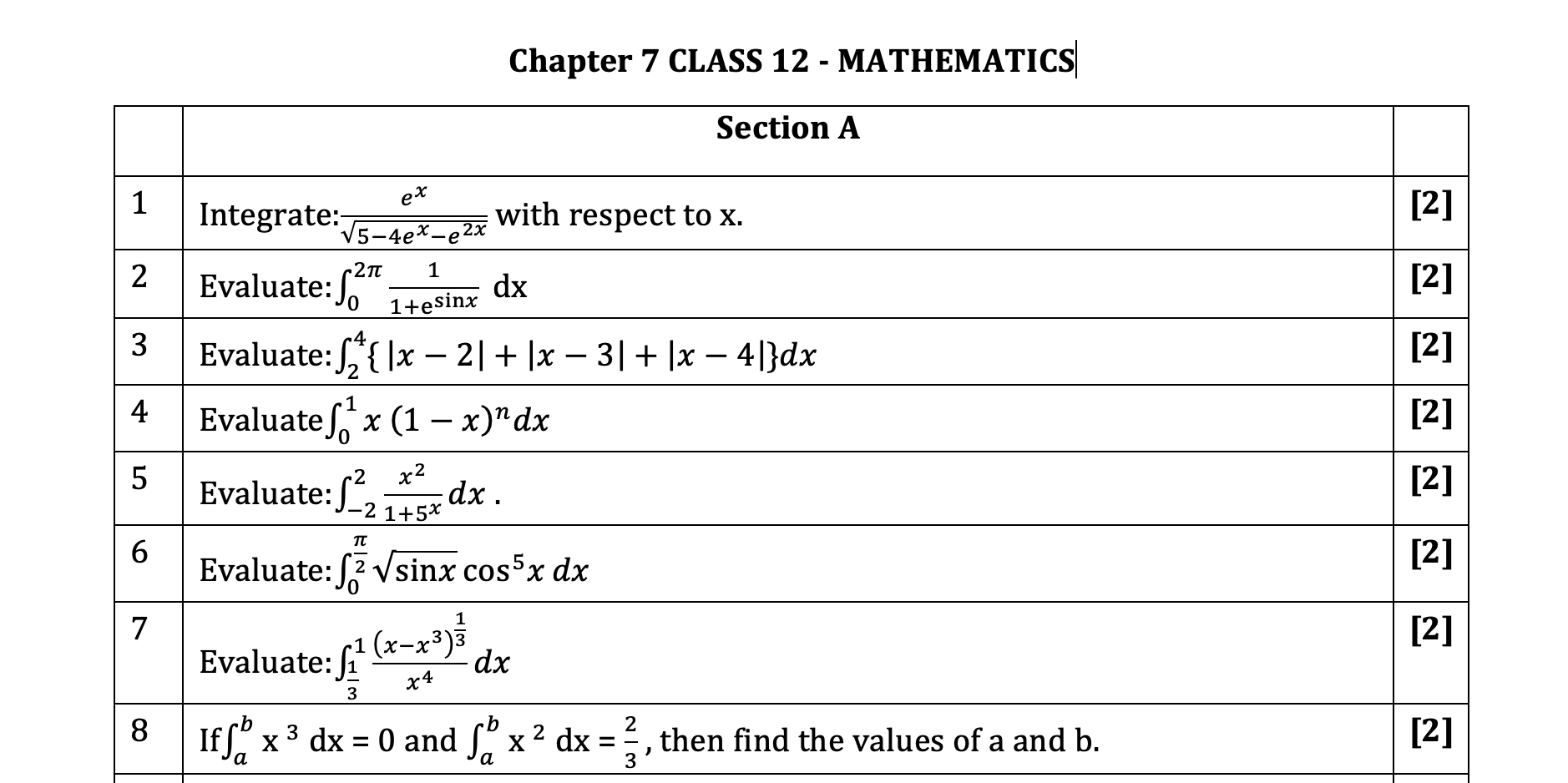
(b) Remove the table permanently Let’s discuss them one by one.
Video Tutorial
https://www.youtube.com/watch?v=k68nMjLagXYHide the Table
Hide the table lines so that the formatting of the text will remain there, but the table will not be visible. Like this: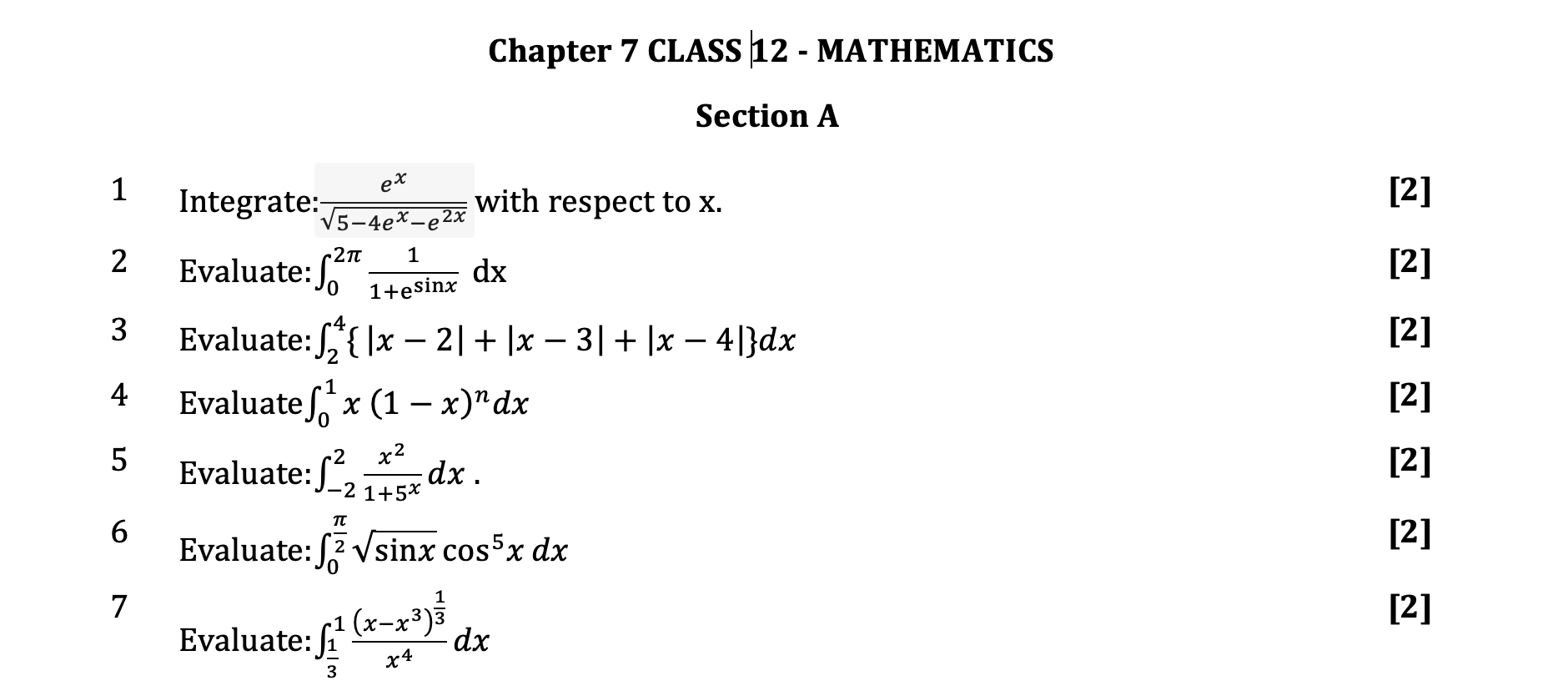
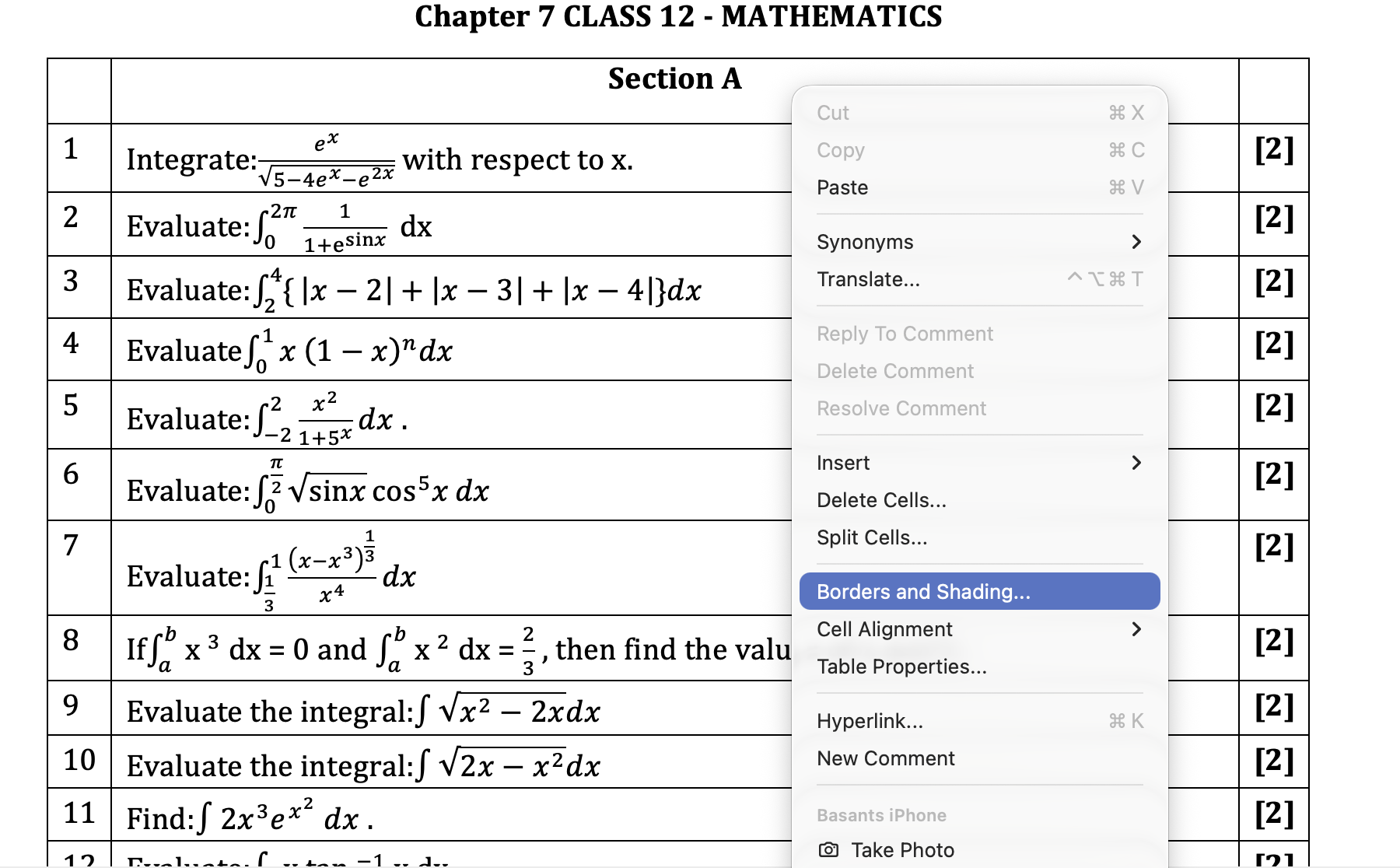
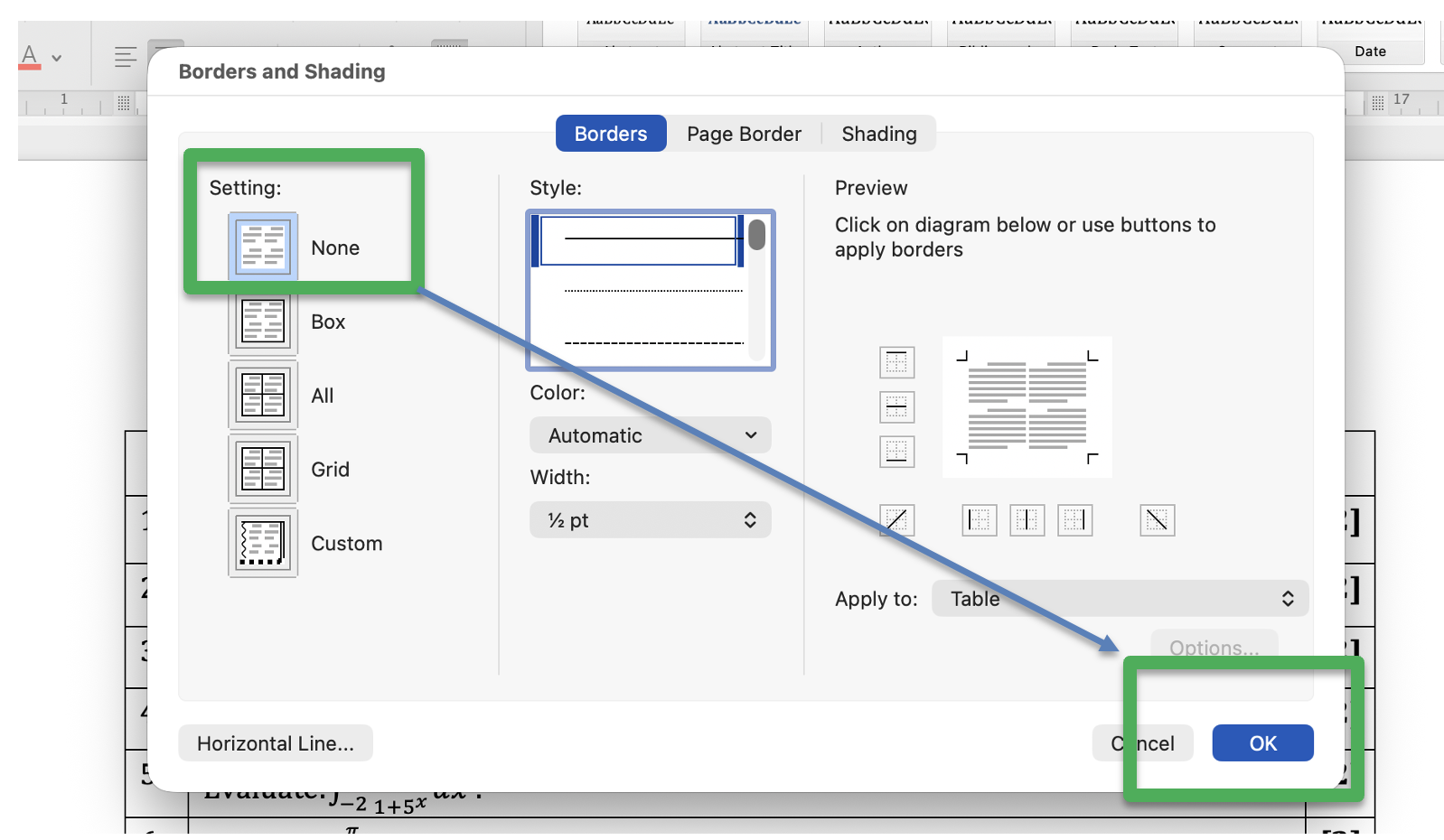
Remove the Table
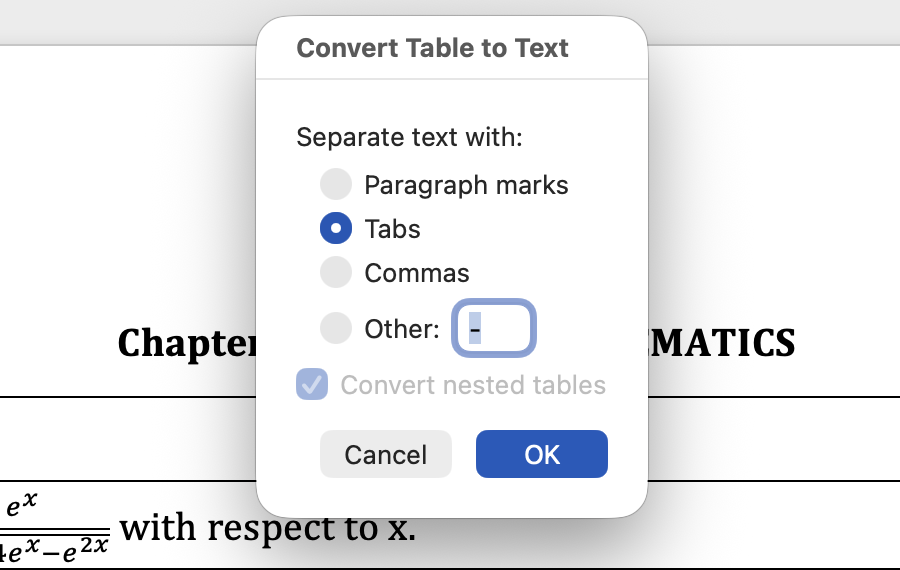
Permanently remove the table structure and keep only text so that you can do the formatting part yourself. Like this: