

(1) Internal Choice within Question
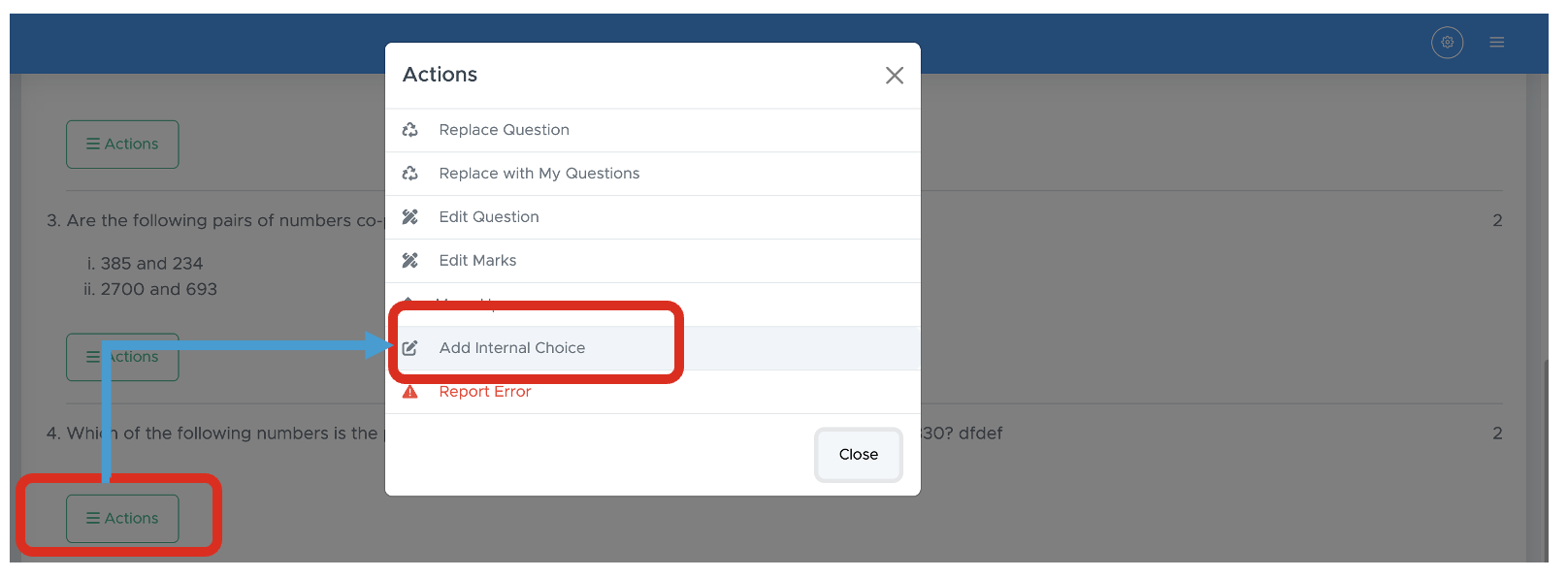
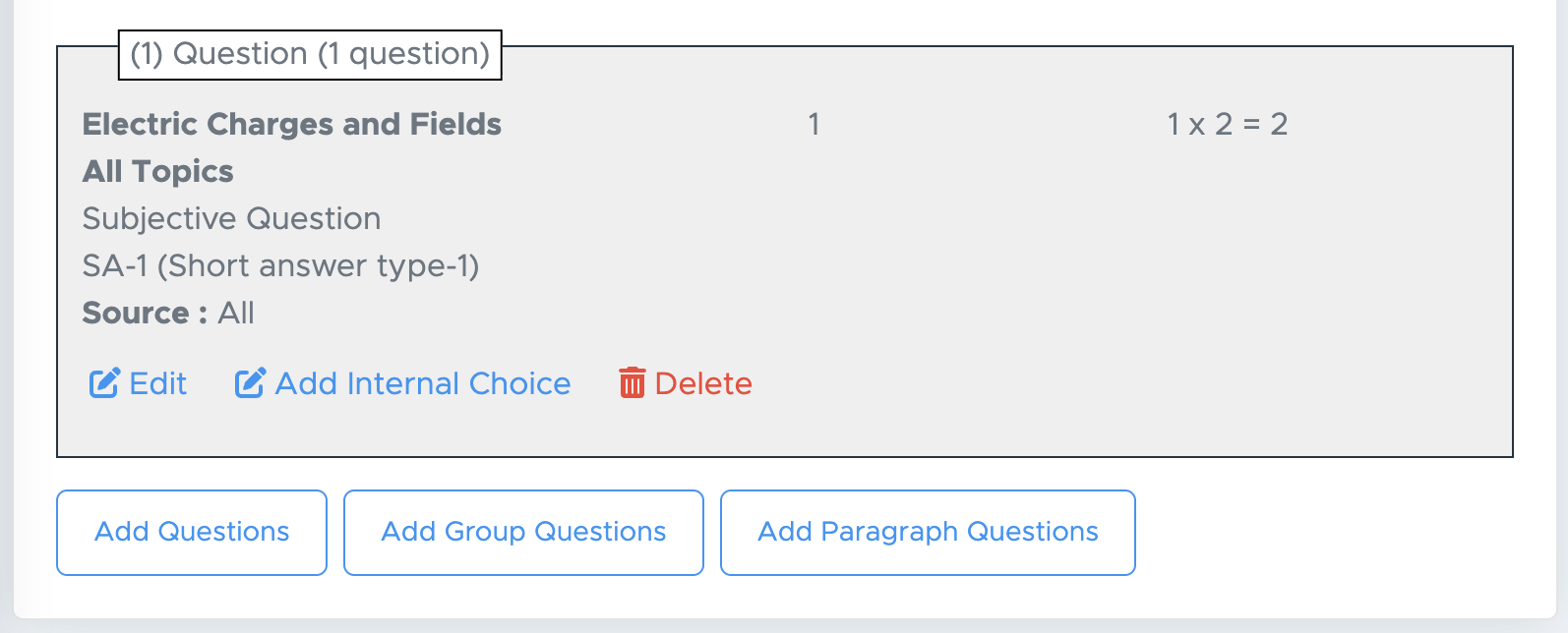
This is the case where you need to add another question with an OR between them, allowing students to attempt any one of them. You can add a maximum of two internal choices within one question. (a) Example: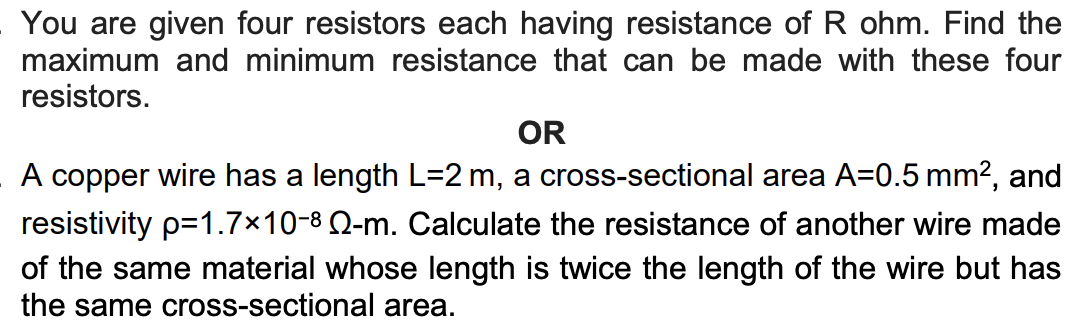
- Question Paper (PDF/Word)
- Worksheet (PDF/Word)
(2) Internal Choice within Section
This is the case where we have given the choice to attempt n number of questions from a particular section. (a) Example: Suppose there are 10 questions in Section-B and you want students to attempt any 8 questions out of these 10 questions, you should use this feature.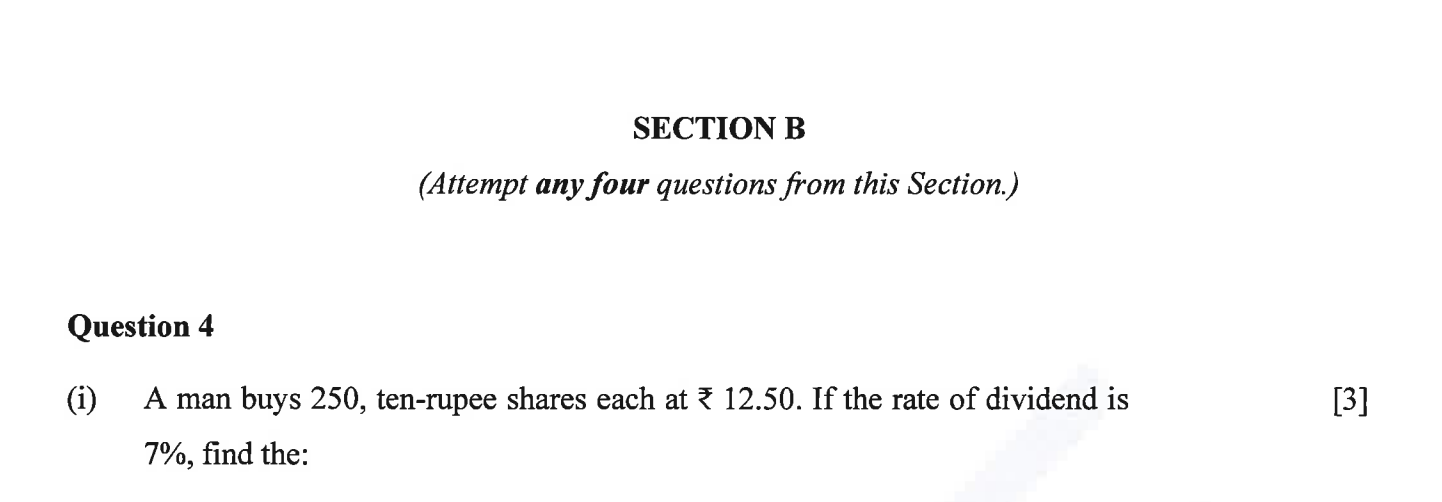
- Question Paper (PDF/Word)
- Worksheet (PDF/Word)
- Online Test - Objective (Link)
- Online Test - Subjective (Link)
Make sure to calculate these temporary extra marks correctly and carry both the actual question count and the inflated marks into Step 2, as the proper reduction happens in Step 3. Example (Manual Mode) If, in Section B, students are required to attempt 8 out of 10 questions, you must enter all 10 questions in Step 2.
This will temporarily raise the total marks, and that is fine—do not adjust the marks at this stage. The correct total will be applied automatically once the internal choice is set up in Step 3. Example (Express Mode) If all 3-mark questions fall under Section B, you should enter 10 questions (totaling 30 marks).
In Step 3, you will then have the option to reduce the effective marks by specifying an internal choice within that section. Important Note If you enter only 8 questions in Step 2, you will not be able to add the remaining questions later. As a result, you will be unable to apply Internal Choice Within the Section in Step 3. Implementation in Step-3 Go to “Advance Test Options” and, under “Add Internal Choice within Sections,” click Enable.

For instance, if a section has 25 questions and you want the student to attempt only 20, simply enter 20.
If you leave a section empty, it indicates no choice is available, and the student will be required to attempt all questions in that section.
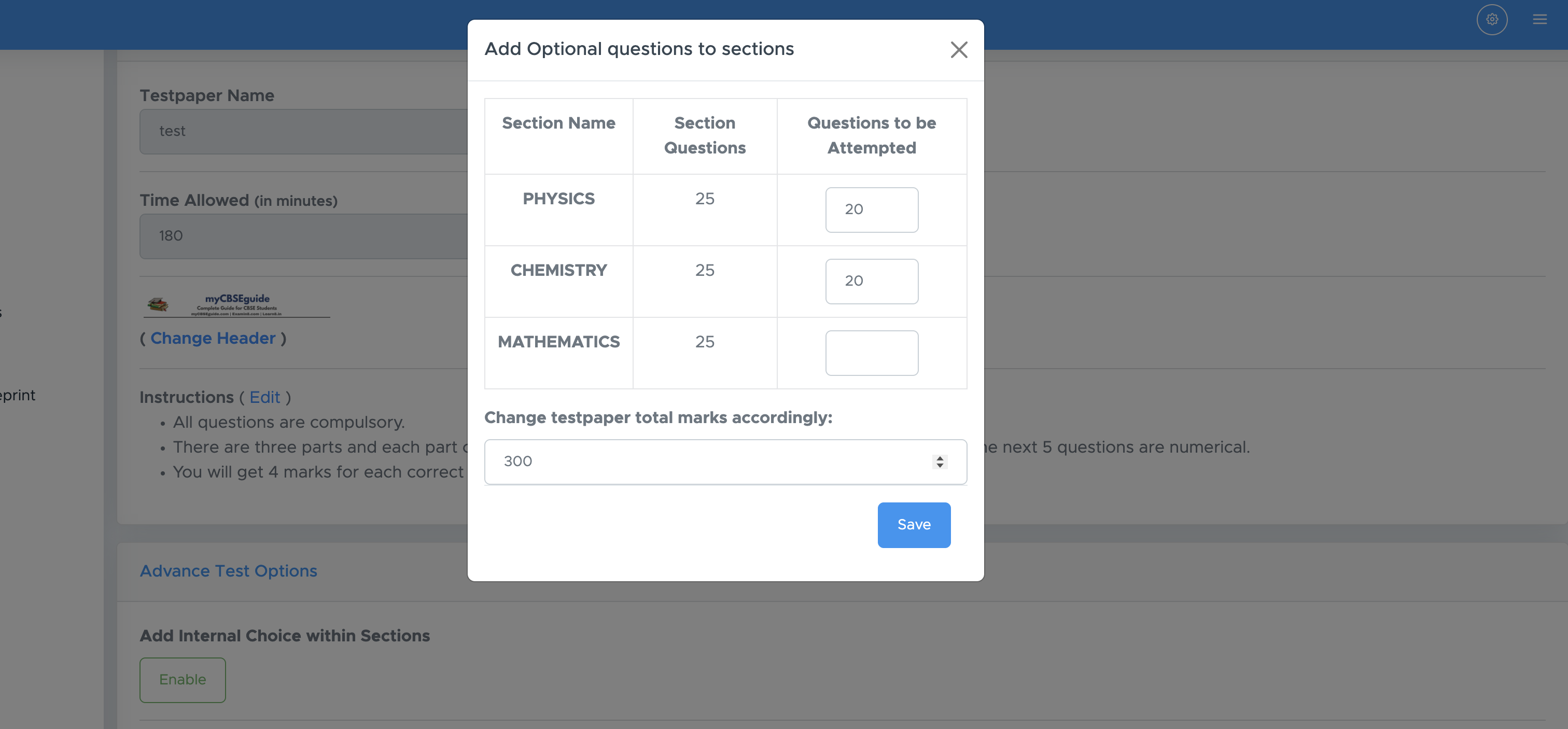
In the example above, the original paper had 75 questions for 300 marks (4 marks per question).
If you reduce the total number of questions to 65, the marks must be recalculated:
65 × 4 = 260.
So, replace 300 with 260 in the total marks field. Now, you will get this choice in PDF file as well as during online tests, students will get the option to attempt the specified number of questions.
(3) Internal Choice within Group
This setting is used when several questions are combined into a single group, and students are allowed to attempt only a specified number of questions from that group. You can add a maximum of 50 questions to one group. (a) Example: Suppose a group has 6 questions, and students are asked to attempt any 5 of them. For example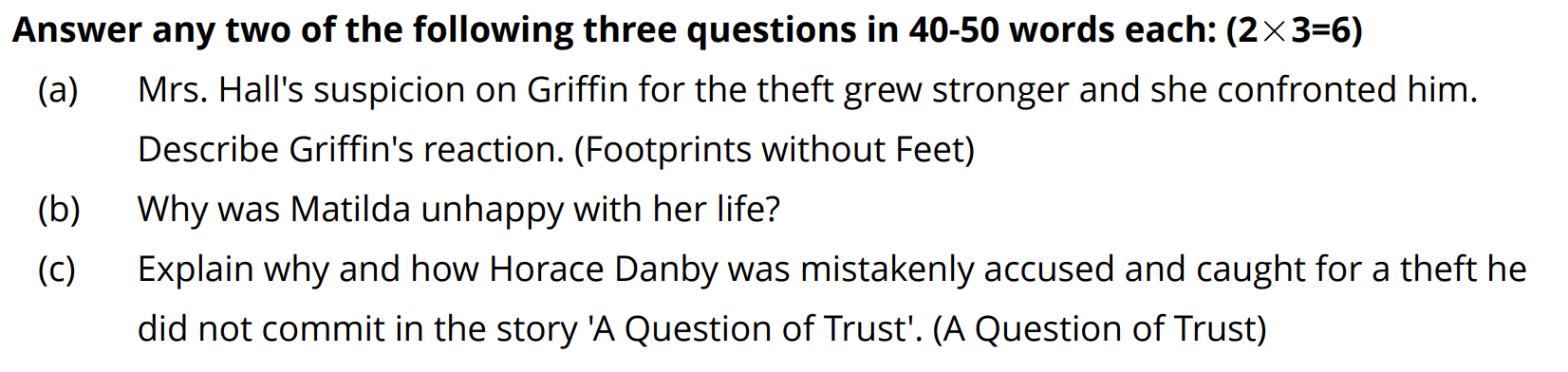
- Question Paper (PDF/Word)
- Worksheet (PDF/Word)
- Choose blueprint mode as MANUAL MODE while creating paper.
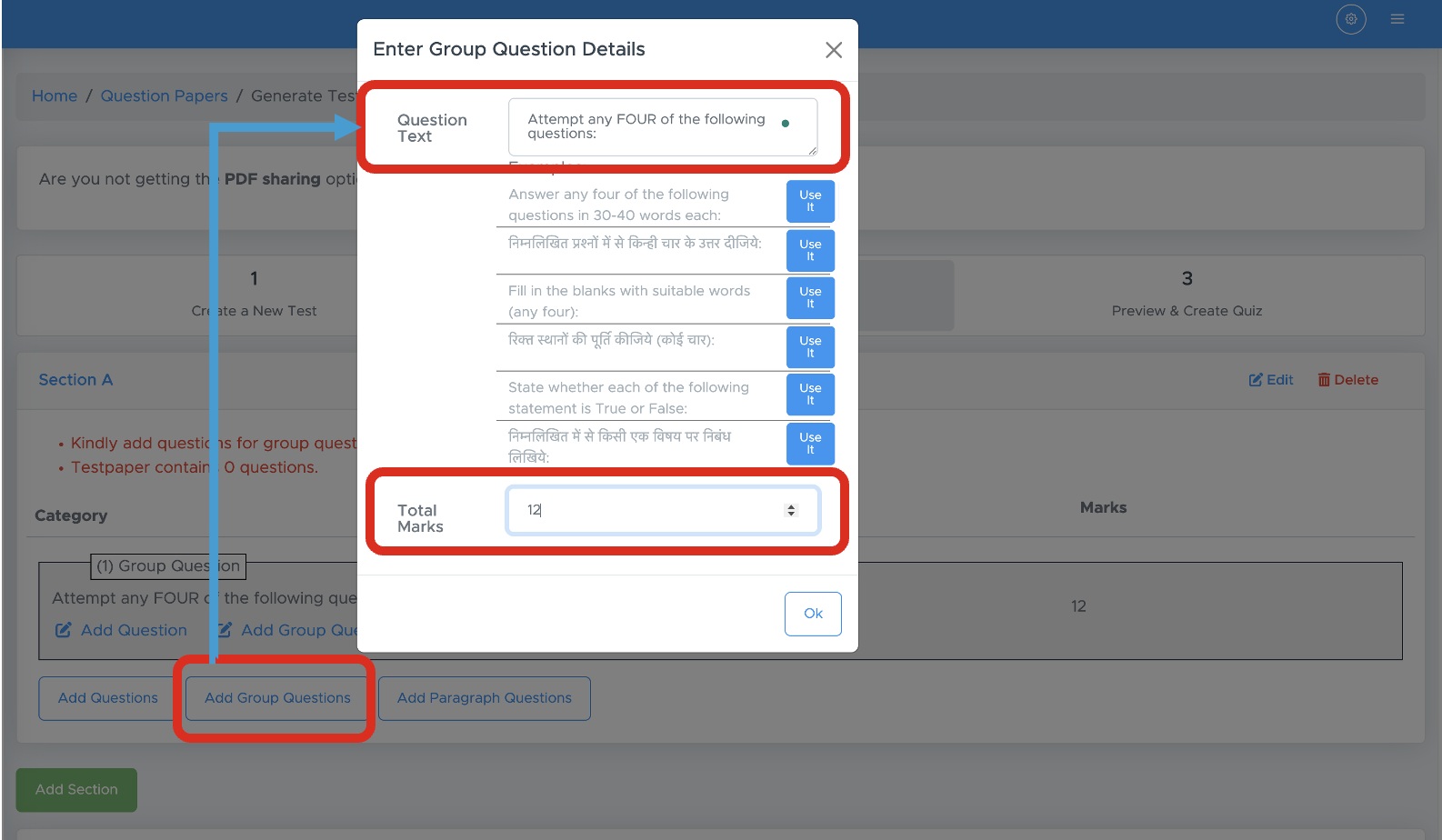
- On the next screen, click on “Add Group Question”
- Now select a label for this group. You can also type your own group label there or edit the provided labels.
- Here in the label itself, you will mention how many questions students will attempt and also put the total marks for this group accordingly.
-
For example, if there are FIVE 3-mark questions and students need to attempt any FOUR of them, your label may be “Attempt any FOUR of the following questions:” and total marks assigned to this group will be 3 X 4 = 12 Marks.
-
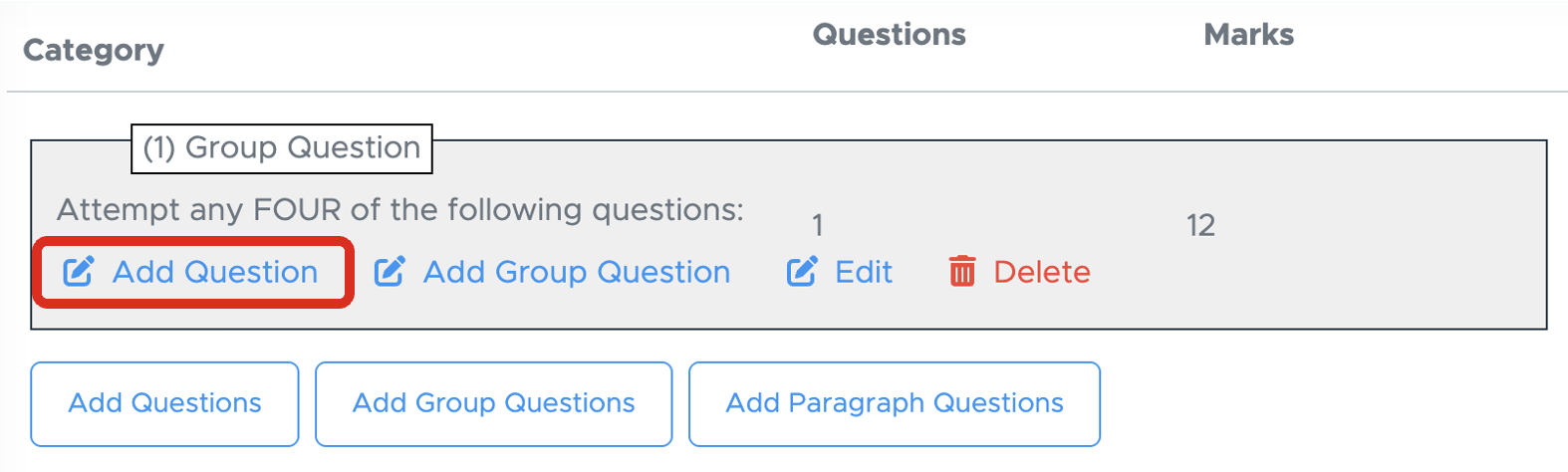
Now, click on “Add Questions” within this box to add questions to the group.
-
Here, one pop-up will appear to add questions. If you want to add all questions from one chapter only, you can select all 5 questions at once.
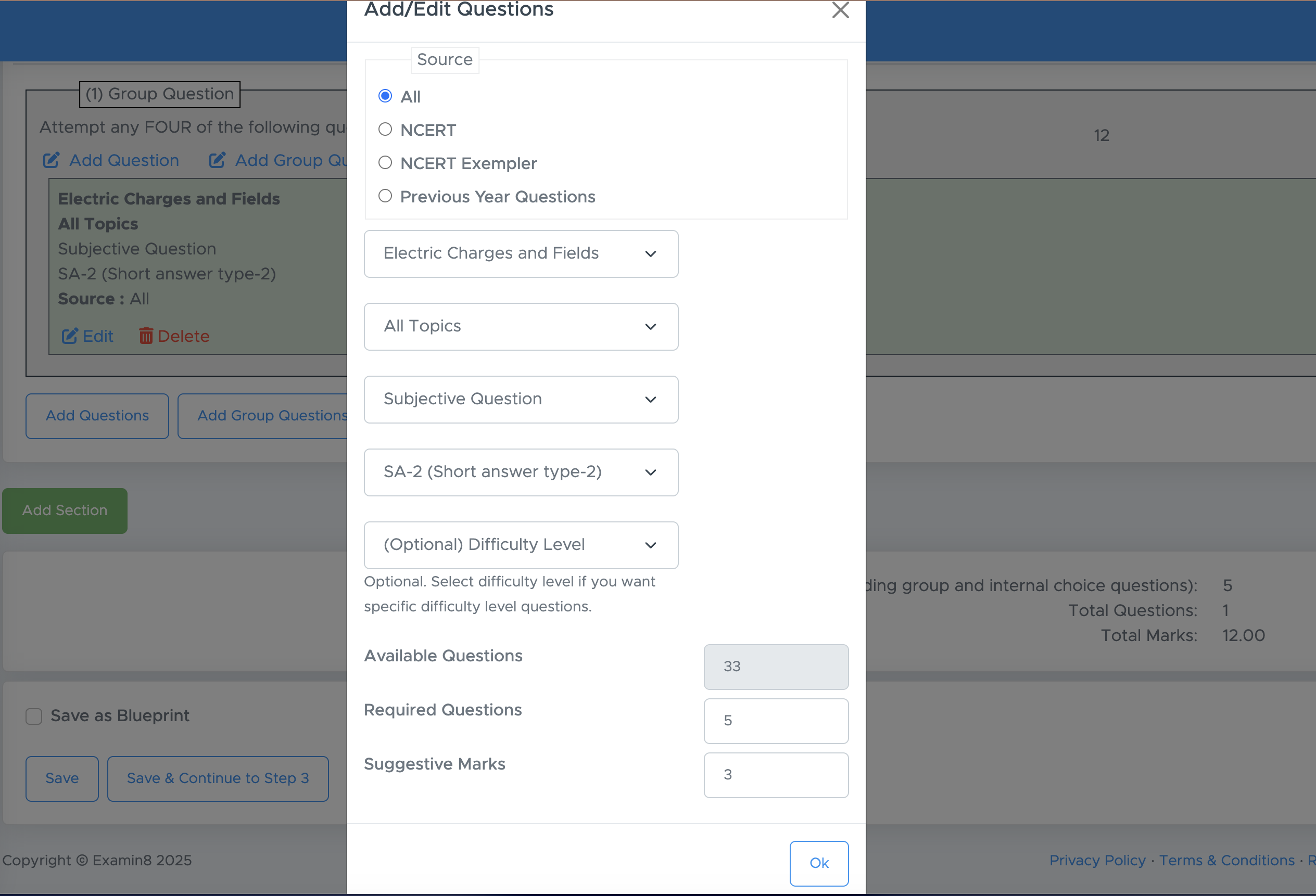
- Otherwise, if you want to add questions from multiple chapters, you can repeat points 6 and 7 multiple times for each chapter.
- It means to add more questions from multiple chapters. You need to click “Add Questions” multiple times and choose the number of questions from that chapter.
(4) Internal Choice between Two Groups
It is the case where we have two separate group questions with OR between them. (a) Example: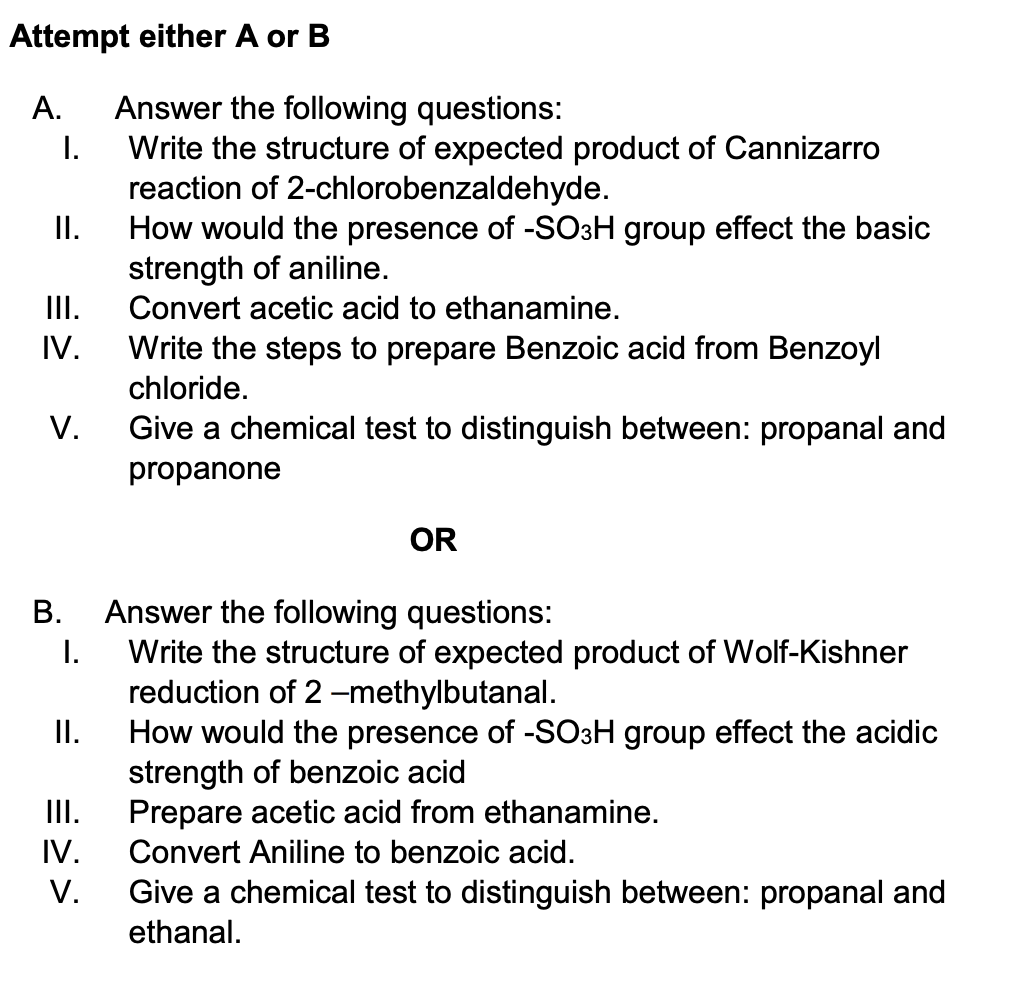
- Question Paper (PDF/Word)
- Worksheet (PDF/Word)
- Choose blueprint mode as MANUAL MODE while creating paper.
- On the next screen, click on “Add Group Question”
- Now select a label for this group. You can also type your own group label there or edit the provided labels. To make it exactly similar to the example given above, use label as “Attempt either A or B:”
-
After that, we will add two sub-groups to this group.
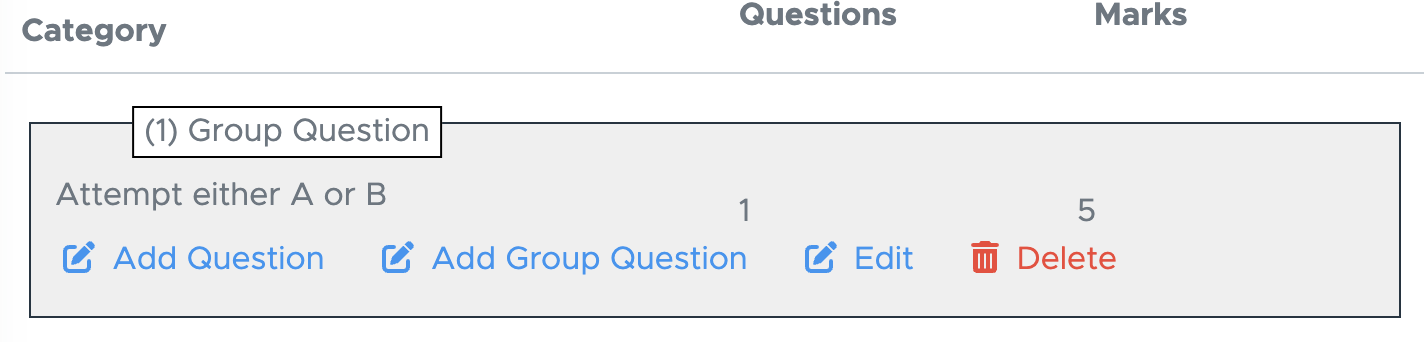
- Click the “Add Group Question” link provided within the box. Enter label as “Answer the following questions”. Choose a chapter, a topic and the number of questions, then click OK.
-
Repeat the above step to add another group question.
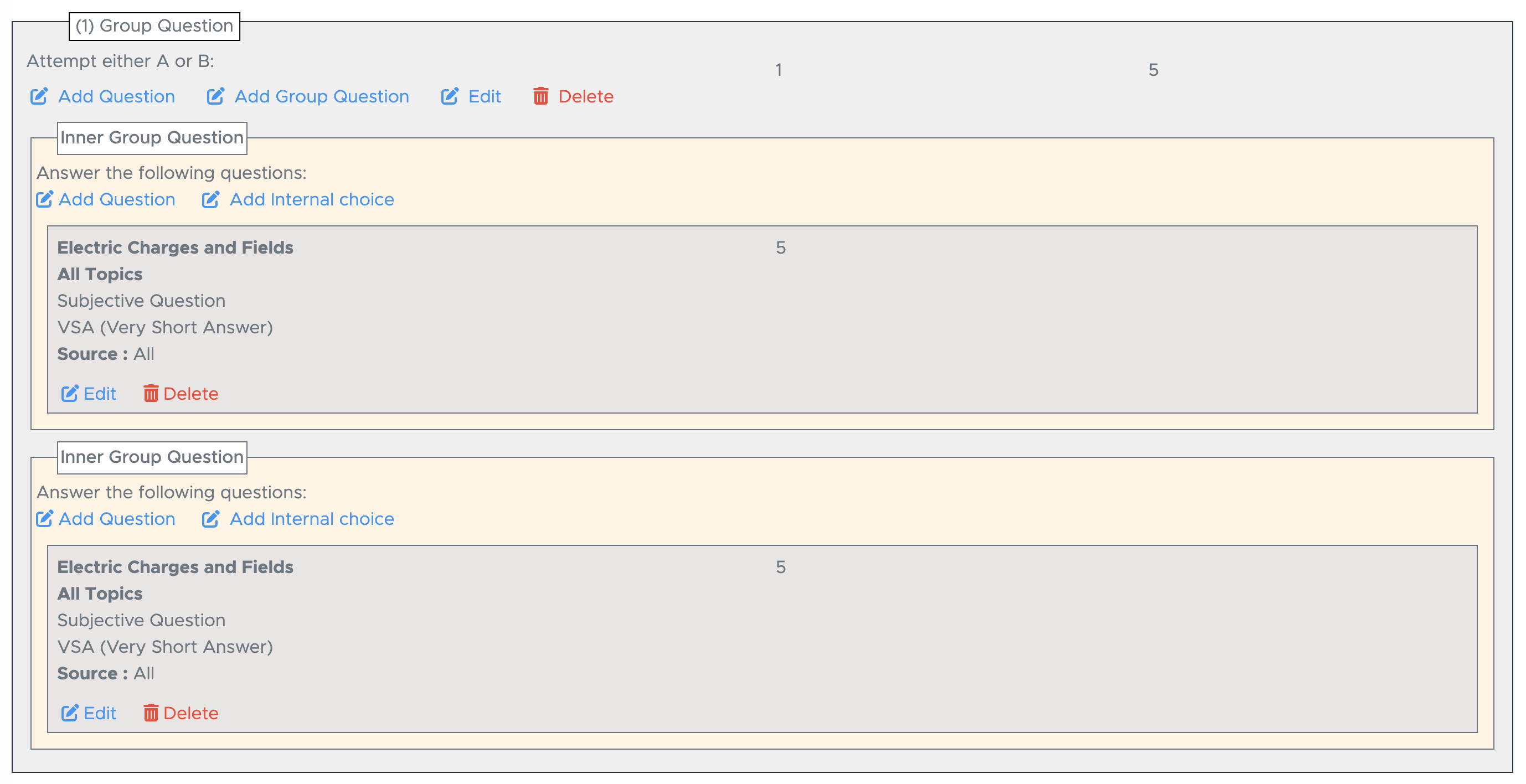
- Now, add. more questions and proceed to next step.
(5) Internal Choice within Paragraph Questions
This is the case where you are choosing questions based on a paragraph or an extract that is provided under “Add Paragraph Question” in manual mode or while creating a blueprint.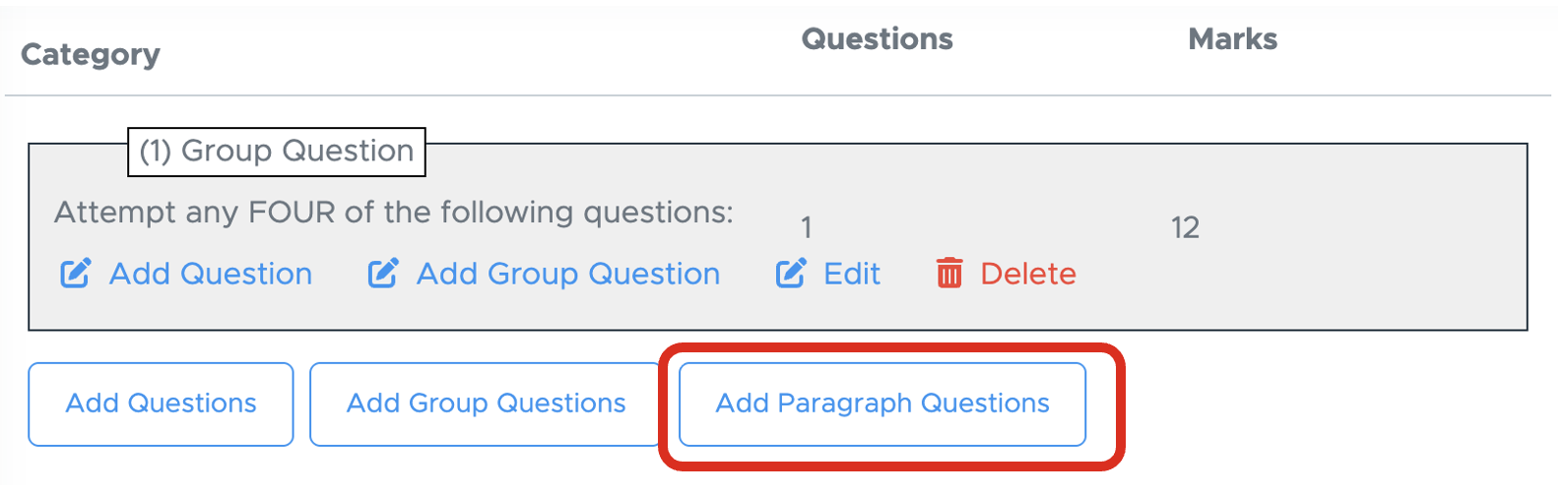
- Question Paper (PDF/Word)
- Worksheet (PDF/Word)
- Choose blueprint mode as MANUAL MODE while creating paper.
- On the next screen, click on “Add Paragraph Question”
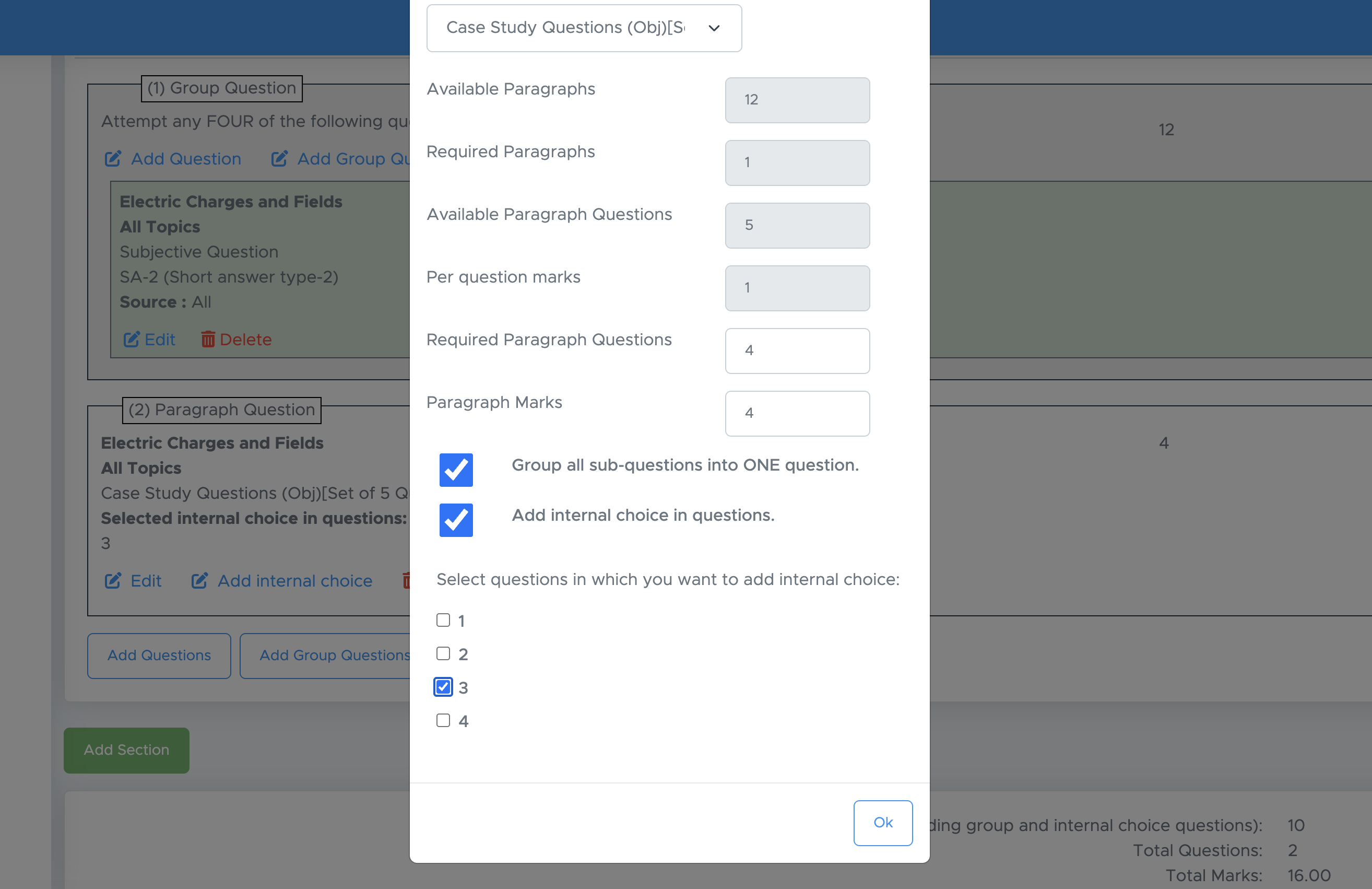
- Now select the number of questions required. It should be less the provided questions to enable internal choice.
-
Then select the question number for which you want to add an internal choice and click OK.
(6) Internal Choice Between Paragraphs
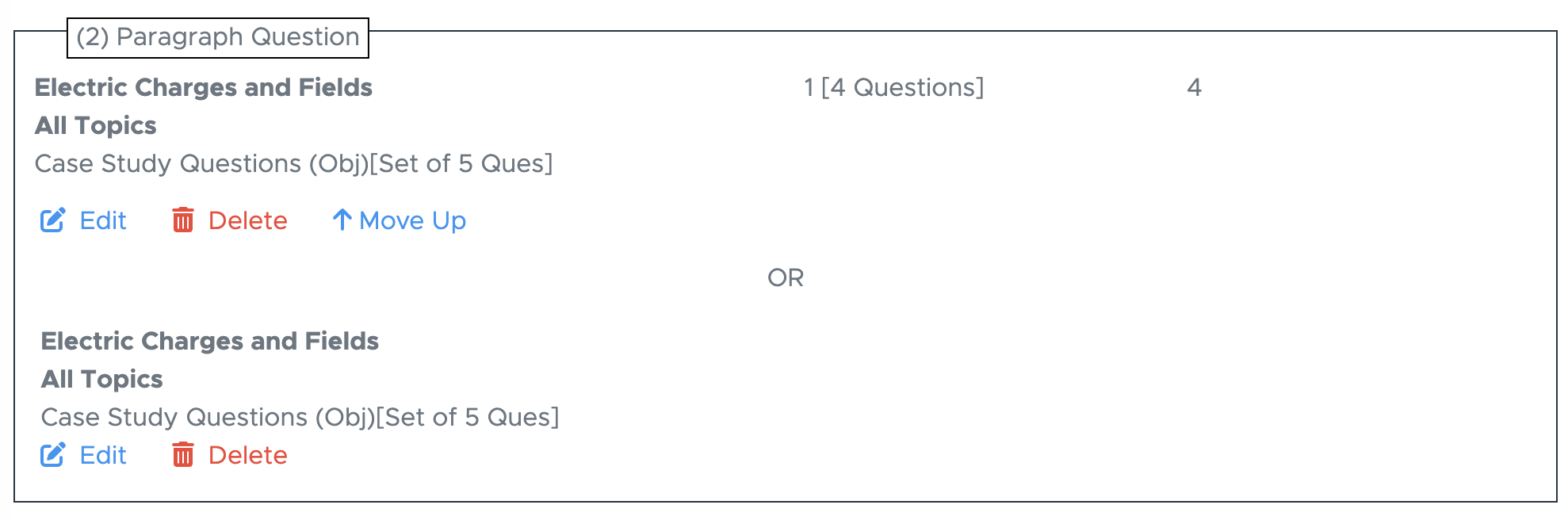
This is the case where you are giving a choice between two paragraphs or two extracts that are provided under “Add Paragraph Question” in manual mode or while creating a blueprint. (a) Example: Two paragraphs or extracts are given with questions, placing the text **OR **between them. (b) Applicability: You can apply it to- Question Paper (PDF/Word)
- Worksheet (PDF/Word)
- Choose blueprint mode as MANUAL MODE while creating paper.
- On the next screen, click on “Add Paragraph Question”
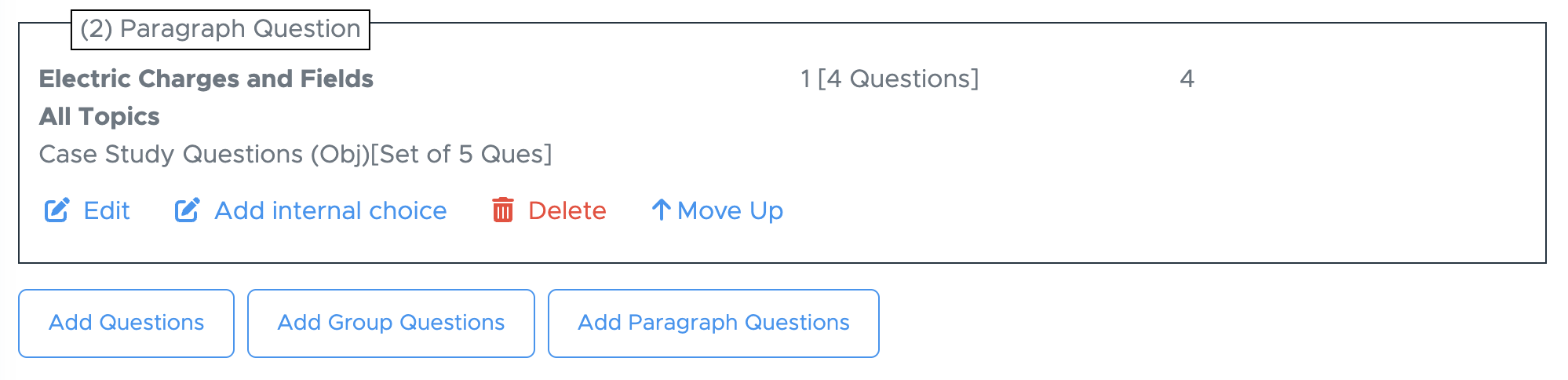
- Select one paragraph with the desired questions and click OK.
-
Now, click “Add internal choice” to get the same pop-up again.
-
Choose the paragraph again to add as another choice.
- Select express mode while creating a question paper.
- Select a chapter and the topic. You can choose all topics to get all questions from this chapter together.
- Now, choose Paragraph like Case Study Questions (obj) [set of 5 Ques] and enter the number of paragraphs required. Ideally, it should be 1 paragraph only because we will add the internal choice in step-3 only.
-
Each paragraph contains multiple questions. In this example, the paragraph includes a set of five questions. You can choose how many of these the student must attempt—any number up to five, but not more than that.
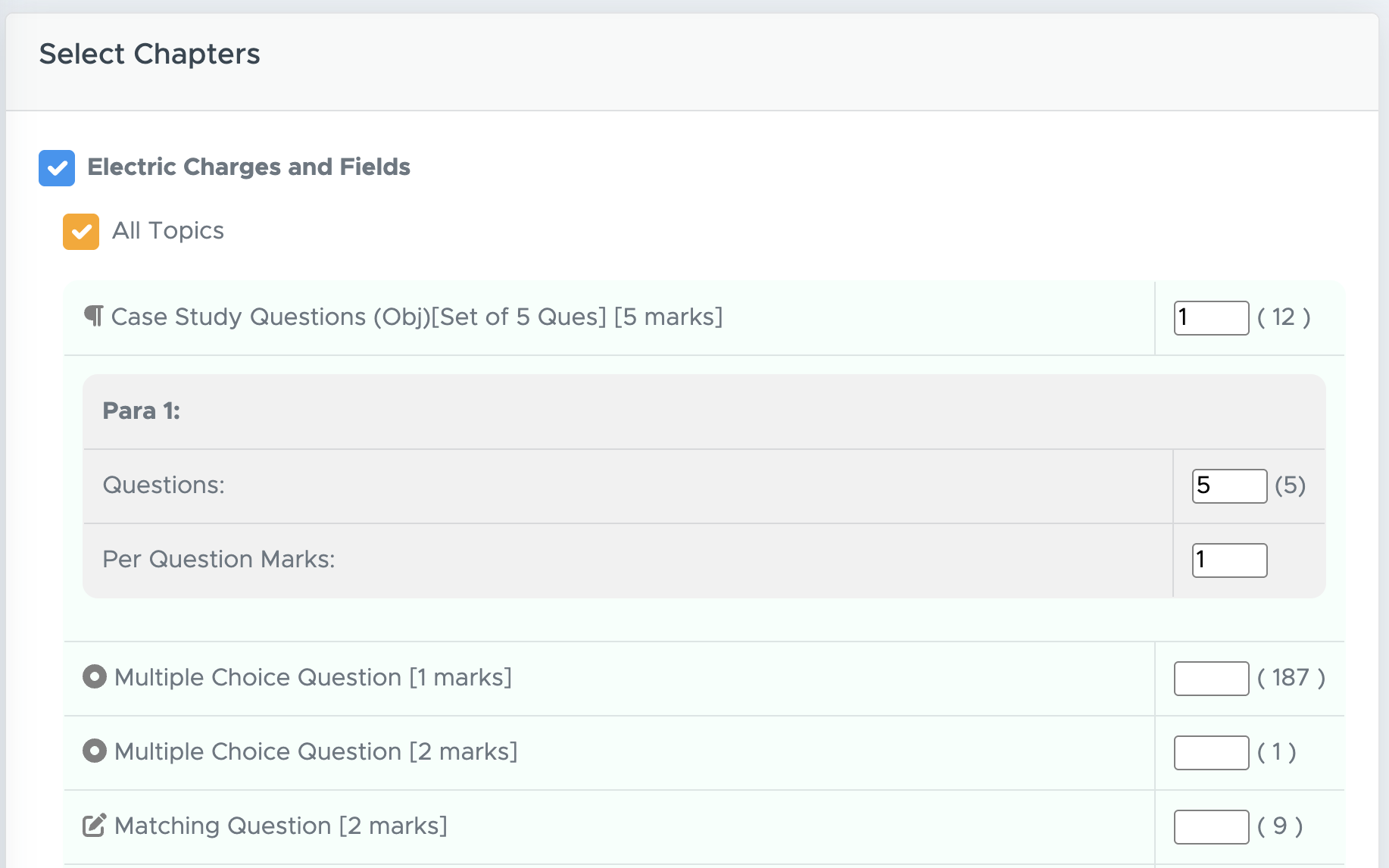
- Then proceed to next step after adding more questions to the paper.
- In step 3, you have the option to add an internal choice.
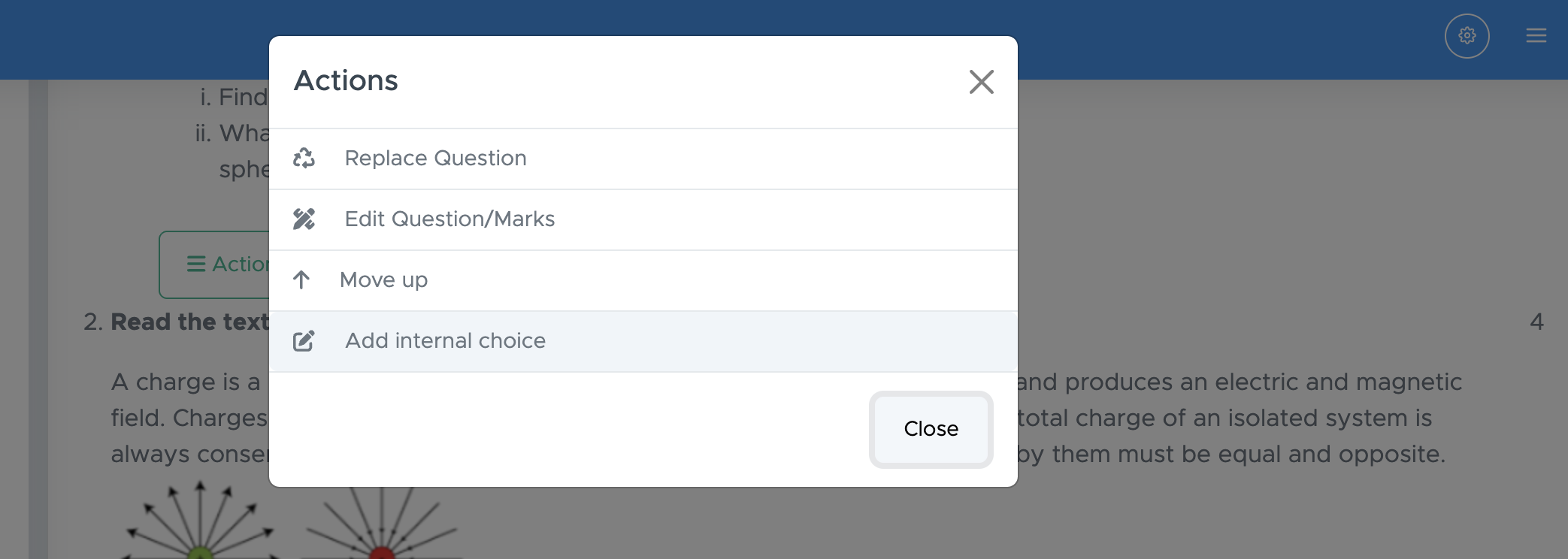
- Just click ACTIONS below the paragraph text and click Add Internal Choice to get it.